Classic Outlook can hide the mouse pointer while messages still highlight as it moves. Selecting a highlighted message may restore it. Another workaround is to click inside an editable PowerPoint window, then return to Outlook.
A missing blinking line while typing is a different problem. Check whether you're losing the mouse pointer, the text insertion point, or all mouse control before changing settings.
In this guide
1. Check which cursor has disappeared
Move the mouse from Outlook onto the taskbar or another app. If the pointer returns outside Outlook, Windows is still detecting your mouse movements. Watch whether messages change shade as the invisible pointer passes over the message list.
That highlight behavior matches the classic Outlook pointer issue. Microsoft lists it as under investigation, with temporary workarounds rather than a published permanent fix.
This advisory applies to classic Outlook for Windows. A similar symptom in new Outlook, the web version, or the Mac app needs its own report. Trying the same workaround in another version won't explain why its pointer disappears.
For a visible mouse pointer with a hard-to-see blinking insertion line, go to the text-cursor section. If the pointer is missing everywhere, check Windows mouse settings and your mouse connection instead.
When buttons still highlight but you can't see where you're clicking, avoid delete or move controls. Use an ordinary message in the list for the first recovery attempt so an uncertain click doesn't change your mailbox.

2. Select a message that highlights under the pointer
Move slowly across the message list and look for a row changing color. Select that message once. The pointer may reappear after Outlook selects it, so move over another part of the window to check.
This is the quickest workaround because you don't have to close the app or interrupt other work. It may only restore the pointer temporarily. If it disappears again, continue to the PowerPoint step rather than repeatedly clicking around.
Keyboard navigation can help while the pointer is invisible. Press Alt+Tab to move to another open app where you can see the pointer. That gives you a visible place to open PowerPoint or save work before a restart.
Opening a message shows that Outlook still accepts input. If the app ignores both clicks and keyboard commands, the problem goes beyond a mouse pointer that's invisible but still works.
For an app that stops responding completely, use the Outlook opening checks for the app failure. Keep the disappearing-pointer report separate when the mailbox itself continues to work.
3. Click inside an editable PowerPoint window
Open PowerPoint and open an editable presentation, or create a blank one. Click into an editable area of the window, then return to Outlook. Move the pointer across the message list and the ribbon to see whether it remains visible.
This workaround needs a PowerPoint window where you can edit a presentation. A slide show running full screen isn't the same check. If you only have a presentation open for viewing, leave that view and use an editing window.
Leave the presentation's contents as they are. Just click inside its editing window and switch back to Outlook. Save any real presentation changes before closing PowerPoint later.
I'd try this before restarting the computer because it takes less time and keeps your current work open. It still isn't a permanent repair: note whether it helps and whether opening another email makes the pointer disappear again.
If PowerPoint isn't installed, skip this step. You can use the restart option without installing PowerPoint for this workaround. Save any open work first.
4. Restart after saving work in every open app
Save draft emails and open documents, then choose Start > Power > Restart. Wait for Windows to return to the sign-in screen, sign in, and reopen classic Outlook.
Check the pointer in the message list before reopening every other app. Then resume your usual work and note when the failure returns. A restart that helps for only a short time is still useful information for the support case.
If the cursor vanishes again, report how long it stayed visible and what was happening when it disappeared. The current advisory doesn't name one confirmed cause for every affected PC.
The issue has also been reported in OneNote and, less often, other Microsoft 365 apps. Mention those apps if you see the same behavior there. That helps support understand why an Outlook-only reinstall might miss the wider symptom.
5. Change visibility settings for a different mouse symptom
For a pointer that disappears specifically while typing and returns when you move the mouse, check the setting that hides it while typing. On Windows 11, open Settings > Bluetooth & devices > Mouse > Additional mouse settings.
Choose Pointer Options in Mouse Properties. Under Visibility, clear Hide pointer while typing, then select OK. Move the mouse over the message body and type a few characters in a draft to compare the behavior.
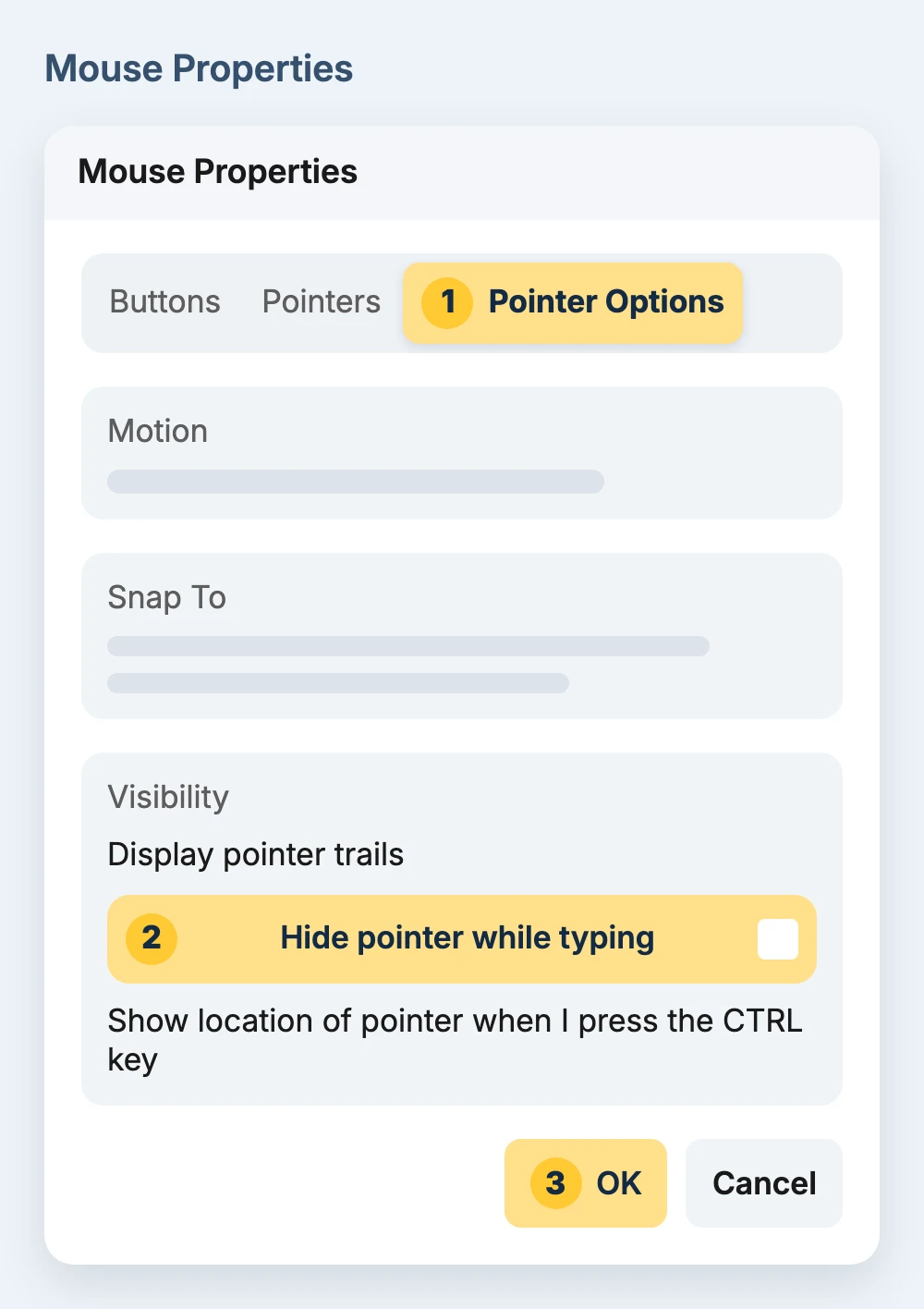
On Windows 10, use Settings > Devices > Mouse > Additional mouse options, then the same Pointer Options tab. This changes a Windows pointer preference; it isn't a fix for the classic Outlook issue described earlier.
For a hard-to-see pointer, try a larger size or better contrast. Windows 11 has those controls in Settings > Accessibility > Mouse pointer and touch. For Windows 10, use Ease of Access > Mouse pointer.
6. Make the blinking text cursor easier to see
If only the insertion line inside a draft is hard to find, open Settings > Accessibility > Text cursor on Windows 11. Adjust Text cursor thickness, or turn on Text cursor indicator and choose a visible size and color.
On Windows 10, use Settings > Ease of Access > Text cursor. Compare the preview with the draft window after changing the setting. These controls help you see where typed text will go; they don't move an invisible mouse pointer.
For other email display problems, such as attachments missing from a message, troubleshoot the affected content separately. Making the typing cursor visible won't change which files arrived with an email.
Send a persistent classic Outlook failure to the right team
Have the administrator who handles Microsoft 365 at your organization open a support case for the Outlook Support Team. Include the Outlook and Windows versions, the apps affected, and which of the three workarounds helped or failed.
The advisory asks for a recording of the problem and WebView2 performance traces. The traces record diagnostic activity during the problem. Have the administrator follow its linked tracing instructions and attach both items to the case.
The Short Version
Restore the classic Outlook pointer by selecting a message, trying PowerPoint, or restarting. Check typing visibility and the text cursor separately. Ask your administrator to report a recurring failure.
Checked November 29, 2026.
 If you have any business, I can build it online