Outlook's linked-image error can mean Windows can't temporarily save encrypted images, or a registry setting blocks web images. In classic Outlook for Windows, check Internet Options first, then the image-blocking registry value.
A broken image in only one email can also be a sender's link problem. Compare another message before changing settings, especially if this started with one newsletter or signature rather than every message.
In this guide
1. Check whether downloading the picture still fails
Open an affected message in classic Outlook and read the image placeholder. A privacy notice offering to download pictures isn't yet the same fault as a download attempt that ends with the linked-image error.
For a trusted sender's message, right-click the blocked image and select Download Pictures if offered. If the image appears, Outlook's normal external-image blocking was the reason. You don't need a registry repair for that message.
If downloading instead produces The linked image cannot be displayed, continue with the Windows settings in this guide. Microsoft describes both the image-blocking value and a separate encrypted-page caching setting behind this message.
Compare a second trusted message that contains a web-hosted picture. One failed logo in an old message is different from every current email losing its pictures. Write down whether the failure affects all senders or just one.
These repairs apply to Outlook's classic Windows app. New Outlook, Outlook on the web, Mac and phone apps don't use the same Windows registry paths. Don't make these changes to fix a message viewed only in one of those apps.
2. Allow encrypted pages to be saved in Internet Options
Close Outlook. Press Windows+R, type inetcpl.cpl, and press Enter to open Internet Properties. Windows also calls this control Internet Options. It still applies when you normally browse with Chrome or Edge.
Select Advanced, then scroll through Settings to the Security group. Clear Do not save encrypted pages to disk, select OK, and start Outlook again. Reopen the affected message and try downloading its pictures.
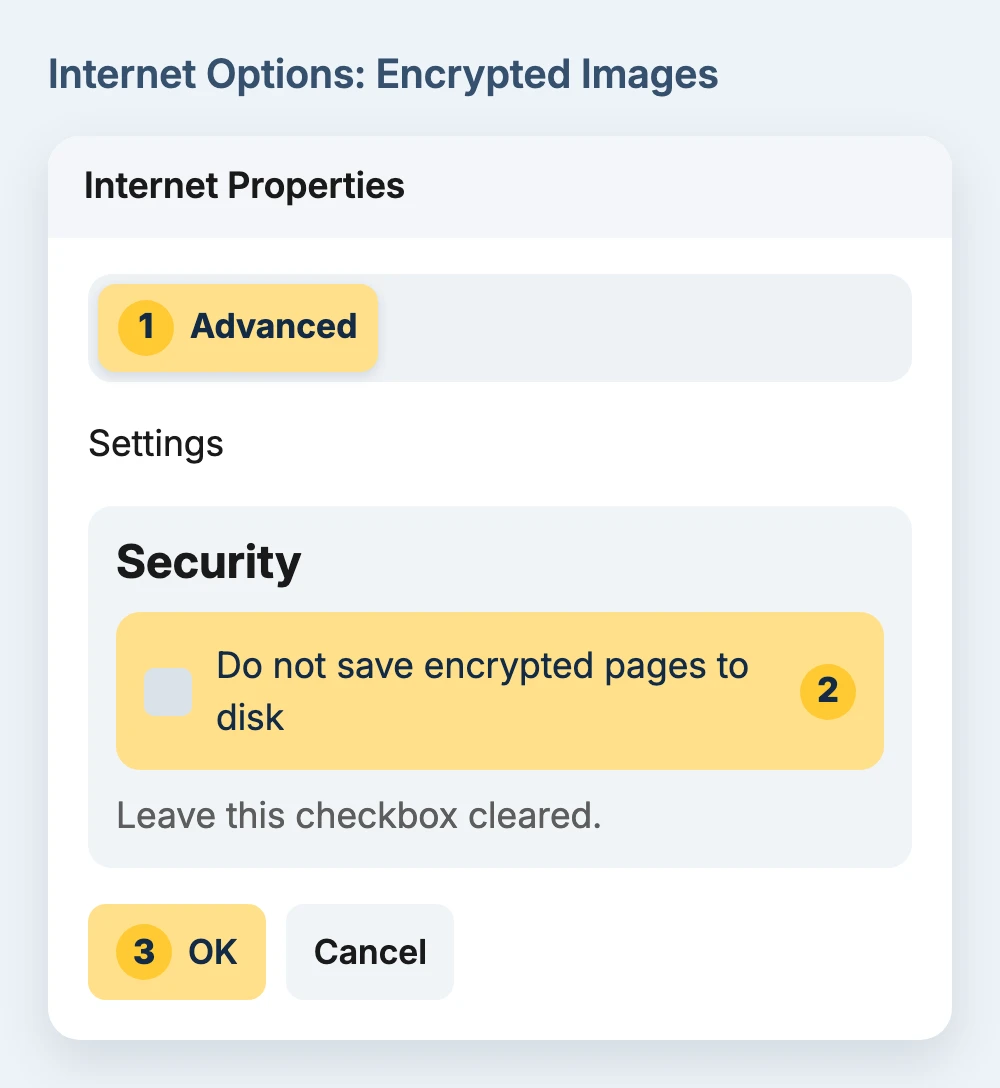
This changes the setting involved in the HTTPS linked-image failure. It doesn't change the sender's image address or restore a picture the sender has removed.
If the checkbox is unavailable, a policy may be managing it. Ask your administrator to review DisableCachingOfSSLPages for the affected user or computer. They can review the setting and decide whether to change the policy.
I'd check this control before editing the registry because it's a visible setting with a direct test afterward. If it was already cleared, don't toggle unrelated security options; move to the image-blocking value instead.
3. Check BlockHTTPimages in the Office registry branch
Try this when classic Outlook still can't display pictures from a web address. Close Outlook again. Back up the registry branch before editing it, using File > Export in Registry Editor with the option to export the selected branch.
Press Windows+R, type regedit, and press Enter. Accept the permission prompt only if this is a change you're authorized to make. In Registry Editor, browse to the Office branch that matches the version you're using.
For classic Outlook in Microsoft 365, Outlook 2016 and Outlook 2019, inspect HKEY_CURRENT_USER\Software\Microsoft\Office\16.0\Common. Outlook 2013 uses 15.0, and Outlook 2010 uses 14.0 in the same position.
Find the DWORD value named BlockHTTPimages with data 1. If that exact value is present, right-click BlockHTTPimages, choose Delete, and confirm. Leave the Common folder and its other values intact.
If the value isn't there, don't create it as a troubleshooting step. If it's missing, this location doesn't contain that particular block. Check the policy branch next, or continue with the sender comparison if neither branch contains it.
Close Registry Editor, launch Outlook again and retry that message. When the image loads, you've changed a setting that was blocking web-hosted images; your mailbox and account setup can stay intact.
4. Let the administrator handle a policy that returns
The corresponding policy branch is HKEY_CURRENT_USER\Software\Policies\Microsoft\Office\16.0\Common, with 15.0 or 14.0 for those older Outlook versions. It can contain the same BlockHTTPimages value.
If that policy value is present, contact the administrator with its full path and data. A managed policy can return after a local deletion. Repeatedly deleting it won't change the settings your organization has chosen.
Include BlockHTTPimages and DisableCachingOfSSLPages in the same report when both causes match what you're seeing. Mention whether Download Pictures fails and whether more than one sender is affected.
Avoid changing general external-picture privacy settings across the organization just to fix one computer. The two named settings give the administrator a specific place to start, and your test messages let them verify the result.
For a personal PC that unexpectedly says a setting is managed, record the policy path before seeking help. Don't delete an entire Policies or Office branch to remove one image restriction; that can change settings unrelated to this fault.
5. Check the sender's image when the Windows fixes don't apply
For failures limited to one sender, request a check of their image URL and whether recipients can access it. A signature linked to a file on their own computer can't become a public image just because Outlook downloads pictures.
Ask for a fresh message with the image attached when you need to see it immediately. That avoids relying on the same broken web link and gives both sides a useful comparison with the original message.
When all messages work on another device but fail in classic Outlook, give support the app version, Windows version, the two settings you checked and the outcome. For an app that won't open at all, use the Outlook startup fixes first.
A missing message is a separate delivery problem. The Outlook receiving checks cover that situation; this repair is for pictures inside messages that have already arrived.
If the error survives both documented checks, use Outlook's Help support route or your Microsoft 365 administrator. Ask them to examine the failing image URL and your account's policies before considering mailbox deletion.
The Short Version
Try Download Pictures first. For a persistent classic Outlook error, allow encrypted-page caching and check BlockHTTPimages. Ask an administrator about managed settings, or the sender about one broken image.
Checked November 29, 2026.
 If you have any business, I can build it online