Yes, a transferable Windows 11 license can move to another PC. A preinstalled copy generally stays with its original computer, so check the original purchase before copying a drive or using its key elsewhere.
Moving personal files is a separate job. Backing up the old PC doesn't transfer its license. Activating the new PC doesn't copy your programs and documents over either.
In this guide
Check whether the license can move
Under its U.S. license terms, Microsoft states that a separately purchased copy can move to another device you own. Remove Windows from the previous device; one license doesn't cover both.
Windows that came installed on a laptop or desktop stays with that computer. Even after you stop using it, its preinstalled license doesn't become a spare key for a different PC.
A free upgrade doesn't erase that distinction. The terms cover upgrades from preinstalled software and upgrades from stand-alone software separately. Check how you originally bought Windows, even if the old PC now runs Windows 11.
I'd find the receipt or original order before wiping the old computer. An app that reads your product key can't tell you whether the original purchase lets you move Windows.
On company or school hardware, get licensing advice from the administrator. The way an organization activates Windows differs from a personal retail license. Ask its IT team whether that copy can move to another computer.
Read the old PC's edition and activation status
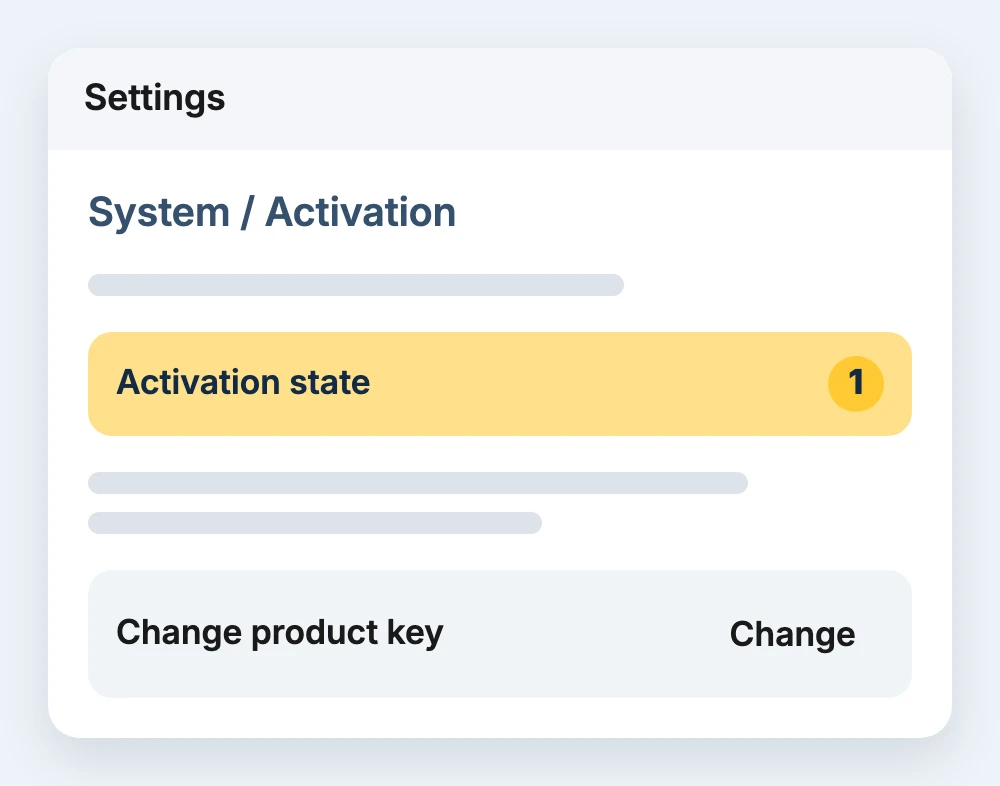
Open Start > Settings > System > Activation on the old Windows 11 PC. Note whether the installed edition is Home or Pro, then expand Activation state to read the activation message.
A digital license is an activation record tied to the PC. Linking it to your Microsoft account helps with reactivation. Linking the account doesn't change whether your original license can move.
If needed, follow the activation-status checks before dismantling the old PC. Record the account that owns the digital license and keep any separately purchased product key somewhere private.
Match editions when installing on the new machine. A Home license isn't a Pro license. If you choose Pro during setup and enter a Home key, the editions won't match, even though you have a valid key.
If the replacement PC already came with an activated copy of the edition you need, use that license. There may be no reason to move the old one just to make your files available on the new computer.
Install Windows for the replacement hardware
Set up Windows 11 on a computer that meets its system requirements. Even with a license you can transfer, the new PC still has to meet those requirements. Copying the old system drive won't change them either.
Use the replacement PC's existing Windows installation when it already has the right edition. For a blank machine, install from Microsoft's Windows media, choosing the edition your transferred license covers.
If setup asks for a key you intend to enter later, its I don't have a product key option lets installation continue. Enter the key after setup. Skipping that screen doesn't supply a license or mean Windows will activate automatically.
Avoid erasing the old drive until your files are backed up and readable elsewhere. Keep the backup separate from any disk you plan to format during setup. A folder still sitting on that same disk isn't protection against erasing it.
A fresh installation also lets Windows set itself up for the new computer. Copying the old installation and transferring its license are separate jobs. A copied drive that starts successfully still needs valid activation.
Activate the eligible license on the new PC
Connect the replacement computer to the internet. Open Settings > System > Activation. For a transferable product key, choose Change beside Change product key and enter the key for the installed edition.
For a digital license, use the Microsoft account attached to that license. If activation doesn't complete, the reactivation instructions describe the hardware-change route.
Select Troubleshoot when it appears on the Activation page. Choose I changed hardware on this device recently, then Next. Sign in if asked and select the matching device from the account's list.
Select This is the device I'm using right now, then choose Activate. Use this option when your license allows the transfer. An old PC appearing in the list doesn't change whether its license can move.
The troubleshooter is for Windows that isn't activated. To use it, sign in as an administrator. If the new PC is already activated, check whether it's using its own valid license before trying to move the old one.
Return to the Activation page afterward. Check that Windows says it's activated; signing in successfully isn't the same thing. If an error remains, save its code for the support step instead of trying unrelated keys.
Move files and reinstall the apps you need
Once you've dealt with the license, move your documents and photos and set up your apps. Use a backup, an external drive, or the supported new-PC file transfer route for the data you want to keep.
Open several copied documents on the new machine before retiring the original. Check files outside the usual Documents and Pictures folders too, especially project folders you created on another drive.
Reinstall programs and check their own sign-in or activation. Moving Windows doesn't transfer an Office subscription or a paid editor's license. Open each important app on the replacement before disposing of the old PC.
If Windows activation still fails, open Get Help on the new PC and ask for Windows activation support. Have the purchase receipt, edition, activation error, and explanation of the old and new hardware ready.
If a repaired PC won't activate its preinstalled copy, have its maker check activation, especially after a motherboard change. For a retail copy, ask activation support to check whether the purchase allows the transfer and why it failed.
The Short Version
Confirm transfer eligibility, keep Home or Pro consistent, and activate supported hardware with the eligible key or linked account. Back up and move files separately. Retire the old PC after checking the replacement's files.
Checked November 29, 2026.
 If you have any business, I can build it online