No, a paired Apple Watch shares the main Location Services setting with its iPhone. Keep that main switch on, then change the permission for the Watch app or location-sharing feature you want to stop.
Stopping workout routes, hiding your position from a person, and preventing every use of location are different goals. Choose the one you need before changing a switch that also affects navigation on your phone.
In this guide
Keep the shared Location Services switch enabled
On the iPhone, open Settings > Privacy & Security > Location Services. Keep the main Location Services switch enabled so Maps and other phone apps can still use your position.
Apple's Watch privacy settings guide explains that changes to shared privacy settings on the iPhone also apply to the Watch. Changing that shared setting in the Watch's Settings app won't let you turn it off for only the watch.
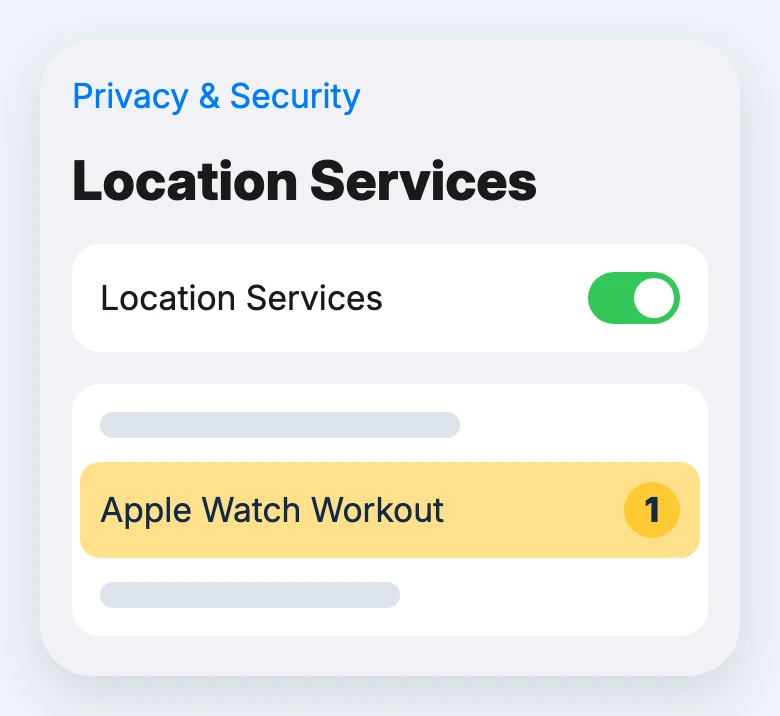
For older iPhone software, the menu can be named Privacy rather than Privacy & Security. The important distinction remains the same: the main switch controls the service, while the entries for individual apps control their access.
Leave the master control alone and scroll to the relevant app. That lets you reduce a particular use of location while letting other apps you still need on the phone keep using it.
If you actually want to disable the phone's location access as well, use the iPhone location controls. That is a broader change than keeping iPhone navigation working.
Stop Watch workout route access without disabling Maps
In the iPhone's Settings > Privacy & Security > Location Services, tap Apple Watch Workout. Review its access setting. To deny that app location access, choose Never when offered.
The Watch guide also places this control in Settings > Privacy & Security > Location Services > Apple Watch Workout on the watch. It describes While Using the App as the permission needed for workout route tracking.
Changing the Workout permission is narrower than switching Location Services off. It changes that app's access while leaving the permissions for other apps, such as Maps on your iPhone, as they are.
Your outdoor route information will be affected when Workout can't use location. Don't choose this setting if you want the Watch to keep recording a route map but only want to hide that route from someone else.
This isn't a way to switch off all GPS use across the watch. Other location-dependent apps have their own permissions. Review each relevant app's entry; the Workout permission doesn't control the whole watch.
I'd begin with this app-level change when the concern is workout routes. It has a clear purpose and avoids breaking the phone's map directions just to change how a watch workout is recorded.
Stop a location share when another person is the concern
For a person who can see your position, use Find People on the Watch. Select that person's entry, scroll through its options, and tap Stop Sharing. That stops sharing your position with that person.
To end all personal location shares, open Settings > Privacy & Security > Location Services, then Share My Location. Turn sharing off rather than using the master Location Services control.
This changes who can see your position. It doesn't hide the watch while keeping the same share active from your phone. Choosing who can see you and choosing which device supplies your position are separate controls.
A GPS + Cellular Watch can supply your shared position when you're wearing it away from the paired iPhone. Even with your phone selected as the sharing device, the cellular Watch can take over when you leave the phone behind.
The Watch location-sharing checks explain the difference between your Watch under Devices and your position under People. Read the correct card when checking whether your change did what you wanted.
Don't confuse removing an app with stopping a share
Deleting Find People removes the app from your Watch. It doesn't end an existing location share. Use the sharing setting before removing an app you don't want to see.
On watchOS 9.4 or later, you can remove several built-in Watch apps. Open apps with the Digital Crown, touch and hold an app, then tap its delete button. Choose Delete App to confirm if offered.
Removing a supported built-in app from the Watch doesn't delete the same app from your iPhone. That can help when your goal is simply to remove a Watch app while keeping the phone app available.
It still isn't a universal location-off setting. Decide whether the goal is removing an app, stopping a specific permission, or ending personal sharing. Each action changes something different.
Check the effect on each device before leaving it
Return to the iPhone's Location Services page and confirm the master switch remains on. Open the phone app you still need, such as Maps, and check that its own location permission is still allowed.
Then check the Watch feature you changed. For Workout, read its permission again. For a location share, check whether you're still sharing with that person rather than just looking for an icon on the watch face.
These controls change future access and sharing. They don't remove route maps or other location information already saved in an app. Review that app's history controls separately if stored records are the concern.
Switching Location Services off doesn't block every emergency use of location. Location can still be used for emergency calls, so the switch can't block every use of your position.
Resolve a locked or returning setting
If a permission is grayed out, check whether the iPhone has Screen Time > Content & Privacy Restrictions enabled. A parent or workplace administrator may control which privacy changes are allowed.
Ask that person to review the restriction instead of erasing the watch. For settings that unexpectedly change back, give Apple Support the setting's exact label and both installed software versions (iOS and watchOS).
Explain what you need: keep iPhone Maps working while blocking a Watch app's location access, or stop sharing with a person. A Watch paired to your iPhone in the usual way doesn't have a separate main Location Services switch.
The Short Version
Leave the shared Location Services master switch on. Restrict Workout for route access, or use Find People to end a personal share. Other iPhone location apps stay available, but these changes don't disable every Watch location feature.
Checked November 29, 2026.
 If you have any business, I can build it online