Activity rings that update on an Apple Watch but don't change on the iPhone point to a connection or data-sync problem. Bring them together, check their connection, and restart them before changing Health settings or unpairing the watch.
Empty rings on the watch mean something different: the watch may not be recording activity. If history is missing after changing iPhones, check the old Health data and watch pairing. Recording another workout won't bring that history back.
In this guide
1. Check where the activity stops appearing
Open Activity on the watch and compare today's rings with Fitness on the paired iPhone. Check the same date and identify the missing information: a ring total, a workout, or older history.
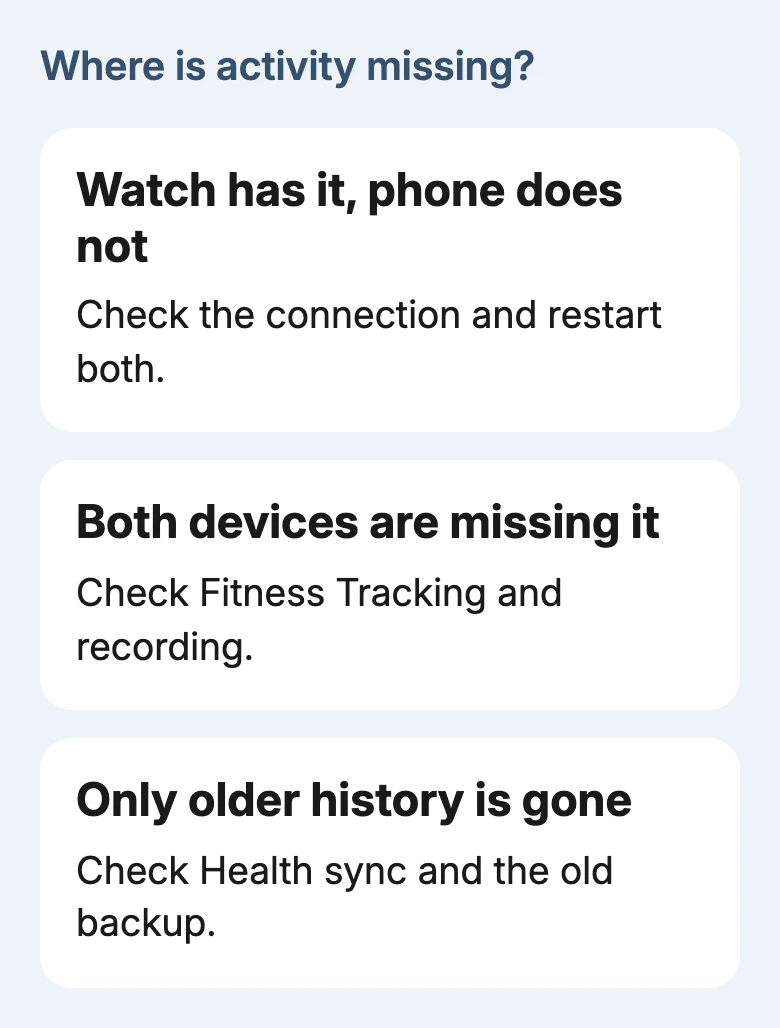
Next, open Health on the iPhone. Tap Browse > Activity, choose a category such as Steps, then scroll to Show All Data. Recent entries tell you more than a single total in the category summary.
If recent watch records appear in Health but Fitness hasn't updated, those records have reached your phone. Focus on the Fitness display and restart steps rather than trying to repair watch recording.
If the watch hasn't recorded the activity either, use the Apple Watch activity tracking checks. Fitness Tracking, Wrist Detection, and how a workout earns Exercise minutes affect recording, not just transfer.
A workout missing only from another service has its own app connection. For example, Strava's Apple Watch sync routes depend on which app recorded it. Don't unpair a working watch to fix one service's import.
2. Restore the watch's link to the paired iPhone
Place the watch beside its paired iPhone. Open Control Center on the watch: on watchOS 10 onward, press its side button. For an earlier release, touch the lower screen edge, hold briefly, then swipe upward.
The disconnected symbol is a red iPhone or, on some connections, a red X. When the devices connect, the green iPhone icon appears. A watch can have an internet connection without having the nearby phone connection you expect.
On the iPhone, open Settings and turn off Airplane Mode, then turn on Wi-Fi and Bluetooth if either is off. If Airplane Mode is on for the watch, switch it off there too.
Return to the two activity displays after the connection returns. Don't start by resetting network settings: that changes saved network information without first confirming whether the watch is simply disconnected.
Restart both devices if the connection symbol remains red.
3. Restart both devices and check again
Give both devices a normal restart. On a Face ID iPhone, keep the side button pressed while holding either volume button. When the shutdown sliders appear, drag the power-off slider.
For a Home-button iPhone, press and hold its side button (the top button on older models), then drag the shutdown slider.
Wait for the iPhone to shut down, then keep Side or Top pressed. Let go after its Apple logo appears, then unlock it after startup.
On watchOS 9 onward, remove the watch from the charger, then press and hold its side button. Tap the upper-corner power button and drag Power Off. On an older watchOS release, holding the side button presents the Power Off slider directly.
To turn the watch on again, keep its side button pressed, releasing it when its Apple logo appears. Bring the devices together, unlock them, and check the same day in Activity, Health, and Fitness again.
I'd check the existing records before recording another workout. Check whether the originally missing activity arrived, rather than confusing a fresh record with repaired history.
4. Check recording permission and the Health source
If new records are missing, open Health, tap your profile picture, then choose Devices > your Apple Watch > Privacy Settings. Turn on Fitness Tracking if it's off.
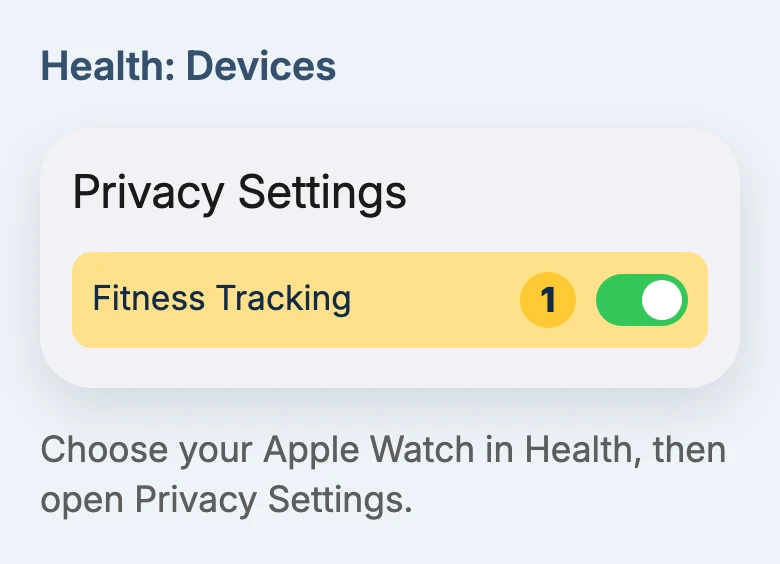
Apple explains these Health data controls for recording permission and category source lists. Enabling recording doesn't recreate a workout that wasn't recorded earlier.
For totals that differ rather than completely missing records, open Health > Browse > Activity > Steps > Data Sources & Access. Only devices and apps contributing to that category appear there.
Tap Edit to review their priority and drag sources into the order you want. Health combines information from multiple sources using that priority, so a watch total and a phone total aren't automatically identical.
Changing source order affects which records take priority. It doesn't reconnect a watch whose fresh records never arrive. Don't delete Health records as a sync repair, because synced deletions can remove them from other devices too.
5. Recover history after moving to a new iPhone
When today's activity works but older rings disappeared after changing phones, check the Apple Account used on both iPhones. Health and Activity history needs its stored data transferred, not just a new Bluetooth pairing.
On the old iPhone, open Settings > your name > iCloud > See All > Health and check that Health sync is enabled. Earlier iOS versions can label the list Show All. The new iPhone needs that same Apple Account.
If you're backing up to a computer, use an encrypted backup to save your Health and Activity data.
Keep your old phone and its backups while you check that the history has arrived. For a watch still paired to the old phone, follow the watch transfer procedure rather than erasing devices to try to force the history across.
6. Update, then get help before erasing
Check Settings > General > Software Update on the iPhone. For the watch, open the iPhone's Watch > My Watch > General > Software Update. Install available compatible updates and check the missing records again.
If fresh activity still doesn't reach Health over a working connection, ask Apple Support about Watch activity sync. Give both software versions, the last date transferred, and whether records exist on the watch, in Health, or in Fitness.
If support recommends re-pairing, use the Watch app's unpair procedure with the iPhone nearby so it creates a watch backup. Keep the Health history checks separate: a new pairing alone isn't a replacement for missing historical data.
The Short Version
Compare the watch with Health and Fitness. Restore its phone connection, restart both devices, and check Fitness Tracking for absent recordings. For missing history, check Health sync or an encrypted backup before re-pairing.
Checked November 29, 2026.
 If you have any business, I can build it online