A workout recorded in Strava on Apple Watch uploads through the Strava Watch app; one recorded in Apple's Workout app reaches Strava through Health.
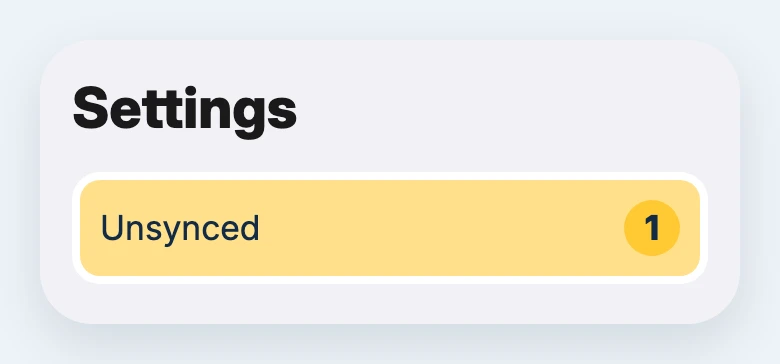
For a missing Strava recording, check Settings > Unsynced inside the Watch app. For a missing Apple Workout recording, open Strava's Health connection and try Import.
The recording app matters more than the activity type. Turning on Health imports won't clear an upload still waiting inside the Strava Watch app.
In this guide
1. Follow the app that recorded the missing workout
Think back to the app you opened before starting the activity. The orange Strava app and the built-in Workout app save through different routes, even though both run on the same Apple Watch.
If you recorded in Strava, open Strava on the watch and look for the saved activity under Settings > Unsynced. Keep the watch near its paired iPhone with a working connection, or give the watch its own reliable internet connection.
Use the activity's sync control, then check Strava's history on the phone. An upload-complete notification confirms it reached Strava. Without that notification, look for the activity itself before deciding the upload failed.
If it was recorded in Workout, check that the workout reached the iPhone's Fitness app, then follow the Health import section. A workout that never reached the phone needs the Apple Watch connection checks first.
When the connection works but the recorded workout stays missing, follow its path into Health and Fitness before changing Strava's import permissions.
Don't delete the Watch app while its only copy of a workout is waiting to upload. I'd work through the saved activity and connection checks before reinstalling anything that holds an unsynced run.
2. Restart the Strava apps when a saved upload stalls
Strava's Watch app instructions list a manual sync and restarting the apps for an activity that won't upload. A short delay can happen when the devices aren't connected to Wi-Fi or are conserving power.
On a watch running watchOS 10 or newer, double-click the Digital Crown to open recent apps. Find Strava, swipe it left, and tap its red close button. Open Strava again when you're ready to check the saved upload.
On a Face ID iPhone, start swiping at the bottom edge, then pause halfway up to see recent apps. On Home-button models, double-click Home. Swipe Strava's preview upward to close it, then reopen Strava.
Check the phone's Strava account before retrying. An upload to another account won't appear in the history you're viewing. Keep the devices connected, then check the Watch app's unsynced list for the activity.
The current Strava Watch app requires watchOS 10.0 or later and iOS 17.0 or later. An older watch that can't run that software needs a supported recording route instead of repeatedly installing software it can't run.
If the activity still waits in Unsynced, keep it there and collect its date, sport, and duration for the support request. That tells support which saved recording to look for.
3. Import an Apple Workout recording through Health
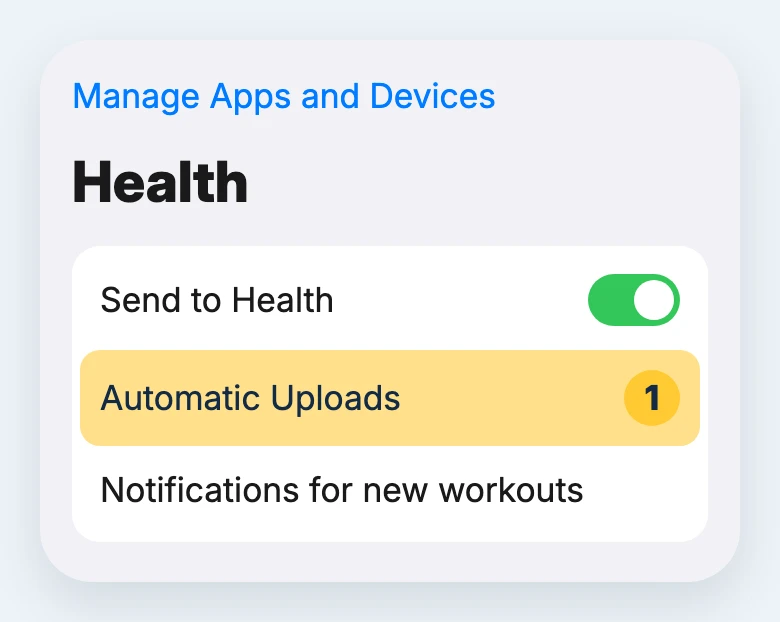
Open Strava on the iPhone. Go to You, tap the settings icon, then choose Manage Apps and Devices > Health. For a new connection, tap the plus icon and Connect, then allow the requested access to workouts and routes.
On that Health connection screen, turn on Automatic Uploads for future eligible workouts. To recover an activity already waiting there, tap Import next to that workout. Check the date and activity before importing it.
Only activities recorded with the built-in Apple Workout app within the past 30 days can sync through this connection. A workout placed in Health by another company's app doesn't qualify for this import route.
A workout sent to Health by another fitness platform won't pass through to Strava with this setting. Use that recording app's supported Strava connection instead of changing the watch's pairing settings.
After importing, check the workout in Strava's history. Successful automatic uploads also produce push and in-app notifications. If automatic importing fails, try that activity's manual Import control.
4. Restore access when the import list is empty
An eligible Apple Workout recording missing from the import list can mean Strava lacks Health access. Revisit the Health connection and choose Connect with Health, then review the sharing permissions on the iPhone.
To check app permissions, open Health > your profile picture > Apps, under Privacy, then Strava. Enable the data types needed for workouts and routes. Apple's Health data controls explain this app-by-app access.
The Settings route on current iPhones is Settings > Apps > Health > Data Access & Devices > Strava. Names can differ slightly by iOS release; use Health's profile route if the Settings wording doesn't match your phone.
Return to Manage Apps and Devices > Health in Strava and look for the recording again. Restoring permissions lets the apps share data again. It won't recover a workout that the recording app never saved.
When Workout itself hasn't finished saving a session, use the Apple Watch workout saving checks rather than repeatedly reconnecting Health.
5. Check duplicates and the opposite sync direction
An activity marked imported but absent where you expect it may already exist with the same date and time. Search your Strava activity history before importing again. Strava blocks duplicate activities.
If an unwanted duplicate is preventing the correct import, compare both records before deleting the unwanted one and retrying. Keep the complete activity, especially when one version contains the route or heart rate that the other lacks.
For the reverse problem, a Strava activity missing from Apple Health, use Settings > Manage Apps and Devices > Health > Send to Health. This sends data out; Automatic Uploads brings eligible Apple workouts in.
Force-close Health, open Strava, and pull down on the You feed to refresh. Route information from activities recorded in other companies' apps, such as Garmin or Zwift, doesn't sync to Health through this Strava connection.
If a workout lacks heart-rate or route data, turning on permissions afterward won't add data that wasn't available when it uploaded. Fix the permissions, then check the next recording for the missing details.
6. Send support the recording route and missing activity
Use Settings > Help > Support in Strava to request help with the saved activity. Include whether it was recorded in Strava or Workout, its date and time, and whether it appears in Unsynced, Health imports, or neither.
Include the iOS, watchOS, and Strava app versions, plus any import error. Keep the saved recording while support checks it. Those details tell support which upload to check and which connection failed.
The Short Version
Use Unsynced for a recording made in Strava. Use Health's Import or Automatic Uploads for an eligible Apple Workout recording. Check permissions, duplicates, and the sync direction before changing the watch's setup.
Checked November 29, 2026.
 If you have any business, I can build it online