Hosting a Zoom meeting starts with signing into the account you'll use to host it. Schedule it for later and select Start when it's time, or start a meeting now and copy its invitation link for your guests.
Opening someone else's invitation normally joins their meeting as a participant. For your own meeting, the important difference is the signed-in account: it gives you the controls to manage arrivals and end the entire session.
In this guide
Prepare the host account and meeting app
Open Zoom Workplace and sign in. Use your organization's usual sign-in method when work or school owns the meeting. A personal account won't automatically show meetings scheduled under a different work account.
Zoom's host-start instructions require the account that scheduled the meeting. Check that account first when a meeting is missing from your list or your invitation opens without host controls.
On a Windows computer without the app, choose the right Zoom Workplace installer. On an Apple laptop, follow the Mac installation steps before preparing the meeting.
Before promising a long session or large event, check how long meetings can run and how many people can join. Both limits depend on the host's plan. A guest with a different plan doesn't automatically change your meeting's limits.
I'd prepare the meeting on the device you'll actually use. That keeps the calendar, microphone, camera, and presentation file together instead of discovering during the call that you set everything up on another account or computer.
Schedule a meeting for a future time
For desktop scheduling, open Home and select Schedule. If Home isn't visible in the navigation bar, look under More. The current scheduling window is called New event.
- Enter a recognizable meeting topic.
- Set its date and start time, checking the time zone shown.
- Review meeting options, including security, video, and audio.
- Add invitees if your account offers that option.
- Select Save to finish creating the meeting.
Calendar integration changes what happens next. With a linked calendar, the save process can offer Send, Don't send, and Back to editing. Choose Send when you want the calendar invitation delivered to the entered invitees.
Without calendar integration, entering invitees doesn't automatically send email. Use the saved meeting's invitation options and send it yourself. Check that guests received it instead of assuming Save means the invitation was sent.
The scheduling instructions explain those calendar differences. An administrator can lock some meeting options, so ask your account administrator about an unavailable security setting.
On Android or iPhone, sign in and open Home > Schedule. Enter the topic, date, and time, review the meeting options, then tap Save. If Home is hidden, find it under More.
For a meeting with invited guests, keep the meeting's passcode or waiting-room protection as configured. Send the invitation privately to the people who should attend rather than posting the meeting link on an unrestricted public page.
Start the saved meeting from the right list
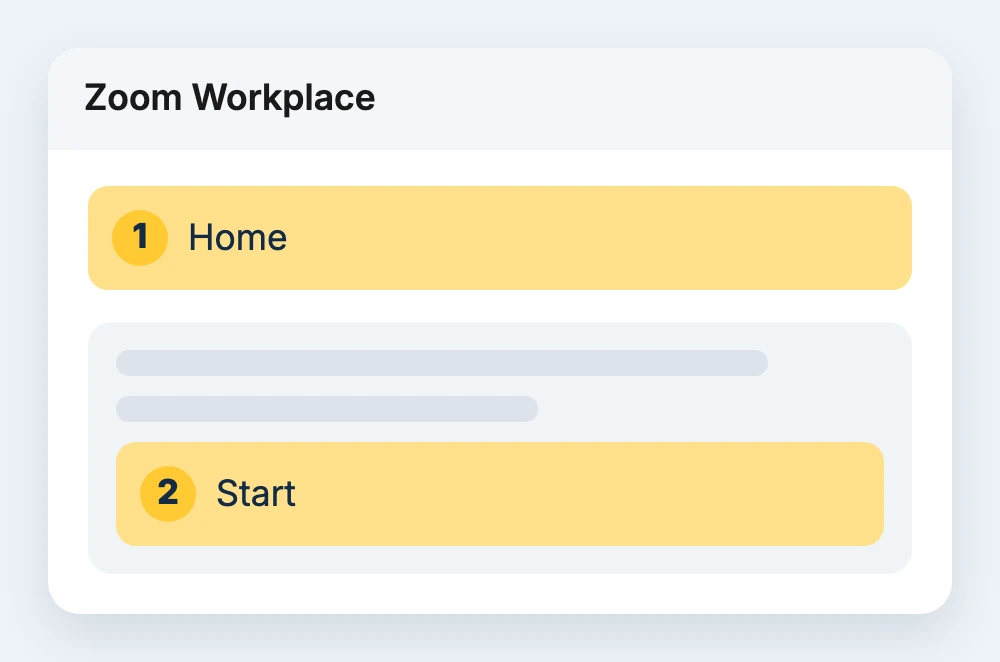
When it's time, sign into the same account in Zoom Workplace. Open Home, select the scheduled meeting, and choose Start on its meeting card. Home lists today's meetings in chronological order.
For another date, use Meetings or Calendar. A linked calendar gives you the Calendar tab; without that integration, the app uses Meetings. Either tab can be inside More when it isn't visible directly.
Select the meeting, then choose Start. Check its topic before sending fresh invitations, especially if you scheduled several similar sessions. Starting a different meeting leaves guests waiting at the original link.
On Android or iPhone, sign into Zoom Workplace, open Home, locate the meeting, and tap Start. The Meetings or Calendar tab also provides a meeting card with Start when available in your app's navigation.
If the meeting says it's waiting for the host, look at the account currently signed in. Choose I am the host when offered and sign into the account that created it. Joining through a link without signing in can leave you treated as a guest.
Begin an immediate meeting when no schedule is needed
For a call that needs to start now, enter zoom.new in your browser. It opens Zoom Workplace when installed, or the Zoom Web App when the desktop app isn't detected. Sign in if prompted.
The meeting uses your account's personal default meeting settings, along with any rules your organization requires. Starting this way doesn't bypass a passcode or waiting-room requirement set by your organization.
An invitation window may appear automatically. If it doesn't, open Participants, then Invite. Choose Copy invite link for a link or Copy invitation for the fuller invitation details.
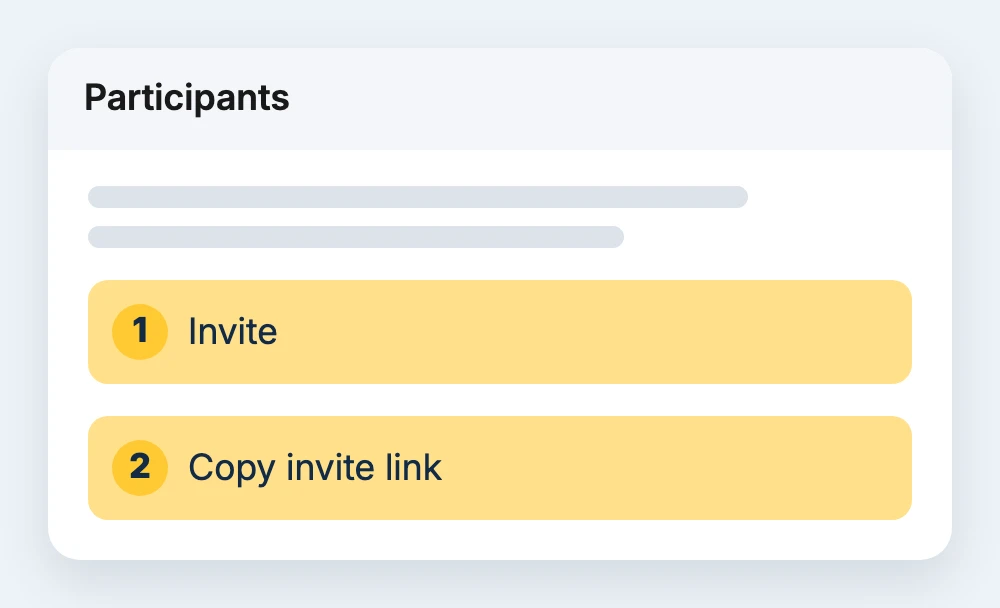
Send the copied information through your usual email or messaging app. A copied invitation isn't sent until you put it into a message and send that message. Include the session time separately if guests aren't joining immediately.
This browser shortcut starts a meeting, so open it when the live session can begin. For an appointment at a later date and time, use Schedule instead of starting a room and leaving it open.
Manage arrivals, audio, and the end of the call
Once the room opens, connect meeting audio and check whether your microphone is muted. Join Audio means the app still needs an audio connection; Unmute means you're connected but your microphone is muted.
If Windows blocks the microphone, check its microphone permissions, including desktop-app access. A meeting's Unmute control can't grant that system permission.
Open Participants to see arrivals and manage the waiting room when enabled. Use Host tools for meeting security controls. A control missing from the main toolbar can be inside More.
Before presenting, choose Share and select the window or screen that contains your material. Check that you're sharing the right content before opening private messages or unrelated documents on the same screen.
At the end, choose End, then End meeting for all when the whole session should stop. If another host will keep the meeting running, choose to leave the room instead.
If host controls still don't appear, ask your account administrator or Zoom Support to check the meeting owner. Provide the host account, scheduled time, app version, and the message you see. Share meeting details privately with support.
The Short Version
Use the host account to save a scheduled session, then send out its invitation. Start it from Home, Meetings, or Calendar. For an immediate call, use zoom.new, invite guests, and close the whole session when finished.
Checked November 29, 2026.
 If you have any business, I can build it online