Change your Zoom background in the desktop app under Settings > Video & effects > Virtual backgrounds. Choose an image, select Blur, or upload your own picture; use None when you want the camera's normal view again.
Phone controls are different, and a missing background option can be an account or hardware limit. Start with the controls for your device, then check permissions and requirements if the choices aren't available.
In this guide
Choose a background before the meeting
Sign into Zoom Workplace on Windows or Mac. Open the profile menu at the top-right, select Settings, then open Video & effects > Virtual backgrounds.
Zoom's background instructions say to follow this desktop route on Windows, macOS, and Linux. Choose a built-in background first so you can check the effect without preparing a file.
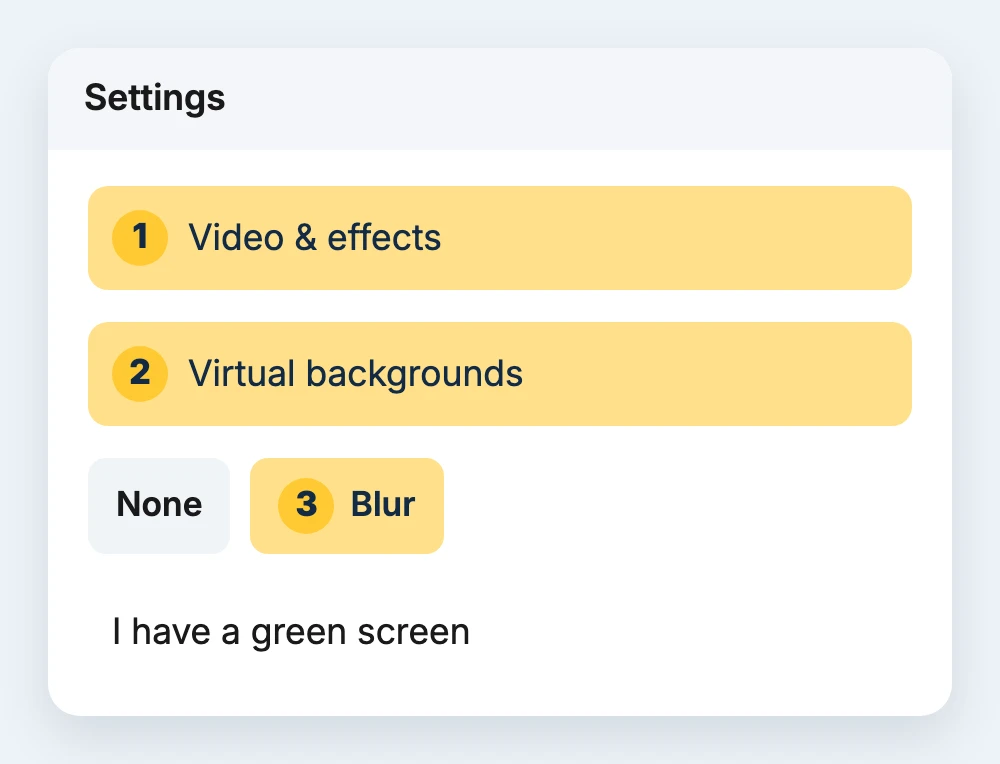
Select an image to apply it, Blur to soften the real room, or None to remove the effect. The preview lets you compare the choices before your next meeting. Keep your face and shoulders in view while checking the result.
I'd start with Blur to make the room less distracting. A detailed replacement picture can compete with your face, while a simple effect saves you having to arrange the picture around yourself.
For a computer without the meeting app, install Zoom Workplace on Windows or follow the Mac download instructions. Browser meeting controls don't use the desktop Settings window.
Upload a picture that fits the camera
In Virtual backgrounds, click the add control and choose the image-upload option. Select an image stored on your device. The current image specifications accept 24-bit PNG or JPG/JPEG images up to 15 MB.
Choose a picture with the same shape as your camera's view. For a 16:9 camera, 1280 by 720 or 1920 by 1080 works well. A tall portrait picture will need cropping when displayed behind a wide video frame.
Use your own photo or another image whose owner allows you to use it. Keep important details away from the center, since your face and upper body will cover that area during the meeting.
After uploading, move slightly and check the edges around your hair and shoulders. An attractive image by itself can still be a poor background if its colors make your outline difficult to distinguish.
Video backgrounds have separate requirements. Supported video files use MP4 or MOV, with resolutions from 480 by 360 up to 1920 by 1080. Even if your device supports a still image, it won't necessarily support every video-background option.
If prompted to download the package for virtual backgrounds without a green screen, complete that prompt. Then try the image again. If that package is missing, changing the image file won't fix it.
Change the effect during a live desktop meeting
Open the menu beside Video in the meeting toolbar and select Video & effect settings. The side panel opens your video preview and the background controls.
Select Virtual backgrounds, or scroll to that section in the panel. Choose another image, Blur, or None. Use the add control there when the picture you want hasn't been uploaded yet.
Changes take effect in the live meeting while your video is on. Try a new picture before the meeting when you need time to compare several options without showing every experiment to the other people in the call.
For a browser meeting, open the menu beside Start Video or Stop Video, choose Choose Background, and select an image. Use its add control to upload one if your account permits custom images.
The web app's choices can differ from the desktop app. If its upload control isn't available, ask your Zoom administrator whether custom backgrounds are enabled since the desktop instructions won't match that browser panel.
Set a background on Android, iPhone, or iPad
During a meeting in the Android or iOS app, open More > Settings > Virtual backgrounds. Choose a provided image, Blur, or None. Tap the plus control to select a picture from your device.
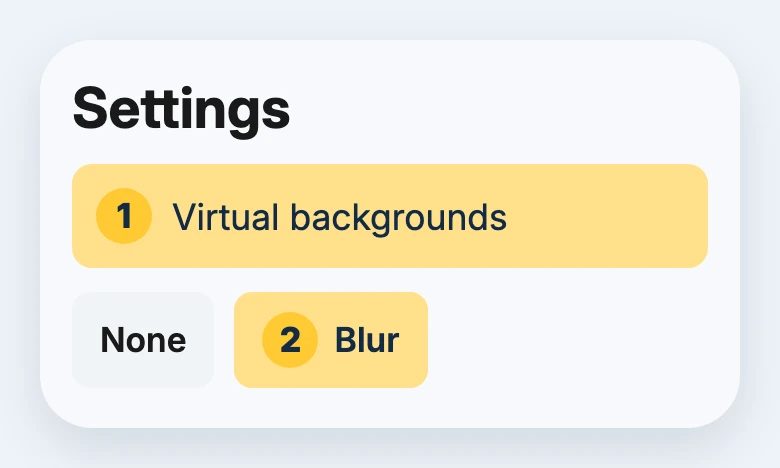
Close the background panel after selecting the effect. Check the video preview with your camera on so you can see the applied result. With video off, you can't see how well the effect follows the edges of your face and body.
On iOS app version 6.5.0 and later, you can also prepare it outside a meeting. Open your profile menu at the top-left, then Settings > Video & effects. Under Appearance, open Background & effects and use the Backgrounds tab.
Those steps for changing the background outside a meeting apply to iOS. Android uses the in-meeting controls; the iPhone settings path won't match.
Supported features depend on the device, even when the app itself installs and joins meetings. Check the virtual-background requirements for your exact model if another phone has choices yours lacks.
Restore missing options and improve rough edges
If Virtual backgrounds is missing, check whether your account allows the feature. In the web portal, open your profile picture or initials, choose Settings > Meeting, and find Virtual background under In Meeting (Advanced).
A locked setting needs an account or group administrator to change it. Ask specifically whether virtual backgrounds and custom image uploads are allowed for your account. Those are separate controls in managed accounts.
After enabling the feature, sign out of the desktop app and sign back in. Then reopen Video & effects. The enablement controls decide whether the feature is available; the app's picker lets you choose the background.
For a blank Windows camera preview, review camera permissions for apps, including desktop apps. The background picker needs a working camera view.
For rough edges, light your face and background more evenly. A solid green screen can help Zoom separate you from the room and use less processing power. Enable I have a green screen only with that physical screen behind you.
With that option enabled, select the real background color in the preview when the app chooses incorrectly. Avoid clothing that matches the screen's color, since the effect can replace part of the clothing too.
If effects still aren't available, give Zoom Support your device model, operating system, app version, and the problem: missing controls or an image that won't apply. If IT manages your account, include any restrictions they've confirmed.
The Short Version
Use Video & effects on desktop or the in-meeting settings on mobile. Choose an image, Blur, or None, and use a supported file for uploads. For missing options, check account settings and device requirements before changing pictures again.
Checked November 29, 2026.
 If you have any business, I can build it online