

Bluetooth audio from a phone can still play through a Windows 11 PC while its A2DP SNK recording device disappears. When playback works, start with the hidden recording-device list.
A registry workaround that changes one setting also restored the missing input for an owner. This applies when your PC receives your phone's audio, rather than when it sends sound to headphones.
An app such as Bluetooth Audio Receiver opens that phone-to-PC connection. Headphones absent from the PC's output list need a separate repair.
In this guide
1. Check the recording list while the phone is playing
Open your receiver app, connect the paired phone and play something. Sound from the PC confirms the receiving connection works. What's missing is the recording input that lets you send that sound to another output.
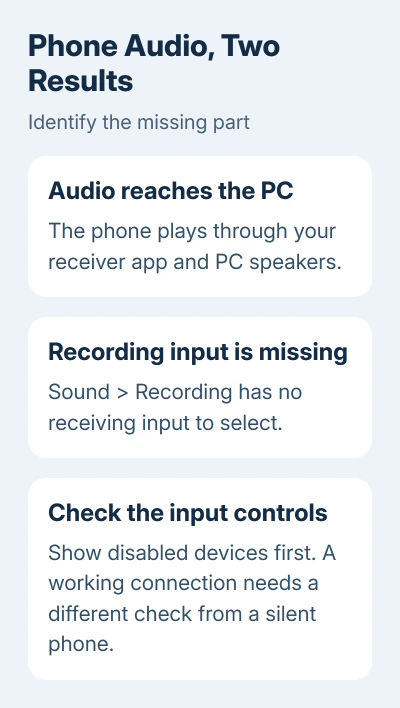
Press Windows + R, enter mmsys.cpl and press Enter. Open Recording, right-click the list's blank area and enable Show Disabled Devices. Repeat for Show Disconnected Devices.
Look for the phone or Bluetooth receiving device. A disabled entry can be enabled from its right-click menu. An entry marked disconnected needs an active connection in the receiver app before you judge whether it's working.
If the device appears, open Properties and check for Listen. The controls you wanted may already be available. If sound plays but the entry is still absent, keep the connection active for the next check.
2. Separate an invisible input from a broken Bluetooth link
The word sink means the receiving end of an audio connection. In this setup, the PC receives music from the phone. With Bluetooth headphones, the PC sends music instead. Those directions use different audio devices.
Microsoft's Bluetooth receiving documentation explains that apps manage the receiving connection. Pairing the phone alone doesn't replace opening that connection inside the app.
Close and reopen the receiver app, then reconnect its audio session. If the phone is silent too, check its media volume and the PC's selected speakers before treating this as a hidden-input problem.
For missing Bluetooth hardware or a failed connection, use the separate Bluetooth driver reinstall steps. Reinstalling wasn't enough for the original asker whose audio already played normally.
I'd leave a working Bluetooth adapter alone when the only missing control is the Recording entry. The next procedure targets that specific symptom rather than replacing the whole connection.
3. Back up the matching recording-device registry entry
The workaround changes one value in the registry, Windows' settings database. One owner confirmed it worked in a virtual machine. It worked for that owner with this exact fault; it may not help on your Windows 11 build.
Create a backup before changing anything. Open Start, type Registry Editor and choose Run as administrator. Accept the permission prompt, then paste this location into the address bar:
HKEY_LOCAL_MACHINE\SOFTWARE\Microsoft\Windows\CurrentVersion\MMDevices\Audio\CaptureExpand Capture. Its subkeys have long identifiers in braces. Expand a candidate and select Properties, then look through the values' Data column for the name of your receiving device or phone.
Don't pick an entry by its position in the list or because its identifier looks similar. If you can't match its name, stop and ask the receiver app's developer for help identifying its input.
Select the matched device's parent subkey directly inside Capture. Choose File > Export, select Selected branch, and save the .reg backup with a recognizable filename. It should contain that device and its Properties.
The official registry backup instructions also explain restoring it through File > Import. Keep Registry Editor open at the matched device.
4. Remove only the value used in the confirmed workaround
Select the matched device's Properties subkey. In the right pane, look for this exact value name, including its comma and final digit:
{9c119480-ddc2-4954-a150-5bd240d454ad},6Right-click that value and select Delete, then confirm. Leave the device's subkey, its Properties subkey and every other value in place. If that value is missing, this method has nothing to remove.
Stop if Windows shows an access-denied message. Don't take ownership of the audio registry tree or change its permissions to force this workaround through.
Close Registry Editor and reopen the receiver app and Sound dialog. Reconnect the phone. If the recording entry hasn't refreshed, restart Windows and make the connection again before checking Recording.
The fix has worked when an input appears in Sound or your audio-routing app and carries your phone's audio. Seeing a new name in Device Manager isn't enough to tell whether recording apps can use it.
5. Choose where the restored input plays
In Recording, open the restored device's Properties > Listen. If available, enable Listen to this device, then choose the intended speakers under Playback through this device. Select Apply and test with the phone still playing.
This is the control the original Windows 10 setup used to send phone audio somewhere other than the system default. Windows' normal sound output settings choose a broader default instead.
If you're feeding the input into Voicemeeter or another mixer, select the restored input there. Avoid monitoring the same stream through both that mixer and Listen, which can produce two delayed copies of the sound.
If the change brings no benefit, import the saved device backup using File > Import in Registry Editor, then restart. That puts the deleted value back without resetting unrelated audio devices.
What should the receiver app's developer check?
Send the receiver app's developer your Windows version from winver, the app version and whether phone audio plays through the PC. Include whether the input is absent from Recording, from the routing app, or both.
Ask specifically about Windows 11 capture-device visibility and supported output selection. That gives the developer the exact problem to check, rather than a request for a generic A2DP driver.
The Short Version
Check disabled recording devices during an active phone connection. For working playback with a missing input, back up the matched Capture entry before trying the confirmed one-value removal. Restore the backup if it doesn't help.
Checked November 16, 2026.
 If you have any business, I can build it online






