
A Brother printer that won't turn on needs power checks before computer settings. Try waking the control panel, then test a working wall outlet to see whether the printer is asleep or isn't getting power.
Some older inkjets can recover when you hold the power button while reconnecting the cord. Check your model first: the procedures described here use different timings and give different service advice after a successful restart.
1. Check whether the printer is asleep or completely off
Check for a lit indicator, a blinking light or any sound inside the printer. A dark display alone doesn't mean the machine has lost power. It may be asleep, or the display itself may have a fault.
On a touchscreen model, touch the display and watch for it to light up. With a physical Power button, use it as your model's manual describes. The printer should respond without help from your computer.
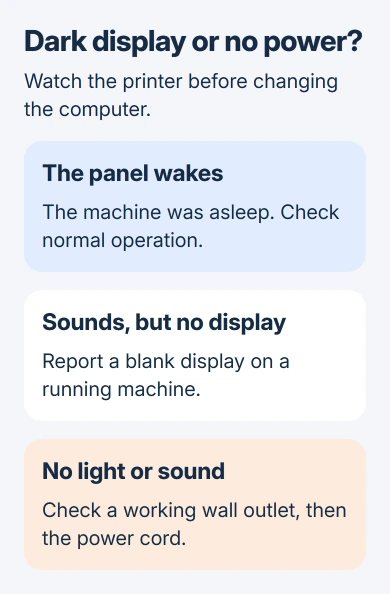
If the screen wakes and shows its normal home page, you can stop checking for a power fault. If the printer makes its usual sounds but the display stays dark, tell support that it runs with a blank display.
That distinction helps support choose the repair. A running motor with a blank screen points to a different problem from a printer with no light, sound or response. Continue with the outlet if the printer still seems completely off.
2. Test a wall outlet without the power strip
Unplug the printer from its power strip, extension or surge protector. Try a wall outlet that you know works. Check the wall switch too, if that outlet has one, then try the printer's Power control again.
To check the original outlet, disconnect the printer and connect a working lamp or another suitable device. If that device also stays off, the outlet or its supply needs attention before the printer does.
I'd check the outlet before spending money on a cord. Switching to a working wall outlet checks whether the strip or original outlet is the problem.
If another outlet brings the printer back, the original socket, strip or extension is at fault. If it stays silent at an outlet that powers another device, check the cord connection next.
3. Check the cord where it enters the printer
Unplug the cord from the wall before checking it for damage. If your printer has a removable cord, check that its plug fits all the way into the printer's power socket.
Exposed wire, a damaged plug or signs of burning mean you should stop using that connection and arrange a suitable replacement or service.
If the cord is removable, try a compatible replacement rated for your printer. Check the printer's power requirements; an unrelated adapter isn't suitable just because its plug fits.
Reconnect the undamaged cord and try Power. If the printer starts, check that the connection stays secure. If it still won't respond, find the full model number on its label before trying a recovery sequence.
4. Use the recovery sequence for the matching inkjet models
Brother's power recovery instructions list the MFC-J4310DW, J4410DW, J4510DW, J4610DW and J4710DW, plus the J6520DW, J6720DW, J6920DW and J6925DW.
For those listed models, the first method is:
- Unplug the power cord. Allow at least 30 seconds with the printer disconnected.
- Hold the printer's ON/OFF button while reconnecting its power cord.
- Keep holding until startup finishes, or release after 15 seconds.
- Repeat the procedure up to three times if the first attempt doesn't start it.
The same page offers a tray method for those models. Disconnect the cord for 30 seconds or longer, remove the paper tray, reconnect power and switch on. Reinsert the tray once startup finishes.
Both methods apply to the listed models. For a different laser printer or newer inkjet, use its own no-power instructions instead of adapting this sequence.
There is also a US service procedure for several of these inkjets with different timing: one minute unplugged, then Power held during reconnection and for about 20 seconds afterward.
That procedure treats a successful start as temporary and still calls for service. Even if the screen lights up, follow that advice and tell the technician which procedure brought the printer back.
5. Separate restored power from a printing problem
Once the home screen or normal ready light returns, try using the printer without your computer before reinstalling software. On an all-in-one, make a copy at the printer. That checks it without relying on Windows, Wi-Fi or USB.
If the printer responds but isn't listed on your computer, follow the Brother connection steps. Start by selecting your model, then follow its USB or network setup.
Microsoft's printer installation instructions help once the printer has power. Adding it in Windows won't wake a control panel with no power.
If the printer starts normally but jobs stay waiting, use the printer test-page checks. Then check the selected print queue and connection.
6. Arrange service when the power checks end here
If the printer stays silent with a working outlet and a secure, undamaged cord even after its model's recovery procedure, it needs service. Give support the full model, serial number and what happened when you tried another outlet.
Also mention unexpected shutdowns, repeated restarts or a running printer with a blank panel. Those details help the service team choose the right repair for your printer.
Use your warranty if the printer is still covered, or ask an authorized repair center for an estimate. Leave the internal power supply to the repairer.
The Short Version
Wake the panel, verify the outlet and inspect the cord. Use a Power-button recovery only for a listed model, and follow its service advice even if it starts. Work on computer setup after the printer responds normally.
Checked November 6, 2026.

Isaac Smith is the founder and editor of PC Glance, a website that covers computers, laptops, and technology. He is a tech enthusiast and a computer geek who loves to share his insights and help his readers make smart choices when buying tech gadgets or laptops. He is always curious and updated about the latest tech trends.