
Your phone answers a ping. So does the printer, the router and the Linux box in the corner. The Windows 11 PC on the same network times out, every single time.
I would not switch the firewall off first. Windows 11 already carries a rule made for exactly this, and it ships turned off. One right-click in the firewall settings fixes it.
A Super User question about it, asked in October 2021, has 139,742 views.
Why the PC stays quiet
A ping is a small echo request, and your PC only replies when its firewall lets that request in. Your firewall drops it without an inbound rule. Windows ships those rules. They are off.
Microsoft's firewall rule guide describes an inbound ICMP rule as the kind that "allows ICMP requests and responses to be received by devices on the network".
Ping travels over ICMP, and IPv4 and IPv6 are handled apart. Microsoft says it plainly: "If you use both IPv4 and IPv6 on your network, you must create a separate ICMP rule for each".
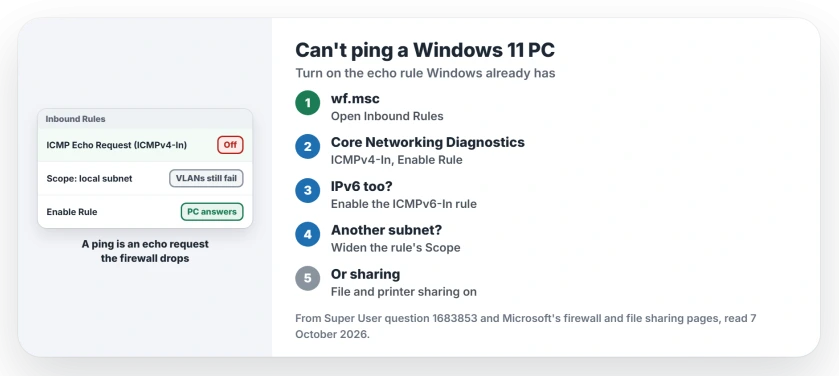
Status: checked 7 October 2026. Windows 11 drops incoming pings until an echo request rule is on. Enable Core Networking Diagnostics, ICMPv4-In, plus the ICMPv6 twin if you need it.
Ours: we listed the echo rules on the laptop we test with, which runs Windows 11 Home, build 26200. Every Core Networking Diagnostics echo rule was off.
The one for Private and Public networks only accepts the local subnet, so a ping from another subnet still fails after you enable it. That list held four families of echo rules.
1. Switch on Microsoft's own echo rule
Press Windows key and R, type wf.msc and press Enter. That opens Windows Defender Firewall with Advanced Security, the same window the accepted answer reaches through Control Panel and Advanced settings.
Select Inbound Rules. Find Core Networking Diagnostics - ICMP Echo Request (ICMPv4-In) with Private, Public in the Profile column. Right-click it and choose Enable Rule.
If the other device pings over IPv6, enable the ICMPv6-In rule with the same name too. The answer's author could not explain the default: "I don't know why Microsoft decided to disable these by default".
Owners kept replying under it. One wrote that the change "seems to have fixed it for good", after their Windows 11 server kept dropping off the network.
Another owner found no such rule at all, then added it from New Rule, Predefined. "After that, the machine began responding to pings", in their words.
A commenter thought newer builds enable it already. On our laptop it was off, so check yours rather than assume.
If you run VMware or VirtualBox, the rule to look for may carry another name. One owner's was Virtual Machine Monitoring (Echo Request - ICMPv4-In).
2. Or let file and printer sharing open it
Turning on file and printer sharing switches on a second echo rule for the network type you choose. One answerer put it plainly: "This will have the same effect as activating the rule" from step 1.
Microsoft's file sharing page walks you to the same switches: "In the Advanced sharing settings window that appears, under Private networks" you switch on discovery and sharing for files and printers.
On Windows 11 that lives in Settings, Network and internet, Advanced network settings, Advanced sharing settings. Pick the profile your network really uses.
The price is that anything you have shared becomes visible on the network. If you only want ping, step 1 opens less. If your shares stopped working as well, our shared folders page picks up from here.
One Windows 11 Home owner had sharing on, yet the echo rules "did not exist in the Inbound Rules list". They created them from New Rule, Predefined, File and Printer Sharing, and kept the four echo rules ticked.
3. Pinging from another subnet, a VPN or a security suite
The built-in rule only answers your local subnet. An owner pinging from a separate VLAN hit this, since "the default windows firewall rule is to only accept from the local subnet".
Another commenter found the same thing in the rule itself: "Scope for remote address were set local subnet only". Open the rule's Properties, then Scope, and add the network you ping from.
The other device's VPN can block it too. One Linux owner switched theirs off: "This resolved the issue and allowed me to ping and otherwise connect to the Windows machine".
Once the PC answers but an SSH login keeps saying Permission denied, look at the account type next.
If PuTTY reaches the PC but quits with a host key algorithm error, the PuTTY on your side is too old for that server.
Security suites keep their own firewall. One owner found McAfee in charge, and wrote that "McAfee will not accept ping" on a network it marks Public.
The one-line command, and why I keep it for last
A later answer adds a rule from the command line, run in Terminal (Admin):
netsh advfirewall firewall add rule name="ICMPv4 Allow Ping Requests" protocol=icmpv4:8,any dir=in action=allowA reader replied "This is the answer in 2024". It works, but it adds a brand new rule for every profile and any address.
Ours: I prefer enabling the built-in rule, which keeps your local subnet as its limit. You can also see it in the list later and switch it back off.
Leave the firewall switched on
The Super User asker turned Defender Firewall off and still got no reply. Their PC also returned General failure when pinging 127.0.0.1, its own loopback address.
Ours: when even 127.0.0.1 fails, I would look at VPN and security software next, then at the network stack. A firewall left off hides the real fault. Our firewall explainer covers what it is doing for you.
Is it safe to let Windows answer pings?
On a home network, replies to your own subnet give very little away. Ours: the built-in rule covers Private and Public together, so it also answers on hotel and cafe Wi-Fi. If that bothers you, open the rule's Advanced tab and untick Public.
The Short Version
- Windows 11 drops incoming pings until an inbound echo request rule is enabled.
- Enable Core Networking Diagnostics, ICMP Echo Request (ICMPv4-In), and the ICMPv6 one if needed.
- File and printer sharing turns on a similar rule, and exposes what you share.
- Pinging from another subnet or VLAN? Widen the rule's scope.
- A VPN on the other device, or a security suite, can block replies as well.
Where to Next
Ping the PC again from the other device straight after enabling the rule. Firewall rules apply at once. There is no restart to wait for.
Still timing out with the rule on? Tell me the other device's make and whether it shares your router, and I will trace the route between them.

Isaac Smith is the founder and editor of PC Glance, a website that covers computers, laptops, and technology. He is a tech enthusiast and a computer geek who loves to share his insights and help his readers make smart choices when buying tech gadgets or laptops. He is always curious and updated about the latest tech trends.