

A bigger, brighter mouse pointer is easier to follow without enlarging everything on screen. Use Accessibility for size and color, or Mouse Properties for shapes and cursor schemes.
Windows 11 and Windows 10 put those controls in different places. You don't need a new mouse or an extra customization app for either change.
In this guide
Start with the pointer's size and color
Decide whether the problem is visibility or appearance. A pointer that's hard to spot usually needs a larger size and a stronger color. A different shape is a separate choice, handled later in Mouse Properties.
I'd change size and color first. Those built-in controls are easier to adjust than replacing individual cursor files, and you can judge the result while moving around your usual apps.
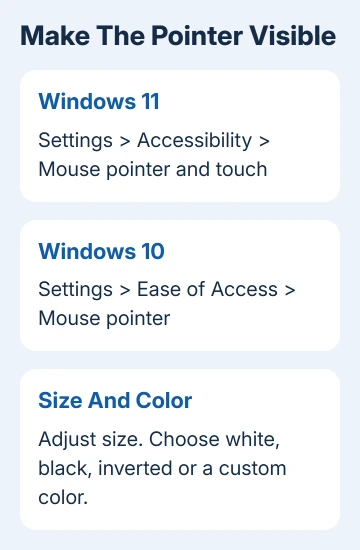
In Windows 11, press Windows + I, select Accessibility, then open Mouse pointer and touch. Under Mouse pointer, move the Size slider until the pointer is comfortable to follow.
Select a choice under Mouse pointer style. The options include white, black, inverted, and a custom color. With the custom option selected, choose a suggested color or open Choose another color.
In Windows 10, open Settings > Ease of Access > Mouse pointer. Adjust Change pointer size, then select an option under Change pointer color. The settings affect the pointer immediately, without needing a restart.
Move it across a white document, a dark window, and your desktop picture. A color that stands out on the desktop can disappear against a spreadsheet. Pick something that stays clear in the apps you actually use.
The inverted style changes its appearance against the background. Try it when you move between light and dark apps frequently; a fixed bright color can be easier to follow if that changing appearance distracts you.
Choose a different pointer scheme
A scheme is a matching set of pointers for different tasks, including selecting things, hovering over links, and waiting for an app. Changing the whole set keeps those shapes consistent instead of replacing just the normal pointer.
Microsoft describes the two sets of controls in its mouse settings instructions. The older window is still useful for choosing a scheme.
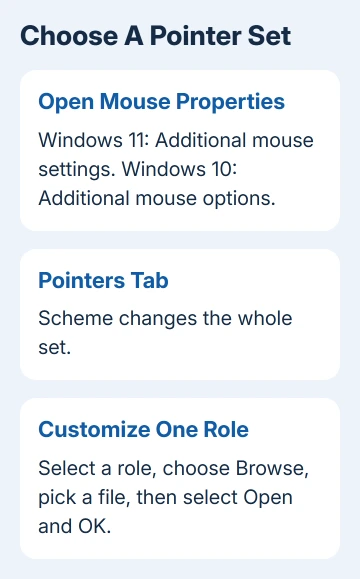
On Windows 11, open Settings > Bluetooth & devices > Mouse, then select Additional mouse settings under Related settings. In the window that opens, select the Pointers tab.
On Windows 10, go to Settings > Devices > Mouse, select Additional mouse options, and open Pointers. Don't choose Pointer Options by mistake; that neighboring tab changes behavior rather than the pointer set.
Open the Scheme menu and select one of the included sets. Look through the previews under Customize, then select OK to use it. Check the normal pointer and the text-selection shape in an app afterward.
Try a built-in scheme if you just want a bigger or darker set. It gives you a complete group of matching pointers without downloading files or deciding which image belongs to each cursor role.
Replace one shape without changing the whole set
Use the same Pointers tab when only one shape needs changing. Under Customize, select the role you want to replace, such as Normal Select, then select Browse.
Choose the pointer file you want, select Open, and check the preview. Select OK when the replacement looks right. This changes the selected role; the other entries keep their existing shapes.
For example, changing Normal Select won't automatically change the shape shown over a text box. That's a separate entry in the list. Check which role you're editing before assuming Windows ignored the new file.
Keep any custom files in a folder you plan to keep, rather than a temporary download folder. Better still, try the included pointers first if the goal is visibility rather than a particular design.
To undo a change, return to Pointers, select your earlier scheme, and select OK. Remembering its name before experimenting makes that much easier than trying to rebuild the set one entry at a time.
Make the pointer easier to locate
A larger shape doesn't help much when you lose track of where it stopped. Windows can mark its location when you press Ctrl, which is especially useful on a wide desktop or across several monitors.
Open Mouse Properties using the path for your Windows version, then select Pointer Options. Under Visibility, select Show location of pointer when I press the CTRL key, then select OK.
Press Ctrl once to check the location marker. Your chosen size and style stay the same. The marker helps you find the pointer after looking elsewhere on screen.
The same tab has Display pointer trails. Enable it if a moving trail helps you follow the pointer, and adjust the trail length. Try a short trail first so it doesn't cover more of the document than necessary.
A pointer that lands away from the place you click needs a different check. The page on mouse clicks missing the pointer's position covers that fault rather than changing its appearance.
Change the text cursor separately
The thin mark that shows where you'll type in a document is the text cursor. Changing the mouse pointer's size doesn't make that mark thicker, even though both can appear near the same word when you're editing.
In Windows 11, open Settings > Accessibility > Text cursor. In Windows 10, use Settings > Ease of Access > Text cursor. Adjust Text cursor thickness and look at the preview.
The Text cursor indicator adds colored markers that help locate the insertion point. Turn it on and adjust its size or color if losing your place while typing is the actual problem.
Check the result in the app where you need it. Some apps draw their own controls, so try typing in another app's text box before adjusting anything else in Windows.
If Windows accepts the pointer choice but later replaces it, use the separate cursor settings reverting page. If your employer's PC blocks a control, ask the administrator about permission to adjust it.
The Short Version
Use Accessibility for pointer size and color, Mouse Properties > Pointers for shapes and schemes, and Text cursor for the typing mark. Test the result against both light and dark app backgrounds before settling on a style.
Checked November 12, 2026.
 If you have any business, I can build it online






