
Windows Update installs updates on the drive containing Windows. There isn't a Settings option that moves installed updates to D:.
When C: is too full, free space there or use temporary external storage when Windows offers it.
Changing where new apps or downloads are saved won't move Windows updates to another drive.
Separate the installation from temporary update space
Open File Explorer > This PC and check the free space on the drive containing Windows, usually C:. A second drive can have plenty of room while the system drive is still short.
An update needs room to install, plus space for files that let you remove it afterward. That's why Windows can ask for more free space than the download size.
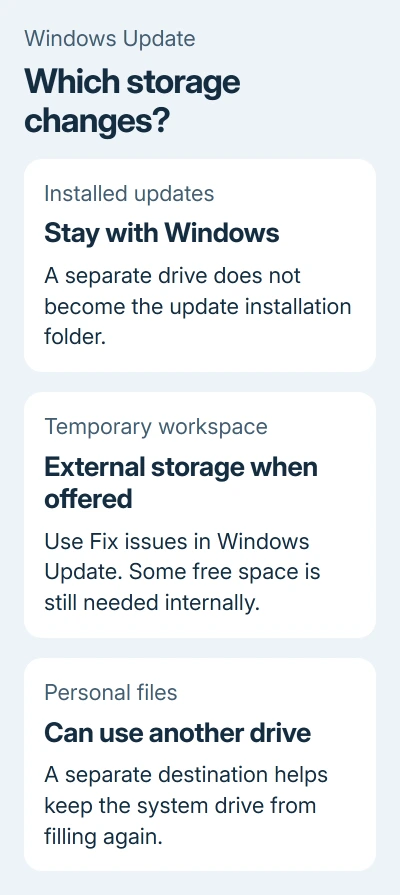
Microsoft says an external drive can provide temporary space in its update storage procedure. It helps Windows finish installing the update, but the installed update stays on the system drive.
I'd check the amount Windows asks for before buying a drive. A small cleanup may be enough for this update. A system drive that fills up every week needs a longer-term solution.
Free the space Windows requests on C:
In Windows 11, open Start > Settings > System > Storage > Cleanup recommendations. Review the categories and select files or apps you can remove, then choose Clean up for the selected items.
Read the selections before confirming. Deleting Previous Windows installation(s) removes the files used to return to the earlier Windows version, so keep those when you still need that option.
On Windows 10, open Start > Settings > System > Storage > Temporary files. Review the list, then select Remove files. Check what's in Downloads before selecting it for removal.
Transfer large personal files to your other drive. Open the copies there before deleting their originals. The disk-space cleanup guide helps when the Storage categories show a much larger space problem.
Return to Windows Update after cleanup. On Windows 11, that's Settings > Windows Update. On Windows 10, use Settings > Update & Security > Windows Update. Retry the update and read any new space request.
The amount varies by update and by what's installed on the PC. Use the number on your screen rather than assuming every update needs the same fixed allowance.
Use external storage when Fix issues offers it
Have an external storage device with at least 10 GB of free space and an internet connection ready. Back up important files on that device before using it for the update.
- Open the Windows Update page for your Windows version.
- Look for Fix issues when Windows reports insufficient disk space.
- Select it to open the update tool, then connect your external storage device.
- Choose that device from the list and select Next.
- Follow the remaining installation prompts. Remove the external device after installation finishes.
Windows can still ask you to free more space on the internal drive. Free the extra internal space it requests, even if your external drive has room.
If Fix issues isn't offered, use the internal cleanup route. Plugging in a USB drive by itself doesn't redirect the update.
When the update completes and Windows returns to the desktop, check Windows Update again for its installation status. An update waiting for a restart hasn't finished just because its download reached 100 percent.
Keep future files off the crowded drive
You can choose another drive for new documents and other supported content. In Windows 11, open Settings > System > Storage > Advanced storage settings > Where new content is saved.
In Windows 10, open Settings > System > Storage and select Change where new content is saved. Apply your preferred drive for each content type. These choices affect new files, not the installed Windows system.
Files already on C: still need a separate move or cleanup. A new destination also needs to be connected when you want to save there. Check which files are growing before changing several destinations at once.
For a laptop that repeatedly runs out of system space, compare adding or replacing its storage. A larger system drive gives Windows itself more room; a separate drive for documents doesn't.
If the update still fails after cleanup, note the error code together with the update KB number. Open Get Help and request Windows Update troubleshooting with those details. A persistent error needs its own repair.
The Short Version
Installed updates stay with Windows on the system drive. Clear the requested space on C:, or use the external-storage tool when Fix issues offers it. New-content save locations help with future files but don't relocate Windows Update.
Checked November 7, 2026.

Isaac Smith is the founder and editor of PC Glance, a website that covers computers, laptops, and technology. He is a tech enthusiast and a computer geek who loves to share his insights and help his readers make smart choices when buying tech gadgets or laptops. He is always curious and updated about the latest tech trends.