Check Settings > System > About, under Windows specifications, to see which Windows you're running. That section shows Windows 11 or Windows 10, plus the edition, version and OS build you'll need for support.
Don't rely on the Start menu's appearance to tell which Windows you have. Themes and desktop tools can change its layout, while an update can alter the interface without changing the Windows family shown in About.
In this guide
Read Windows specifications in Settings
Right-click Start, select Settings, then open System > About. Scroll to Windows specifications. This is the part describing Windows itself, rather than the processor and memory installed in your computer.
Read Edition first. An entry such as Windows 11 Home answers both the Windows family and the edition. Windows 10 Pro means the computer is still running Windows 10, even if its desktop has been customized to look different.
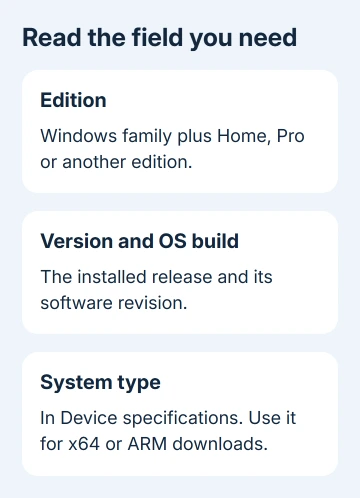
Next, copy Version and OS build exactly as they appear. Keep the labels with their values. Sending someone an unlabeled number makes it harder to know whether you're describing the Windows release, a processor model or an app version.
Microsoft says its device-information controls show edition and version in this section. Device specifications, alongside it, describes your hardware and system type instead.
Both Windows families use this route, though the Settings layout differs. On a smaller display you may need to scroll farther. Look for About within System; its position can differ between PCs.
Use winver when you need a quick second check
Open the taskbar search, type winver, and select the result. The About Windows dialog reports the installed Windows version and OS build. It is a quick alternative when you're already following instructions that mention that command.
Read the product name in the dialog and record the version and build together. Close it when finished; running winver reads information and doesn't start an upgrade or change your Windows installation.
Choose between winver and Settings based on the details you need. Use About in Settings when the question also asks for the edition or system type. Use winver for a quick release-and-build check during update troubleshooting.
If Settings won't open but winver does, copy the information from the dialog into your support request. Say that Settings is failing too, since that is a separate symptom the support person needs to know about.
I'd copy the text rather than send a full desktop screenshot. It gives support the information they asked for and avoids including open documents or unrelated account details in the picture.
Understand the four Windows labels
Windows 11 and Windows 10 identify the Windows family. That tells you which main instructions to follow, but it isn't the whole picture. Two computers can both run Windows 11 while needing different update instructions.
Home, Pro, Enterprise and Education are editions. An instruction requiring Pro won't become available just because Home has the latest monthly update. Read the complete edition name when a feature appears to be missing.
For example, the Remote Desktop connection guide explains why checking the target computer's edition comes before changing network settings. The computer you connect from and the one hosting the session have different requirements.
Version identifies a Windows release. OS build gives a more precise software revision within that family. When asking for help, send both fields so the other person can check whether the problem affects your release and update.
Office and Chrome have their own version numbers; neither identifies Windows. When an app fails after a Windows update, send support both the app version and the Windows details.
The version check tells you what's installed, but it doesn't tell you which updates you need. Your drivers, apps and monthly updates still need their own checks.
For a PC staying on Windows 10, compare that build with the current November packages before looking for a missing download.
Check system type before downloading software
On the same System > About page, find System type in Device specifications. It shows the type of Windows and processor your PC uses, such as an x64-based or ARM-based processor.
Use that field when a download offers x64, ARM64 or 32-bit choices. The Windows family and edition aren't enough to choose an installer. An ARM-based Windows computer and an x64 computer can both run Windows 11.
Record Processor and Installed RAM only if the support request also asks for hardware. These details help with compatibility questions, but they aren't substitutes for Version and OS build.
When a driver download needs the computer's exact model, follow its maker's identification instructions. A broad sales name can cover several hardware configurations, so match the device as well as the Windows system type.
The PC Health Check guide covers whether a Windows 10 computer meets Windows 11 requirements. Windows 10 appearing in About doesn't answer whether an upgrade is supported.
Read update advice for the release you actually have
Once you've recorded the version, use it when reading an update notice. A fix listed for a different release might not have the same package or instructions. Check the stated affected versions before looking for an uninstall button.
Windows 11 version 26H1 is a useful example. The 26H1 release page describes it as a release for selected new devices, rather than an in-place update offered to existing PCs running earlier versions.
That means a different release number on an existing Windows 11 PC isn't, by itself, a sign that Windows Update is broken. Follow Windows Update's offer for that device and the support guidance for its installed release.
Windows 10's regular support ended October 14, 2025. Ask which supported upgrades or extended security updates apply to your PC if About still shows Windows 10. A Windows 11-looking theme doesn't change its support status.
On a managed PC, send IT the edition, version, build and system type. Ask whether that's the release your organization wants you to use before you install another edition or download an upgrade tool.
If Windows won't start at all, these desktop steps aren't available. Tell the computer maker that the installed version can't currently be read, give the model and startup error, and ask for the matching recovery procedure.
The Short Version
Read System > About for the Windows family, edition, version and build. Use winver for a release check and Device specifications for system type. Match downloads and repair instructions to those details.
Checked November 16, 2026.