

Compatible TPM cannot be found in Windows 10 can mean the security processor is turned off in the PC's firmware. Check the firmware setting first: Intel PTT or AMD fTPM can provide it without a plug-in module.
The PC could also lack a supported TPM, or Windows might not detect it. Turning on an existing TPM isn't the same as adding new hardware. Confirm what Windows reports, then check the exact PC or motherboard's settings.
In this guide
1. Confirm the message in TPM Management
Press Windows + R, type tpm.msc, and press Enter. This opens TPM Management, which checks the trusted platform module, a security component Windows can use to protect encryption keys.
The missing-TPM result means Windows hasn't detected an available module. The same message appears whether the TPM is missing or turned off in firmware, the PC's built-in settings.
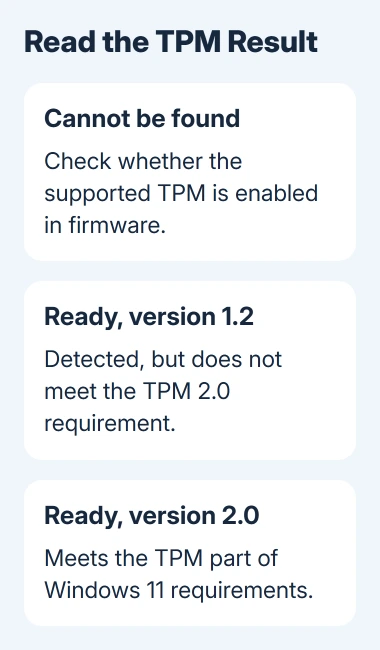
If the window instead says the TPM is ready for use, find Specification Version under TPM Manufacturer Information. Version 2.0 meets the TPM part of Windows 11's requirements; a version less than 2.0 doesn't.
Don't confuse Manufacturer Version with Specification Version. A long firmware version number isn't the TPM standard Windows 11 is checking. Use the field labeled Specification Version for that decision.
If you're checking whether you can upgrade, the PC Health Check guide explains the broader eligibility result. A working TPM doesn't mean the PC also meets the processor, Secure Boot, memory, and storage requirements.
2. Prepare before changing firmware settings
Find the PC's model or, for a custom-built desktop, the motherboard model and revision. Look for its official support manual and the section about TPM, PTT, or fTPM. Similar board names can have different menus.
If the device uses BitLocker or Device Encryption, make sure you can access its recovery key before changing firmware. A security-related change can require recovery at startup. Keep the key somewhere accessible without this computer.
For an organization-managed computer, ask IT to make the change. Encryption and firmware settings may be controlled by your organization, and IT may hold the recovery key.
Write down the current TPM-related setting before changing it. That note lets support check the original setting when enabling the TPM hasn't made it appear in Windows.
I'd use the model's manual at this point rather than copy a BIOS screenshot from another machine. The right setting can have a different label even on two computers from the same brand.
3. Open UEFI and enable the existing TPM
In Windows 10, open Settings > Update & Security > Recovery. Under Advanced startup, select Restart now after saving your work. The computer restarts and shows its recovery options.
Choose Troubleshoot > Advanced options > UEFI Firmware Settings > Restart. If UEFI Firmware Settings isn't offered, use the manufacturer's documented startup key or firmware-entry method for your model.
Microsoft says to check the firmware menus in its TPM enabling instructions. Look under Advanced, Security, or Trusted Computing. The exact route depends on the firmware.
Look for the control named in your manual. Possible names include Security Device Support, TPM State, Intel PTT, Intel Platform Trust Technology, AMD fTPM switch, or AMD PSP fTPM.
Enable the supported TPM option, save the change, and restart Windows. If a menu offers a choice between firmware and discrete TPM, follow the board manual for the hardware installed in your PC.
Don't choose Clear TPM. Clearing removes stored TPM keys; it isn't the command for turning detection on. Leave unrelated boot, storage-controller, and Secure Boot settings alone during this change.
4. Check what changed after the restart
Open tpm.msc again once Windows loads. A successful change should replace the missing-TPM message with the module's status and manufacturer details. Check both readiness and Specification Version.
Windows 10 also provides Settings > Update & Security > Windows Security > Device security. When available, open Security processor details to see the processor's specification information.
If TPM Management now shows version 2.0 and says it's ready, return to the application or eligibility check that first raised the issue. Run that check again so it reads the computer's current state.
If the same missing-TPM message remains, reopen firmware and check that the setting stayed enabled. If it switched back, save it again. If it stayed enabled but Windows still can't see the TPM, continue with the manufacturer's checks.
A module showing version 1.2 is being detected, so turning it on again won't change it to 2.0. Ask the manufacturer if a supported TPM firmware upgrade exists for the model or another supported configuration.
5. Use the manufacturer's route when no setting works
Read your model's TPM support notes and firmware-update instructions. Install an update if its description lists a fix for this problem or added TPM support. Check that it matches your hardware and the problem you're fixing.
Don't buy a TPM module just because the motherboard has an empty header. Plug-in modules must match the board's supported type and pin arrangement. The motherboard maker should confirm the exact part number and required firmware first.
Some older PCs lack a supported TPM option. Others need a manufacturer-specific setting or update. Give support your PC or motherboard model, firmware version, the TPM settings you can see, and the result from tpm.msc.
Ask whether the model supports TPM 2.0, how to enable it, and whether its current firmware supports that configuration. Those questions are more useful than asking how to reinstall Windows when it can't detect the TPM.
6. Separate TPM repair from Windows upgrade support
Windows 10 doesn't require TPM 2.0 simply to run. The message often appears during a Windows 11 eligibility check or when a feature expects a TPM. Focus on what the app or upgrade check you're using requires.
October 14, 2025 was the end of standard support for Windows 10. An enabled TPM doesn't extend that support or enroll the PC in Extended Security Updates. Check separately whether your PC is covered for updates.
If the processor or another requirement still fails, the unsupported Windows 11 guide explains the consequences of installing on unsupported hardware. Replacing only the TPM won't fix a different upgrade requirement.
When support confirms that the PC cannot meet the requirements, ask about a supported upgrade or replacement plan. Keep that decision separate from any repair needed to regain access to an encrypted drive.
The Short Version
Open tpm.msc, enable the supported PTT or fTPM option, and restart. Check readiness and Specification Version afterward. Don't clear the TPM or buy hardware without checking compatibility with the manufacturer.
Checked November 15, 2026.
 If you have any business, I can build it online






