

A missing right-click menu in Copilot doesn't necessarily mean the clipboard has stopped working. Click inside the message box and press Ctrl + V; owners confirmed this worked when the Windows app wouldn't offer Paste with the mouse.
Copying an answer out, pasting text in and attaching an image are different actions. Start with the one that fails, because changing browser permissions won't fix every version of this problem.
In this guide
1. Paste into the message box with Ctrl + V
Copy a short sentence from Notepad with Ctrl + C. Open Copilot, click its message box so the cursor appears, then press Ctrl + V. Don't press Enter until you can see what was inserted.
If the sentence appears, text pasting works. The missing or unresponsive mouse menu is the part to work around. Continue using the keyboard shortcut rather than clearing Windows clipboard history or reinstalling Office.
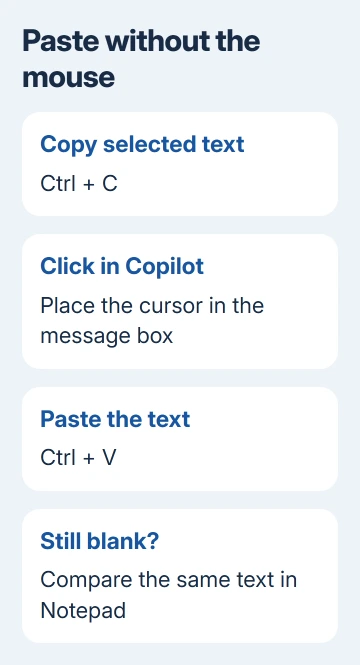
Several owners in the Copilot paste discussion confirmed this distinction. Their Windows app didn't respond to right-click, while Ctrl + V and the website still worked.
Those owners were using app versions from early 2025. They don't mean every current Copilot app permanently lacks a mouse menu. Use what your installed version actually does, and keep the working shortcut available while checking further.
If the short Notepad sentence also fails, click the box again and try a new chat. Without a text cursor in the message box, the shortcut may go to another part of the page. Continue to the app-versus-browser check if nothing appears.
On a Mac using Copilot in a browser, the corresponding shortcuts are Command + C and Command + V. The reported Windows-app fault isn't a reason to change macOS clipboard settings when only the shortcut differs.
2. Copy a response out with selected text
To move an answer into Word or another document, highlight the passage by dragging over its text. Press Ctrl + C, click inside your destination document and press Ctrl + V.
On a Mac, use Command for both shortcuts. Select the response text itself, rather than a conversation title or a link that opens the answer. A copied chat link isn't the answer's contents.
If the response has a Copy control, you can use that to copy the answer, then paste into the destination. Check the pasted text before editing; the control may copy more of the response than the passage you intended.
Paste into Notepad as a comparison if your document remains blank. If the answer appears there, copying out succeeded and the destination app needs attention. Keep a copy of the text before closing the chat.
If text won't paste into any app, use the broader Windows copy-and-paste checks. That is a different failure from Copilot alone refusing a right-click menu.
3. Compare the Windows app with Copilot in Edge
Open Edge and enter https://copilot.microsoft.com in the address bar. Use the same account and try the short text again. For a work or school chat, use your organization's approved Copilot address and account instead.
If the website works and the Windows app doesn't, continue the chat in the browser for now. That avoids making Windows-wide changes for a fault you can reproduce only in one app.
The chat screen needs the right account and may look different from the page you see when signed out. Make sure you're in the chat's message box before comparing its mouse menu with the app's.
I'd use the browser temporarily if mouse-driven copying is essential to how you work. Owners reported the website retained the menu they needed. There is no need to uninstall the Windows app just to make this comparison.
For the app, open Microsoft Store > Library and check for updates. Newer Store layouts may put update checks under Downloads. Install any offered Copilot update, reopen it and test the same sentence.
Don't seek out the old version number quoted in the discussion. It described the app available at that time, not a current download recommendation. Keeping an old version just for one menu means postponing app updates for that menu.
If the website opens blank instead of showing a usable composer, follow the Copilot sign-in and blank-page checks. That page addresses a service that won't load, not a loaded chat that won't paste.
4. Remove formatting when text from Word fails
Copy the troublesome passage from Word and paste it into Notepad first. If readable text appears, select that text in Notepad, copy it and paste it into Copilot. This strips out Word's formatting so you're pasting plain text.
Use a short passage for this check. If a simple sentence works and the longer selection doesn't, compare their content before treating the whole clipboard as broken. Tables, pictures and mixed selections aren't the same as plain text.
Later, a participant found Word copies misbehaved in Google Chat too. Copying through another text box helped, but it didn't fix the underlying Word problem. The missing app menu didn't explain that problem.
If Notepad receives an image or nothing at all, go back to Word and select only text. Check that the document allows copying. For a work document with restrictions, ask its owner or IT team how you're allowed to share it.
Don't send private text through a translation website just to strip formatting. A local text editor handles the plain-text comparison without adding another online service to the process.
5. Attach an image or file instead of pasting its path
Copying a filename in File Explorer can give Copilot a path rather than the file's contents. Use the chat's attachment or Add images or files control when you want it to read the actual item.
Select the file and wait until it appears as an attachment before sending the prompt. If the picker opens but rejects the item, check the supported file formats for the version of Copilot you're using with that account.
An attachment thumbnail or filename is the result to look for. A path pasted as ordinary text doesn't upload a local document. The older thread's image-paste limitations also shouldn't be treated as a permanent rule for every newer app.
If neither route accepts a simple sentence
Use Copilot's Help or Feedback control and report the app version, account type and whether the same text works in the browser and Notepad. Specify whether Ctrl + V fails, right-click is missing, or copying responses out fails.
For a managed work account, ask IT to check its data-sharing restrictions with that same example. Say whether you're copying into or out of Copilot, so IT knows which action fails.
The Short Version
Try Ctrl + V inside Copilot and Ctrl + C on selected answers. Compare the app with the browser, pass Word text through Notepad when formatting interferes, and upload actual files through the attachment control.
Checked November 23, 2026.
 If you have any business, I can build it online






