Yes, Outlook can keep a to-do list beside your email. In new Outlook, use My Day for quick tasks and To Do for separate lists, due dates, and reminders. Classic Outlook also has a Tasks view and the older To-Do Bar.
Choose the instructions for the Outlook version on your screen. A task list isn't a contact list for emailing several people.
In this guide
Start with the Outlook version you're using
In Outlook for Windows, look for File on the ribbon. A File tab identifies classic Outlook; new Outlook uses a different layout. The browser editions, including Outlook.com, use To Do instead of that classic Tasks window.
New Task and Save & Close belong to the classic task form. In new Outlook, enter a name in To Do, then open the task to add details.
A saved email contact list belongs in People instead of To Do. Use To Do for your own checklist of work, rather than a collection of recipients.
If several mailboxes are open, check which account you're using before building a list. Your personal account and work account can hold different tasks, even when their mail appears in the same Outlook window.
I'd start with one task and one named list. Check that both are in the expected account before copying a long paper checklist into Outlook.
Add a quick task beside your email
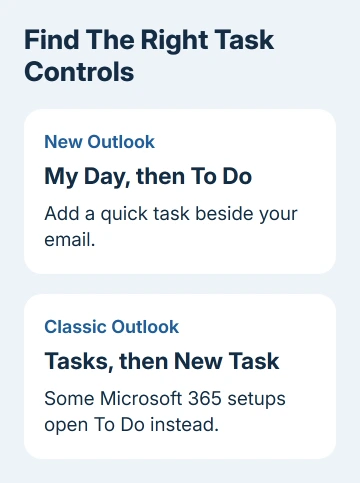
In new Outlook, select My Day in the upper toolbar area. The pane can show your calendar or tasks. Select its To Do tab when the calendar is displayed instead.
Select Add a task, type the thing you need to do, then press Enter or choose Add. The task appears in the pane. Use a name that describes an action, such as sending an invoice, so it makes sense without reopening the email.
Mark the task as important if it needs attention, or mark it complete when you've finished. You can reorder tasks in the pane by dragging their handles, which is useful when the order matters more than a due date.
Select Open To Do or Manage all tasks for the full view. Microsoft's My Day instructions cover both controls.
My Day is a daily view, not the only place the task exists. When the view clears overnight, unfinished items remain in their original task lists. Open that list before assuming something was deleted.
Make separate lists and add useful details
Open To Do from Outlook's navigation area. Select New list, enter a name, and confirm it. Use a project name or a category you'll recognize later, rather than putting unrelated work into one long queue.
Open the new list, enter a task name in Add a task, and add it. Select the task itself to see its details. From there, set a due date, add a reminder, or split a larger job into smaller steps.
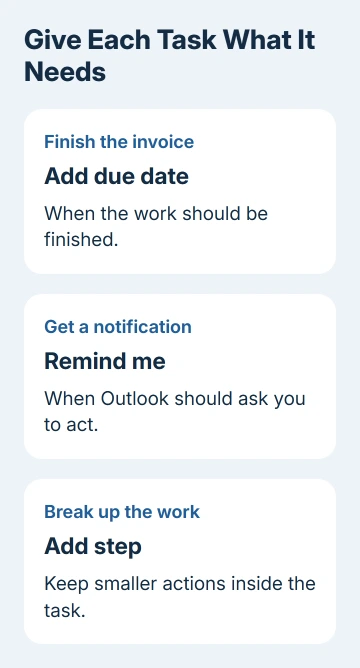
A due date tells you when the work should be finished. A reminder sends a notification asking you to act. Set both when you need both; don't rely on a due date alone to remind you.
For a repeating job, use the task's Repeat setting and choose how often it happens. Check the schedule before closing the details, especially for a task that must happen on a particular weekday.
Add an existing task to My Day when you want it on today's working list. This keeps today's list short without removing anything from your project list. Marking it complete also marks it complete in the original list.
If the task needs a reserved time slot, put it on the calendar as well. A task with a deadline doesn't automatically protect an hour from meeting invitations.
Turn an email into something you can act on
While viewing Mail in new Outlook, open My Day. This also works in the web version. Drag the message you need to act on from the mail list onto the pane's To Do tab. Outlook creates a task from that email.
This is useful for a message that needs a reply later. Open the resulting task and give it a clear name, date, or reminder instead of leaving the action buried in an email subject that describes something else.
A flag is another way to keep mail that needs attention. To Do's Flagged email list can show flagged messages from your connected account when supported. If that list is hidden, check To Do's connected-app settings.
Don't confuse a task with sending a reply. Adding an email to a list records work for you; the sender won't receive a response until you actually write and send one.
For a message that must leave at a set time, use Outlook's scheduled sending controls. A task reminder and a scheduled outgoing message solve different problems.
Use the classic Outlook task form when it's available
In classic Outlook, open Tasks from the navigation pane and choose New Task. Another route is New Items > Task, or Ctrl + Shift + K when the classic task command is active.
Enter the task name in Subject. Add any explanation in the main body, then choose a start date or due date if the job has one. The classic form also offers priority and reminder controls.
Select Task > Save & Close to keep the item. Reopen it from Tasks when you need to update the date or progress. For the list beside your email, choose View > To-Do Bar > Tasks in classic Outlook.
Some Microsoft 365 installations open To Do when you select a task command instead. If that happens, use the To Do steps rather than searching the new window for the classic task form's buttons.
Mac Outlook doesn't use the Windows To-Do Bar procedure. Use the To Do service with the same supported Microsoft account when you need a task list that you can also reach from a Mac browser.
Find missing tasks before making a second list
Check the account first, then the original named list and its completed items. An empty My Day view can simply mean the daily selection has cleared, while a completed task may be hidden by the current list view.
When tasks are present in the browser but absent from the app, check the app's account and connection. If mail is offline too, restore that connection before comparing the lists again.
For a work account with no To Do access, have your Microsoft 365 administrator check whether To Do is enabled for that account. Give them the account address, Outlook version, and the exact message shown when To Do opens.
For a personal account, use To Do's Help or feedback option and describe which list or task is missing. Say whether Outlook in your browser shows it. That helps support check whether the task is missing or just isn't showing in one app.
The Short Version
Use My Day > To Do > Add a task for a quick item in new Outlook. Open To Do to create named lists and add dates or reminders. In classic Outlook, use Tasks > New Task and save the completed form.
Checked November 11, 2026.