

Windows 11's Downloading required files screen can stall while Windows Features tries to get components from Windows Update. Check the feature name first: .NET Framework 3.5 has a separate installer on Windows 11 26H1 and later.
On older Windows 11 versions, that same .NET feature can use Windows Update or matching installation media. Other optional features need their own files, so don't run a .NET command just because the progress message matches.
In this guide
1. Match the feature to your Windows version
Read the feature name in the installation window and note any error code. Then press Windows + R, type winver, and press Enter. Record both the Windows version and the OS build.
For .NET Framework 3.5 on Windows 11 25H2 and earlier, use the Windows Features installation route. On 26H1, build 28000, and later, you install it separately instead of adding it as a Windows component.
Microsoft's current installation instructions explain that version split. A NetFx3 command copied from an older Windows guide isn't the right installation method for the newer branch.
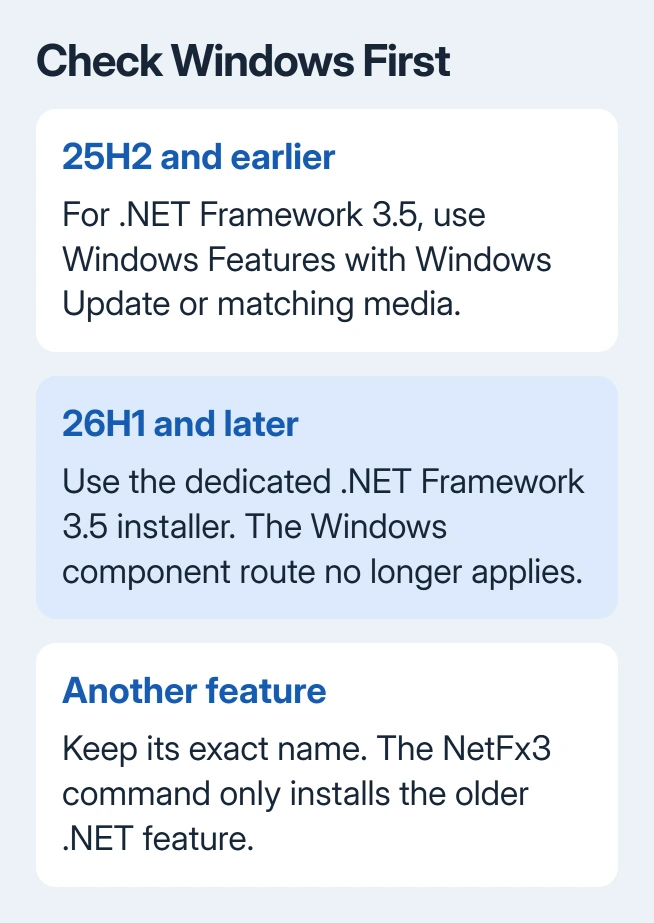
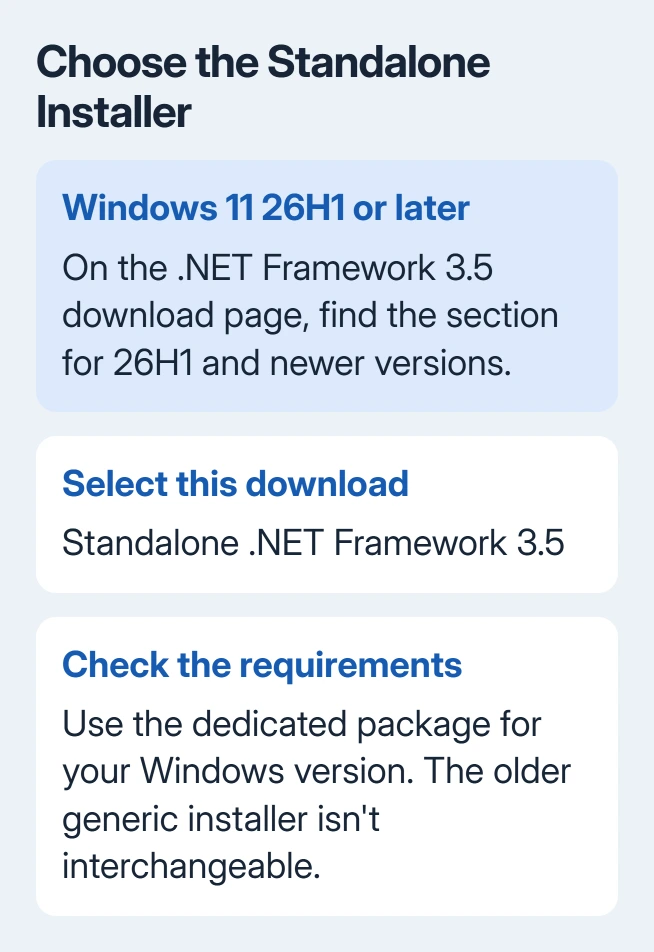
For 26H1 or later, use the dedicated installer from the official .NET 3.5 download choices. Check its Windows requirements before running it; the old generic installer isn't interchangeable with this package.
For a different feature, write down its exact name and use the connection and policy checks next. The later NetFx3 command applies only to .NET Framework 3.5 on the older Windows branch.
2. Restore access to Windows Update before retrying
Save open work and restart if Windows Update is already asking you to. In Settings > Windows Update, check whether Windows can scan for updates or instead reports a connection or management error.
A webpage can load even when Windows can't reach its update service. A proxy, network firewall, or managed update server can block component downloads while the browser still appears to work normally.
On a personal PC, check that the network is connected and any sign-in page has been completed. If you use a VPN, try the installation through your normal connection if your setup allows it.
Return to the feature installation after the connection is working. If it completes, reopen the application that requested the feature. That checks the original problem, rather than just whether the progress bar moved.
For a stalled Windows Update scan, use the Windows Update recovery steps before repeatedly starting Windows Features. Note the update error so you can follow the appropriate repair rather than guessing.
3. Treat a managed-PC block as an update-source problem
For an organization-managed computer, ask IT whether optional components can download from Windows Update. Organizations can direct updates through WSUS, an internal Windows update server, without providing every optional feature's files.
Error 0x800F0906 means Windows couldn't download the required files. 0x800F0907 points to a policy blocking access to the required files. Send the code and feature name with the support request.
Ask IT to review Specify settings for optional component installation and component repair, under Computer Configuration > Administrative Templates > System, and provide an approved repair source or permitted Windows Update access.
The policy can supply an alternate source path or allow direct Windows Update downloads instead of WSUS where appropriate. Your administrator needs to choose a source that works with the organization's update setup.
Don't bypass company update settings by importing registry changes from another PC. Company policy can undo a local change, and an incorrect source can leave the installation failing in exactly the same place.
When IT supplies a source or changes the policy, retry the requested feature once. If it still fails, report the new result and code. A changed error can identify a missing source file rather than the original connection block.
4. Use matching installation media for older .NET 3.5
For .NET Framework 3.5 on Windows 11 25H2 and earlier, installation media can supply the missing files without downloading them through Windows Update. Use media appropriate for your installed Windows version and architecture.
Use an official Windows ISO you already have, or ask your PC administrator for matching media. Mount the ISO by opening it in File Explorer, then note the drive letter assigned to the mounted disc.
Open the mounted drive and check that sources\sxs exists. The source files must match the Windows installation; an unrelated older ISO or a folder copied from another computer can fail with 0x800F081F.
Open Terminal (Admin) from the Start button's shortcut menu. If the mounted media is drive D:, run this command. Replace D with its actual drive letter if yours differs.
DISM /Online /Enable-Feature /FeatureName:NetFx3 /All /Source:D:\sources\sxs /LimitAccess/Source points to the feature files. /LimitAccess prevents this attempt from contacting Windows Update, so Windows needs to be able to use the files you've supplied. It isn't a way to make mismatched files compatible.
Wait for DISM's result and restart if requested. If it completes successfully, open the application that needed .NET. If it reports missing source files, check the path, access permissions, and media version before trying again.
I'd check the source folder before repeating the command. A wrong drive letter can look like another component failure even though the required files are sitting on a different mounted drive.
5. Stop applying NetFx3 fixes to a different feature
Language components, RSAT tools, and other capabilities may need different packages and policies. Keep the exact feature name when looking up its installation route; changing NetFx3 to a guessed name isn't a reliable substitute.
For ordinary optional capabilities, use Settings > System > Optional features on current Windows 11 builds and review the requested feature's result. Older builds can place Optional features under Apps instead.
If the failure has become a full Windows installation or upgrade error, follow the separate Windows 11 installation-failure checks. That is a different operation from adding a component to a working desktop.
If the correct feature still won't install, send your winver details, feature name, and error code to IT or Microsoft Support. Include whether you used Windows Update or local media. For DISM failures, include C:\Windows\Logs\DISM\dism.log.
The Short Version
Identify the feature and Windows build first. Newer Windows needs the dedicated .NET 3.5 installer; older versions can use Windows Update or matching sources\sxs media. On managed PCs, ask IT to check the optional-component download policy.
Checked November 15, 2026.
 If you have any business, I can build it online






