

DPC_WATCHDOG_VIOLATION means Windows shut itself down because a driver kept the processor busy too long. Drivers and firmware cause it far more often than broken parts, so a laptop that hits it on every start needs updates, not repairs.
Get into Safe Mode, then reinstall the chipset driver and update the BIOS. Those two updates stopped the blue screen on one owner's ASUS laptop, which crashed at its logo on every start even after SFC, chkdsk and a storage driver swap.
In this guide
What the stop code means
A DPC (deferred procedure call) is a small job a driver hands the processor, such as finishing a disk read. Each one gets a tight time limit, and when a driver runs past it, a built-in watchdog timer stops Windows with stop code 0x133.
Microsoft's reference for that stop code says a DPC shouldn't run longer than 100 microseconds, and it blames faulty driver code in general. So the real question is which driver.
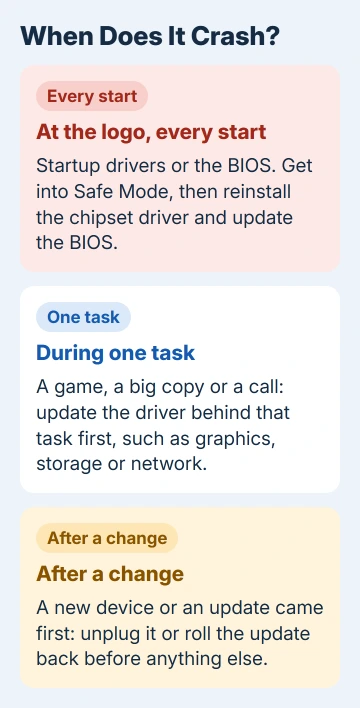
When the crash happens tells you where to start:
- At the logo or right after it, every time: a driver that loads during startup, such as the chipset or storage driver, or the BIOS itself. Work through the steps in order.
- Only during one task, like a game or a big file copy: start with the driver behind that task (graphics, network or storage), then try the chipset and BIOS steps.
- Right after new hardware or an update: undo that change first, in step 2.
1. Get into Safe Mode if it crashes on every start
Safe Mode loads Windows with a basic set of drivers, so the one causing the crash often stays switched off and you get a desktop to work from.
- Switch the laptop on and wait for the maker's logo.
- As soon as it appears, hold down the power switch for a forced shutdown.
- Do that once more. On the third start, Windows should open Automatic Repair.
- Select Advanced options, then Troubleshoot > Advanced options > Startup Settings > Restart.
- When the list appears, press 5 or F5 for Safe Mode with Networking, so you can download drivers.
If BitLocker drive encryption is on, you'll need the recovery key to get through these screens, so look it up on another device first.

When even Safe Mode blue-screens, the cause loads in that stripped-down start too, which points at the storage driver, the BIOS or the hardware. Skip ahead to step 4, then step 6.
2. Unplug new hardware and undo the last change
Unplug everything the laptop doesn't need to start: USB drives, docks, card readers, external disks and adapters. Then restart normally.
If Windows loads now, reconnect one device, restart, and repeat with the next. When the crash returns, the device you just connected needs a newer driver from its maker.
Did the crashes start right after a driver update? Roll it back: in Device Manager, right-click the device, choose Properties, and use Roll Back Driver on its Driver tab.
You can undo a Windows update as well. On the recovery screens from step 1, Troubleshoot > Advanced options > Uninstall Updates removes the most recent ones.
3. Reinstall the chipset driver
The chipset driver tells Windows how to work with the controllers built around the processor, including storage, USB and power management.
One owner's ASUS laptop, an AMD Ryzen model, stopped crashing after this step and the BIOS update in step 4.
- Press Windows + R, type msinfo32, press Enter, and note the System Model.
- Look up that model on the laptop maker's website and open its drivers section.
- Download the newest chipset driver for your version of Windows, run it, and restart.
On an AMD Ryzen laptop, AMD's own chipset package works too; that's the package an adviser sent the owner to. On an Intel laptop, stick with the chipset package the laptop maker lists for your model.
4. Update the BIOS
The BIOS (the firmware that runs before Windows) sets up the power and device features every driver relies on.
The same owner updated the BIOS from version 312 to 316 along with the chipset reinstall, and by that evening the blue screen had stopped appearing.
An earlier round of repairs on that laptop looked like it had worked, but the crash came back two days later. Give any fix a few days of normal use before you call it solved.
- Plug in the charger and leave it connected.
- Download the newest BIOS file listed under that same model.
- Install it the way the maker's instructions say, and don't switch off or close the lid until the laptop restarts by itself.
If the power cuts out mid-update, the laptop may not start again, which is why the charger matters. Whether to update a BIOS at all is often a judgment call, but a crash like this one is a good reason.
5. Find the driver the crash names
The blue screen often names the file it blames, on a line that starts What failed:. A name ending in .sys is a driver, and its maker's download page is the next stop.
If the screen disappeared before you could read it, where the stop code went shows how to find it again.
The System log can also point at the device. Open Event Viewer, go to Windows Logs > System, and read the errors logged just before the restart.
When one driver keeps turning up and its maker has no update, disable that device in Device Manager until one arrives. A missing feature beats a laptop that won't start.
6. Test the memory and leave free space
Drivers and BIOS up to date and it still crashes? Open Windows Memory Diagnostic from Start and pick Restart now. Once the test starts, press F1, select Extended and press F10 to run the longer test.
The result pops up after you sign in again. If it doesn't, the memory test results guide shows where Windows keeps it.
Also leave 10 to 15 percent of the system drive free; that's the general advice for any stop error.
When the blue screen keeps coming back
If nothing here stops it, reset Windows and keep your personal files: on the recovery screens, choose Troubleshoot > Reset this PC > Keep my files. Expect to reinstall your apps afterwards.
If the crashes survive a fresh Windows, suspect the hardware. Tell the laptop maker's support the stop code and what you've already tried, and use the warranty if it still has one; otherwise, take it to a repair shop.
The Short Version
DPC_WATCHDOG_VIOLATION means a driver took too long. Use Safe Mode if it crashes at startup, unplug anything new, then reinstall the chipset driver and update the BIOS. Check the named driver, test the memory, and reset Windows last.
Checked November 20, 2026.
 If you have any business, I can build it online






