

Edge password imports need the password CSV option, not the favorites picker. Choose Import passwords now in Import browser data, then Passwords CSV file. If file selection does nothing, update Edge before retrying.
A CSV opening in Excel only means Windows is set to open that file type in a spreadsheet app. It doesn't mean the passwords were imported, or that the export is broken. Start the import inside the Edge profile where you want the passwords.
In this guide
1. Use the password importer in the right profile
Select Edge's profile picture, then choose the profile that should receive the passwords. Work and personal profiles keep separate saved data. Importing into the wrong one can look like a failed import when you return to your usual window.
Open Settings and more > Settings > Profiles > Import browser data. Under Other import locations, select Import next to Import passwords now. Choose Passwords CSV file in the Import from menu.
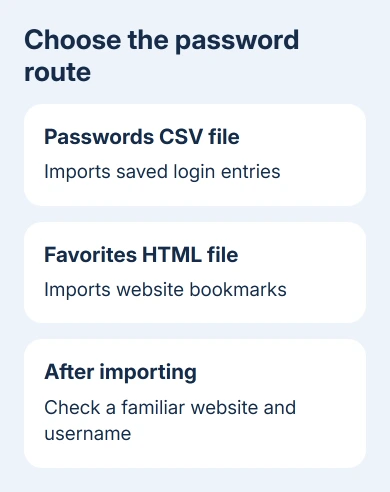
Select Choose file, find the exported CSV, and select Open. Wait for the completion notification, then select Done. Microsoft's password import instructions say the entries are added to your saved passwords.
The nearby Favorites or bookmarks HTML file choice imports bookmarks. It isn't a second route for passwords. If that is the only file type in the dialog, cancel and return to the password-specific import control.
Edge's settings layout changes over time. Search Settings for Import browser data if you can't find it under Profiles. These steps use Windows desktop Edge; the mobile app doesn't have this CSV-import screen.
Check a familiar entry in Edge's password manager after the notification. Match its website address and username, especially when you have two accounts on the same service. Then check that Edge fills in that login on the real website.
2. Update Edge when selecting the file does nothing
Enter edge://settings/help in the address bar. Leave the page open while Edge checks for updates. If it downloads an update and offers Restart, save unfinished forms, restart Edge, and retry the CSV afterward.
The original September 2022 thread described a real failure in Edge 105. Later replies still reported trouble in versions 106 and 107. An owner finally reported that CSV import and export worked after the January 12, 2023 update.
The old accepted answer said there was no date for a fix, but the later replies changed that picture. It isn't a reason to enter every password manually today, or to return to an obsolete Edge release.
If updating fails, fix the updater before re-exporting passwords. If Edge is current and the importer stays silent, try a fresh export or direct browser import. Note the exact version for your support report.
3. Export a fresh CSV from the original app
Return to the browser or password manager that holds the working entries and use its password Export command. Choose CSV when offered, then select that newly saved file from Edge's password importer.
Don't change a spreadsheet workbook's extension to .csv. Renaming an Excel file doesn't convert it into the export format Edge expects. Likewise, a bookmarks HTML export contains website links, not the usernames and passwords needed here.
Anyone who opens a password CSV can read the usernames and passwords. Keep it private, don't email it to support, and delete it after checking the imported entries. Remove extra copies created during troubleshooting too.
If Excel opens automatically when you double-click the file, close it without saving changes. Use Choose file in Edge instead. Windows' default CSV app can stay as it is.
If only some entries arrive, compare the missing logins in your original password manager with those in Edge. Keep your original passwords until you've tested your important logins, even if Edge reports that the import finished.
4. Import directly from Chrome when the CSV path fails
If the passwords already exist in Chrome, return to Edge's Import browser data page and select Import next to Import data from Google Chrome. Choose the relevant Chrome profile and the saved-password option before importing.
Clear categories you don't want, such as history or favorites. This keeps a password transfer from also adding a second collection of bookmarks. Select Import, then check the completion message and test a saved login in Edge.
Owners confirmed another route: import the CSV into a temporary Chrome profile, then import its passwords into Edge. One reported success in Edge 107.0.1418.62 and tested the transferred passwords.
In current Chrome, open Passwords and autofill > Google Password Manager > Settings, then use Import passwords > Select file. Choose the CSV. Return to Edge's Chrome importer only after the passwords appear in the intended Chrome profile.
I'd try importing an existing Chrome profile before creating an extra one. A temporary profile helps when Edge alone rejects the CSV, but it creates another copy of your passwords to remove afterward.
One owner restarted their PC before Edge offered the new Chrome profile. If yours is missing, close the browsers, restart Windows, and check the profile selector again. Don't choose another person's profile.
5. Separate importing from password syncing
Importing copies passwords into one Edge profile. It doesn't select profiles on other devices or turn on password syncing. Check that entries exist locally before troubleshooting another device's missing passwords.
For passwords previously stored in Authenticator, check their move to Edge before making another export. That account migration is different from a desktop file picker failing to import a CSV.
If sites sign out despite saved passwords, check Edge's login retention settings. A website's cookie keeps you signed in; a saved password fills in your login. Importing again won't keep you signed in if Edge clears that cookie on exit.
When the current importer still fails
Press Alt+Shift+I for the feedback form. Include the version, which import route failed, and whether a completion message appeared. Name the export's source app without attaching the password file.
On a managed work PC, ask IT to check whether password importing is restricted. Keep access to your original password manager while IT checks. Don't remove its entries to force Edge to become the only copy.
The Short Version
Use the password CSV importer in the destination profile, update Edge, and retry with a fresh export. Direct Chrome import is a confirmed alternative when the file route fails. Verify important logins before deleting temporary exports.
Checked November 23, 2026.
 If you have any business, I can build it online






