The message Error writing to temporary file. Please make sure your temp folder is valid means setup couldn't create its working files. Try a trusted local installer, then check whether your account can write to its Temp folder.
The same message can come from folder permissions, a user-profile problem or the installer's location. Running as administrator helped some owners, but a Temp folder that looks missing can simply be hidden.
In this guide
1. Run a trusted installer from the Windows drive
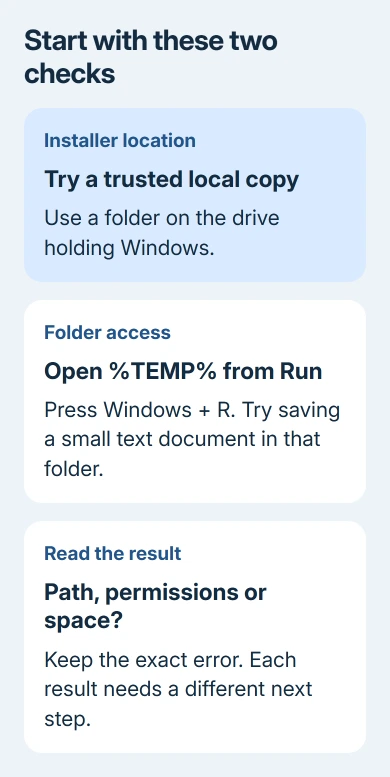
Close the failed setup. Copy the installer into a normal folder on the drive where Windows is installed, such as your local Downloads folder. Run that copy instead of launching from a network location or removable drive.
Check the actual folder address if Downloads has been moved. The point is to compare a local copy on the Windows drive, rather than retrying the same file from the same location under a different shortcut.
An owner in the temporary-file error thread fixed setup by moving the executable onto C:. Their user folders were on another drive. Try that before replacing the profile.
If the local copy works, finish installation there. The result points toward how setup used its earlier location; it doesn't mean every secondary drive needs to be reformatted or moved.
If the same message returns, keep the local copy for the next check. Leave it there for the administrator-access check, so a change of location won't affect the result.
2. Check whether setup needs administrator access
For an installer you trust and meant to run, right-click its .exe file and choose Run as administrator. On Windows 11, use Show more options if the shorter menu doesn't show it.
At the approval prompt, use an administrator account you're allowed to use. This checks whether setup needs administrator access. Keep Windows security prompts enabled.
Another owner in the thread reported that this fixed the error. If it works for your installer, finish setup and check whether the installed app opens normally without running it as administrator.
If elevation makes no difference, continue to the Temp-folder check. An installer can have administrator access and still use an invalid path or fail while extracting its files.
For a gray elevation choice, the Run as administrator guide explains the program-versus-shortcut distinction. Use the actual installer file for this comparison.
I'd avoid making every future app run as administrator just because setup needed it once. The installer and the installed app can have different access requirements.
3. Open your Temp folder and try saving a small file
Press Windows + R, type %TEMP%, then press Enter. Windows uses that name to open the temporary folder saved for your account. Check whether File Explorer opens a folder or displays a path error.
Don't conclude the folder is gone just because it isn't visible while browsing AppData. In the original report, the asker eventually found the folder and realized it had been hidden. Installations still failed afterward.
If the folder opens, right-click an empty area and choose New > Text Document. Give it a recognizable name, open it in Notepad, type a short line, and save. Close it and delete only that test document afterward.
A successful save shows that your current account can write a small file at that location. It doesn't confirm that the installer has enough space for its whole package or is using the same temporary location.
If Windows rejects creating or saving the document, keep the exact error. Access denied points to permissions; a full drive needs free space. Check This PC for free space on the drive holding the Temp folder.
For a full drive, use the Windows storage cleanup steps and retry after making room. The space required varies with the installer and its extracted files.
4. Check the saved path before changing permissions
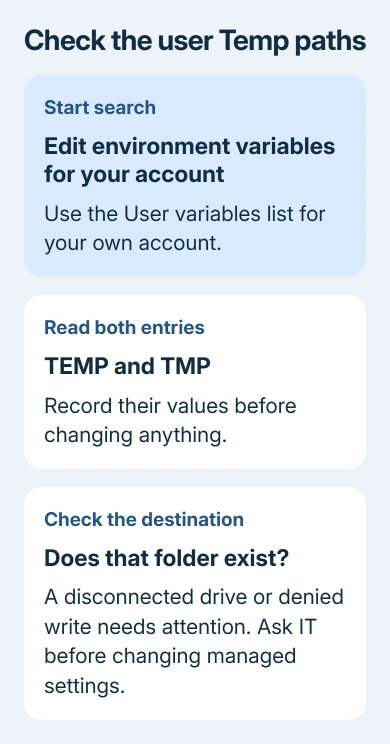
If %TEMP% doesn't open, open Start and search environment variables. Choose the result for your own account, then inspect TEMP and TMP in the User variables list.
These entries hold folder paths for temporary files. Record both values. A path to a disconnected drive or missing folder explains why cleaning a different Temp folder won't help.
The temporary-path documentation explains that the classic Windows function checks TMP before TEMP. It doesn't check whether that folder exists or whether the program can access it.
That's why checking only one visible folder can miss the problem. Different installers can also choose their own extraction location, so give the software vendor both recorded values when setup keeps failing.
For a folder that denies the save test, check your account's access in Properties > Security. On a managed PC, have IT repair that folder's permissions without giving unrestricted access to other accounts.
If you don't know why the path changed, get the administrator to review it before editing. Changing System variables or taking ownership of the entire Users folder is far broader than repairing one broken setup location.
5. Compare another account before moving your profile
Try the same local installer from another Windows account that you're authorized to use. Keep the file and installation choice the same. The result helps distinguish a problem in your account from one affecting other accounts on this PC.
If setup works there but fails in the original account, check the original account's Temp paths, permissions and profile. Don't immediately delete the original account; it still holds files and application settings you may need.
The corrupted-profile procedure describes creating a new administrator account and moving personal files when a damaged profile needs replacement.
The thread's accepted answer suggests replacing the profile, but doesn't report that it worked. A later owner says those suggestions didn't work for them. Compare accounts before deciding to move your profile.
If every account fails, send the publisher the exact message, installer version, source location and Temp paths. For failures across unrelated installers, give Microsoft Support or IT those details and the folder-save result.
One later owner succeeded by running setup inside a ZIP file. That doesn't repair a blocked Temp folder. I'd follow the publisher's installer instructions rather than rely on running setup from a ZIP file.
The Short Version
Use a trusted local installer and test administrator approval. Open %TEMP% and check whether a small file saves. Follow the path or permission error, and compare accounts before replacing a Windows profile.
Checked November 16, 2026.
 If you have any business, I can build it online