
For FFXIV's version-check error, first check that the game's Documents files open on your PC, then match the full error code. A OneDrive path alone doesn't tell you why the check failed.
A busy server and a damaged game file need different fixes. OneDrive matters when Documents is backed up there and its files won't open locally. Removing your cloud account first can create file problems without fixing the launcher.
1. Restart the launcher and keep the complete error
Close FINAL FANTASY XIV and reopen the launcher you normally use. If an update was interrupted, let it try again. If the error returns, take a screenshot that includes every group of numbers.
The final numbers matter. The publisher's version-check troubleshooting page gives different steps for errors ending in 409 and 410, even when the earlier numbers match.
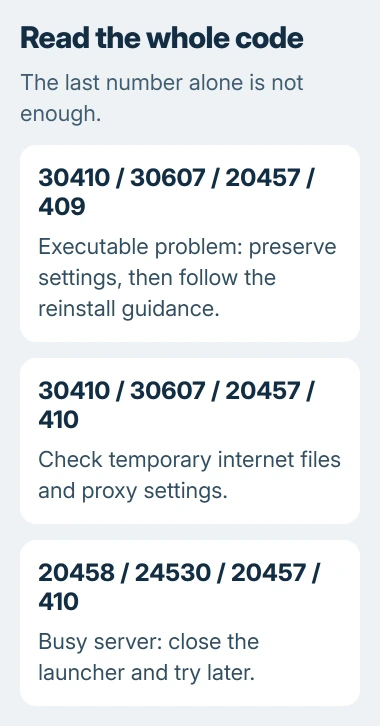
For 20458 / 24530 / 20457 / 410, too many requests are reaching the server. Close the application and try later. Rebuilding your Documents folder won't fix that server response.
For 30410 / 30607 / 20457 / 409, the problem is with an executable, a program file, and the recommended fix is reinstalling. First save your local settings and check the Documents location so you can find those files after the repair.
For 30410 / 30607 / 20457 / 410, try restarting, clearing temporary internet files and checking proxy settings before reinstalling. This is a different error from the busy-server code, even though both end in 410.
2. Find the Documents folder Windows is using
Open File Explorer > Documents > My Games. Look for FINAL FANTASY XIV - A Realm Reborn. The launcher stores local configuration files here, separate from the folder where the game is installed.
Click the address bar to read the full path. If it contains OneDrive, this Documents folder is inside your account's cloud-backed location. That doesn't mean the game itself is installed in OneDrive.
Start with the folder Windows opens and note its path. If another Documents shortcut looks empty, don't create a second My Games folder there. Two folders with the same visible name can hold different files.
The launcher file-access discussion identifies Documents and My Games as the boot-file location. Check access to that small folder before following older advice to move the whole game installation.
Try opening an existing configuration file in Notepad without changing it. If you get a file-download or cloud-provider error, Windows can't open the file locally. Deal with that before editing launcher settings.
If the folder is outside OneDrive and the files open normally, leave cloud backup alone and follow the matching error-code steps. Removing an unrelated sync app adds work without fixing the problem you've checked.
3. Download the game settings when they're cloud-only
With OneDrive running and connected, right-click the FFXIV folder inside Documents. Select Always keep on this device. Wait for its files to finish downloading, then open the launcher again.
Microsoft's Files On-Demand instructions explain the symbols: a cloud means online-only files. A filled green circle with a white check means they're kept on your device.
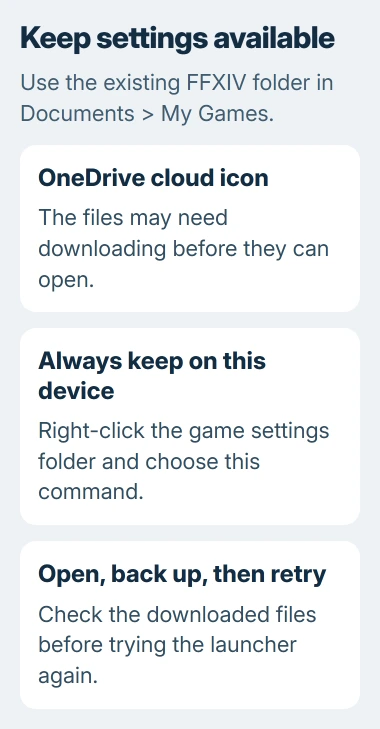
Do this for the game's settings folder. You don't need to download your whole OneDrive and fill the drive with unrelated files just to make these settings available.
If the download fails, open OneDrive's notification-area icon and read the error. Follow the OneDrive sync checks for that message. Don't delete the folder to clear a red sync symbol.
Once the files open locally, copy the FFXIV settings folder to a separate backup location. Leave the original in place and retry the launcher. If the game now launches, making those files available helped your installation.
If the version check still fails, move on to the game's error-specific repair. You've checked that the files open locally, so the OneDrive path alone isn't a reason to keep blaming cloud storage.
4. Check temporary internet data and proxies for code 410
For 30410 / 30607 / 20457 / 410, the steps include deleting temporary internet files. Open Internet Options in Windows, then General > Browsing history > Delete to find those older internet-data controls.
Choose the temporary internet/cache category and leave unrelated saved credentials alone. These controls are separate from the cache in the browser you use every day.
The steps for this error also recommend using no proxy or trying a different one. Review Settings > Network & internet > Proxy. On your own PC, check whether a manual proxy was set up on purpose before changing it.
For a PC managed by your employer or school, ask the administrator about a required proxy. A setting copied from a home computer can stop other connections from working.
Reopen the launcher after the change and note whether you get the same code. Network caching can clear with time, so try again later before reinstalling repeatedly.
5. Reinstall only after preserving the local files
Reinstall from the source that matches your account. Use your usual launcher edition, including the Steam installation if that's the version you own.
I'd save the settings folder before removing anything. It can contain the interface choices you've spent time arranging, and downloading the game again won't recreate that layout for you.
Leave Windows' Documents location as it is unless you intend to change folder backup. The OneDrive folder-backup controls handle that separately, with choices about where your files stay.
If a backup change leaves you unsure where the files are, review the OneDrive file-availability settings. Check the actual path before moving files back and forth between two Documents folders.
If reinstalling leaves the same error, send support the full code, launcher edition and Documents path. Tell them whether the files open locally so they know which step hasn't worked.
The Short Version
Keep the full code and check that the game's Documents files open locally. Then follow the matching server, internet-data or reinstall steps. A OneDrive path alone doesn't identify the cause.
Checked November 4, 2026.

Isaac Smith is the founder and editor of PC Glance, a website that covers computers, laptops, and technology. He is a tech enthusiast and a computer geek who loves to share his insights and help his readers make smart choices when buying tech gadgets or laptops. He is always curious and updated about the latest tech trends.