
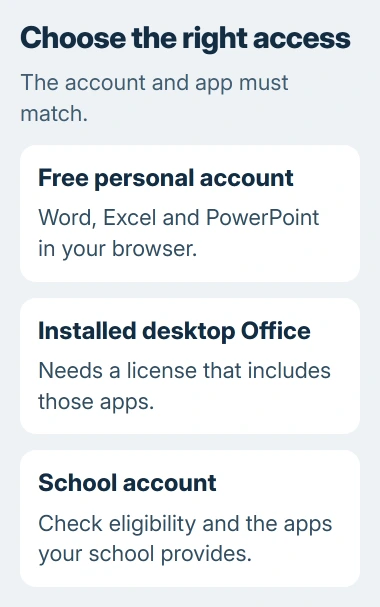
Yes, Word, Excel and PowerPoint are free to use in a web browser with a personal Microsoft account. Open the free web apps to get started. The same account won't activate a downloaded copy of desktop Office.
The browser versions handle everyday documents, spreadsheets and presentations. Your school account may offer another way in, but the included apps depend on its plan. Check what you already have access to before starting a paid trial.
Open the free web apps with your existing account
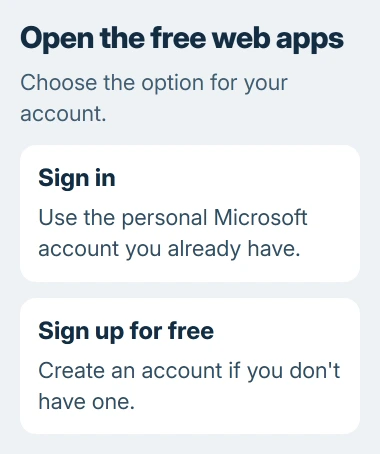
Go to the free Microsoft 365 web apps page and choose Sign in. Use a personal account you already own, such as the one you use for Outlook.com or OneDrive.
If you don't have an account, select Sign up for free instead. The Microsoft account setup steps walk through both options: signing up with an address you have or making a new one.
After signing in, use the app launcher to open Word, Excel or PowerPoint. The editor should open in your browser. A Free badge on your account means you have access without an active personal subscription.
Microsoft's free-app comparison confirms that a free account includes these browser editors and 5 GB of OneDrive storage.
If you see an upgrade offer, look for the web app you came to open. You can open a free browser editor without buying a subscription. An ordinary online document doesn't need a trial.
Create a document and confirm where it saves
In Word for the web, choose Create blank document, or pick a template. Add a little text, give the document a name you'll recognize, and check that it appears in your account's files.
The free web apps save your documents to OneDrive. If you come back with a different personal or school account, a file can seem to be missing because it's saved under the original account.
Wait for saving to finish, close the document tab, then reopen the file from your recent documents or OneDrive. If the text you entered is there, you've found the right saved copy.
I'd try this with a short sample before moving an important report. It lets you check which account you're using and where the file saves, with very little work at risk.
To edit an existing file, open the copy in your OneDrive account. Keep the original on your computer until you've checked the browser copy's content and layout. Uploading it doesn't require deleting the original.
The Word web introduction covers creating files, adding content and working with other people. Start with the task you need to do; you don't need to recreate every desktop menu.
Check the features your actual file needs
A browser editor is often enough for a letter, a household spreadsheet or a simple presentation. Open your own file and check whether you can do the work you need, including getting the final layout right.
Check your document's headings, page breaks and pictures. In a spreadsheet, try the formulas and controls you need for the task. For a presentation, review the slides you're going to show or share.
Some desktop features aren't in the web apps. If a command is missing, check its support page before deciding whether the browser version will work for you. An upgrade offer won't tell you whether that feature is supported.
The free web apps don't install desktop Office for offline use. If you need to edit without internet access, plan for that before relying on the browser version during a trip or with an unreliable connection.
For work you need to keep on your computer, you could try installing OpenOffice on Windows. It's a different suite, so check a copy for formatting changes before sharing it with someone using Office.
Check school access before paying for desktop apps
Students and educators can check the Office 365 Education page with an eligible school email address. Your school must qualify; an address that looks educational isn't enough on its own.
The free Office 365 A1 offer gives you web access. It doesn't mean every school account includes installable Word, Excel or PowerPoint. If you need desktop apps, ask your school's IT team which license it provides.
If your school has issued an account, use it instead of creating a personal login with a similar address. A personal account and a school account can have different files, permissions and access to apps.
School access lasts while you meet the school's requirements, and your eligibility can be checked again. Keep personal files in an account you control, and save any permitted copies before leaving school or losing access.
For school-owned documents, follow your school's sharing and storage rules. Having a free personal account doesn't automatically mean you can move those files to your personal OneDrive.
Understand an activation request in installed Office
If installed Word shows Unlicensed Product, it needs a desktop license. Signing into the free browser service doesn't give that license to the app installed on your PC or Mac.
Open the web version to keep editing for free. If your school, employer or an existing purchase should cover desktop Office, check the account with that license instead of signing into the same free personal account again.
The Office activation checks cover this problem. Opening a file in a browser doesn't tell you whether your desktop app has accepted its license.
A free trial gives you temporary access. Check its end date and billing terms before choosing it. For ongoing free basic editing, use the browser apps rather than counting on a trial's desktop access to continue.
If the web editor won't let you sign in, record the exact error for support. For missing school access, contact the administrator. Resetting your personal-account password won't change the license your school has assigned.
The Short Version
Use a personal account to open free browser versions of Word, Excel and PowerPoint, with files saved to OneDrive. Check school eligibility separately. Free web access doesn't activate the desktop apps.
Checked November 4, 2026.

Isaac Smith is the founder and editor of PC Glance, a website that covers computers, laptops, and technology. He is a tech enthusiast and a computer geek who loves to share his insights and help his readers make smart choices when buying tech gadgets or laptops. He is always curious and updated about the latest tech trends.