

StartAllBack can make File Explorer forget its window size and position after a Windows update. Update StartAllBack first if it's installed. Repeatedly deleting Bags and BagMRU registry entries won't fix that compatibility problem.
This is about the window's outer size and screen location. Folders forgetting their icon size, sorting or grouping are a separate problem, even though advice for those settings often leads to the same registry keys.
In this guide
1. Check StartAllBack before resetting folder settings
Open Settings > Apps > Installed apps on current Windows 11 and search for StartAllBack. Older Windows 11 releases call the list Apps & features. If it's listed, check it before trying another Windows repair.
Look for its configuration entry in Start as well. StartAllBack changes parts of the Windows interface, including File Explorer. An old version can keep loading its Explorer changes each time Windows starts.
One owner confirmed that updating StartAllBack restored Explorer's remembered window position after a Windows 11 22H2 update. They first blamed a registry cleanup, then returned to correct that explanation after the problem came back.
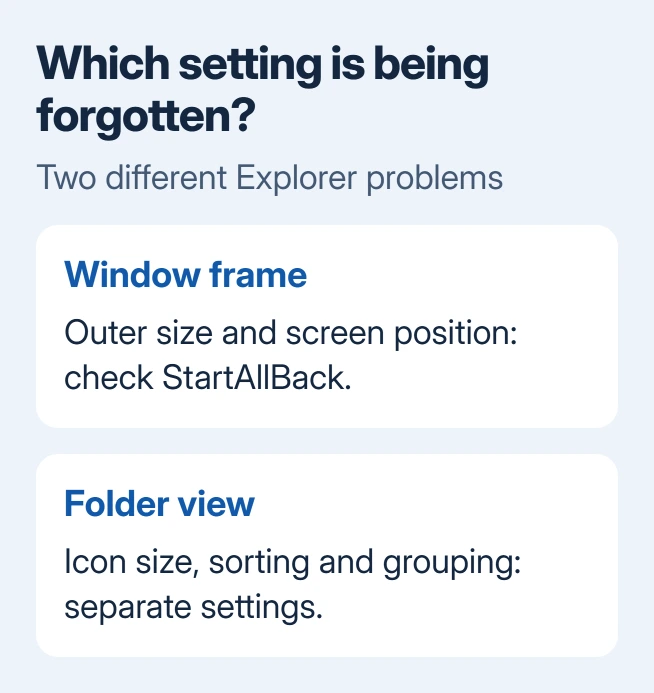
Their folders still remembered views and icon sizes. What failed was the window frame: folders opened centered and large instead of at the size and location last used. That distinction is useful before choosing a repair.
If StartAllBack isn't installed, skip its update and use the comparison in section 3. Other customization tools can also affect Explorer, though this owner's fix only points to StartAllBack.
2. Update StartAllBack from its own download page
Save any work and record the current StartAllBack version in its configuration window or installed-app entry. Keep the version number for any later support request.
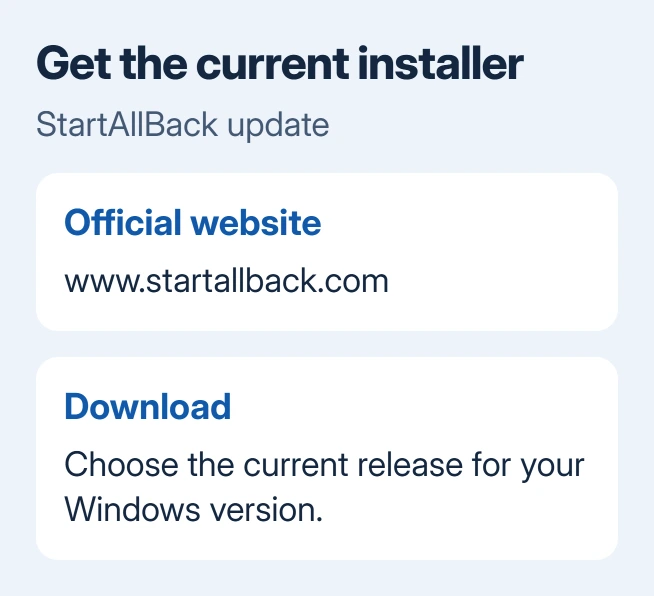
Open the official StartAllBack download page and choose its Download button. Launch that installer and finish its update prompts. Use the maker's installer rather than an older copy saved from the original setup.
Restart Windows after the update so Explorer loads the updated components. Close extra Explorer windows, then open one with Windows + E. Resize it and move it, close it, then reopen Explorer and check whether your changes remain.
Explorer should retain its last-used size and location. Check again after restarting, especially if the fault previously returned only after rebooting.
The October 2022 report doesn't name a fixed StartAllBack version. Choose a release compatible with your current Windows installation, instead of picking a build by its 2022 release date.
If the update fixes it, keep the working version and Windows build in your notes. Leave the folder-view history intact afterward. If the fault remains, compare the normal Windows layout next.
3. Compare the Windows 11 layout without the customization
Open StartAllBack's configuration and look at its Explorer section. If your release offers the Windows 11 or default Explorer layout, select it, follow any restart prompt, and repeat the one-window test.
Control names vary by release. Without a clear default-layout option, use Settings > Apps > Installed apps > StartAllBack > Uninstall, follow the prompts, and restart. Record your preferences if you'll want them back.
The standard layout lets you compare behavior without creating an account or editing the registry. If it works, keep using that layout while reporting the compatibility issue.
I'd keep the normal layout for a few sessions if it fixes the problem. Send StartAllBack support the version, Windows build and Explorer style. Ask why Explorer won't remember its window position with those settings.
If you're also changing where new Explorer windows begin, the Home versus This PC setting controls the opening folder. It doesn't set the window's size or where it sits on screen.
4. Test one window and describe the failure precisely
Close all Explorer windows. Open one, make sure it isn't maximized, then drag its edges to create an obvious smaller rectangle. Move it away from the center, close it with its X, and reopen Explorer.
Keep the display arrangement unchanged. A disconnected monitor reduces the desktop area and can relocate an open window to the remaining screen. That isn't the same as repeatedly forgetting its position on one unchanged desktop.
Check a second ordinary folder too. Note whether both open at the same unwanted size, whether only a particular shortcut does it, and whether the problem appears immediately or only after signing out.
Don't expect every folder to remember its own window size and position forever. Check whether Explorer remembers the last window's size and position at all, as it did before the problem started.
If icons are missing rather than windows opening in the wrong place, use the desktop icon checks. Tell support whether the window frame, folder contents or desktop is affected so they can choose a repair for the right problem.
If the default layout still forgets the window
The original owner initially reported that reinstalling Windows fixed it, then came back to identify StartAllBack after later updates. That makes reinstalling a poor first choice when the customization is still installed.
For a persistent fault with StartAllBack removed, open Settings > System > Recovery. On supported installations, Fix problems using Windows Update > Reinstall now repairs the installed Windows version, keeping your apps, files and settings.
Microsoft's current-version repair instructions describe that option and its availability. It can be missing on older releases or PCs with organization-managed updates.
Back up important files first. Leave the power cable plugged in and stay online throughout the repair. After the required restart, repeat the same one-window comparison before installing interface customizations again.
If you can't use that option, or the repair doesn't help, give Windows support or IT the Windows build, display arrangement and the result with StartAllBack removed. Ask them to check Explorer window placement rather than folder grouping.
The Short Version
Update StartAllBack and test one resized Explorer window after restarting. Compare the default layout if needed. Leave folder-view registry keys alone, and consider Windows repair only if the problem persists without the customization.
Checked November 17, 2026.
 If you have any business, I can build it online






