
The quickest way to find a Chromebook serial number when its label is unreadable is Alt+V at the sign-in screen. Save the current work, sign out, then press those keys before entering the account password.
The device's information display includes its serial number. If the Chromebook cannot reach sign-in, check its underside label instead. An organization-managed device can restrict this on-screen information.
Read the serial at sign-in
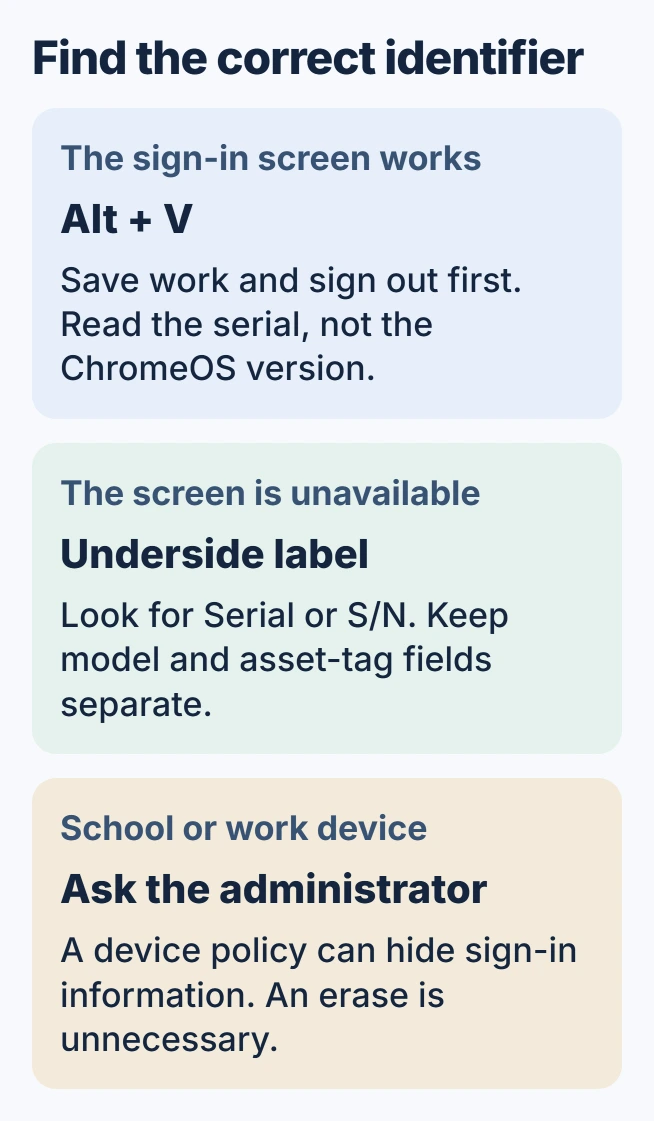
Save anything open, select the clock and choose Sign out. At the account sign-in screen, hold Alt and press V. Read the serial from the system information that appears; the ChromeOS version is a different field.
The shortcut is documented by Google under System info on sign-in screen in its ChromeOS device-policy guide. The default policy allows users to display this information.
Status: Google device policy and Acer identification guidance checked October 30, 2026. Alt+V is a sign-in-screen shortcut and can be restricted by management. No device identifier was collected.
Acer says its Chromebook serial and ChromeOS version appear in the screen's upper-right corner. Its serial-number instructions also identify the physical label route.
Copy the serial's letters and digits carefully. Our check is to compare the copied value with the display once more before submitting a repair request. A ChromeOS version or Wi-Fi address will identify something different.
Use the underside label when the screen is unavailable
Close the Chromebook and inspect the case's underside without removing its cover. Look for a field labeled Serial, Serial Number or S/N. A product model and a school asset sticker can appear nearby.
On Acer Chromebooks, the same underside area can carry an SNID as well as a serial. Use the identifier requested by Acer's support form rather than combining the two entries.
The model code identifies the hardware family; the serial identifies the individual unit. For example, the Acer Chromebook microphone guide needs the complete model code to select the correct manual.
For an unreadable label, try a phone photograph with enough light to distinguish characters. That is a reading aid, not a reason to dismantle the Chromebook. Keep the photograph private when it contains the full serial.
Ask the administrator when Alt+V shows no details
Google says the device policy can show or hide system information on the sign-in screen. A managed Chromebook that displays nothing after Alt+V may therefore be following its organization's setting.
Send IT the asset tag they assigned so they can locate the device's serial in their records. Do not erase the Chromebook to try to expose this information.
If the whole device is blocked, follow the administrator-disabled Chromebook guidance. Locating its serial helps identify the record; it does not release the management restriction.
Confirm mismatched or missing identifiers with the maker
If the on-screen serial and the case label disagree, keep both values and describe the mismatch to the manufacturer through its private support form. For a school device, send that comparison to IT instead.
An unreadable label and an unavailable screen leave the manufacturer or owning organization as the next step. Provide the model and purchase information they request. Avoid guessing characters merely to complete a warranty form.
The Short Version
Use Alt+V before signing in, or read the underside serial label. Keep the serial separate from the model, ChromeOS version and asset tag. An administrator can hide the screen information and can help identify a managed device.

Isaac Smith is the founder and editor of PC Glance, a website that covers computers, laptops, and technology. He is a tech enthusiast and a computer geek who loves to share his insights and help his readers make smart choices when buying tech gadgets or laptops. He is always curious and updated about the latest tech trends.