
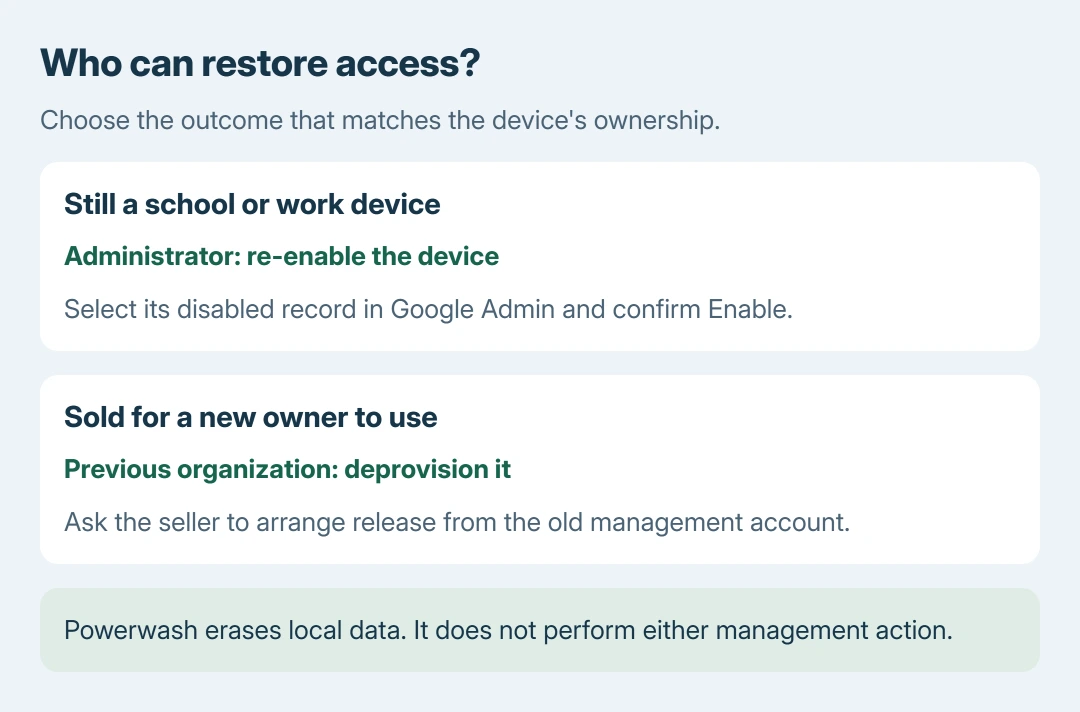
A Chromebook disabled by its administrator needs that administrator to re-enable the device in Google Admin. Changing the user's password does not reverse a device-level disable.
Keep the on-screen organization and contact information and send it to the school or company responsible.
For a secondhand purchase, ask the seller to arrange release from the previous organization. Re-enabling a school Chromebook for school use and removing management for a sale are different jobs.
Is the whole Chromebook disabled?
Read the complete screen before resetting anything. A disabled-device screen means management is blocking use of that Chromebook. A disabled Google Account or a rejected password concerns the login instead.
Google says a disabled ChromeOS device remains enrolled in its organization. Its device-management instructions describe a lock-screen option that prevents sign-in until an administrator enables it again.
Status: Google's ChromeOS disable, re-enable and resale guidance checked October 28, 2026. This guide concerns an administrator-disabled device. No management setting was changed.
Send IT the device's model, serial number or asset label, the exact message and any contact details shown. This checklist is ours: it helps the administrator select the correct device record instead of changing the user's account.
A blank display with no management message needs the Chromebook power checks. A password error needs the Chromebook sign-in distinctions instead.
Have the administrator re-enable the existing device
The administrator should verify why it was disabled before restoring access. Google lists accidental disabling and a lost device being found as reasons to re-enable it. The account also needs an available Chrome upgrade.
Google's documented sequence is:
- Sign in to the Google Admin console using an authorized administrator account.
- Open Devices > Chrome > Devices. This requires the Chrome administrator privilege.
- Filter the list to show disabled devices, then select the correct Chromebook.
- Choose Re-enable selected devices and confirm with Enable.
Keep the Chromebook connected to the internet so it can communicate with management. After IT confirms the change, check whether the disabled screen clears and the expected sign-in becomes available.
If it does not, send the administrator the current screen and ask them to confirm the serial number and device status. Repeated password changes cannot establish whether the correct device was enabled.
Re-enabling is not file recovery. Google's disable options include both a lock screen and a factory reset; enabling access cannot restore local files already erased by the second option.
For a school Chromebook intended for exams, Bluebook preparation and launch also need the school's installation and the correct sign-in-screen app.
For a used Chromebook, request deprovisioning
Google states in its previously managed device guidance that deprovisioning completely removes the old organization's administrative control.
A seller needs to arrange that through the organization that still manages the device. Re-enabling it alone leaves it enrolled, so it does not complete a transfer to personal ownership.
Ask for the device to be properly released, then check setup while the Chromebook is online. If the seller cannot arrange release, seek a return or refund through the seller's process rather than paying for a claimed local unlock.
Why Powerwash is not the release procedure
Google's forced re-enrollment guidance explains that wiped managed devices can return to the organization's account. Local erasure and administrative release therefore have different results.
The Powerwash preparation guide covers what a factory reset erases. Do not use that erasing procedure to test whether an administrator block will disappear.
If an authorized administrator cannot restore access, they should contact Chrome Enterprise or Education support with the device record and current status.
A student or buyer without that access needs the organization or seller to continue the case.
The Short Version
An administrator-disabled Chromebook needs re-enabling in Google Admin. A secondhand device needs deprovisioning by its previous organization. Powerwash cannot replace those actions. Re-enabling cannot recover erased files.

Isaac Smith is the founder and editor of PC Glance, a website that covers computers, laptops, and technology. He is a tech enthusiast and a computer geek who loves to share his insights and help his readers make smart choices when buying tech gadgets or laptops. He is always curious and updated about the latest tech trends.