
A Chromebook that shows nothing when Power is pressed is usually flat, or its hardware is stuck in a state a hard reset clears. Google's own order is short. Confirm it charges, give it 30 minutes, then hold Refresh and tap Power.
What the Chromebook does when it fails tells you more than the brand on the lid. No light, a light with a black screen, and an error on screen each lead somewhere different.
Tell which kind of dead it is
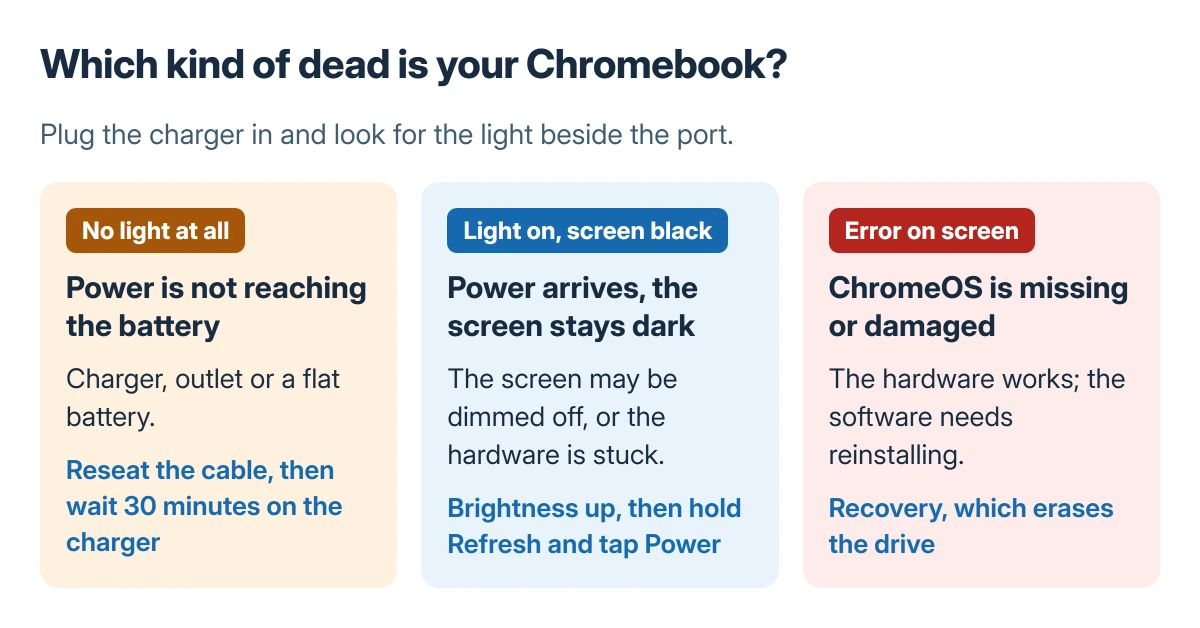
Plug the charger in and look along the edges near the charging port. Google says that when the battery is charging, "Usually, you'll find a light turn on." That small light is the first fork in the road.
Status: Google's Chromebook pages on charging, hard reset and recovery checked 23 October 2026. The steps are Google's; no Chromebook was opened or reset for this guide.
With no light at all, the problem sits before the Chromebook even tries to start. Think charger, outlet or battery. A light with a black screen means power is arriving, so the fault comes later.
An error message is the third case. The hardware works and the software needs help, and gets a section of its own later.
Get power into it first
Google's steps for a Chromebook that is not charging are plain. Push the cable fully home at both ends. Test the outlet with a lamp, then unplug the charger from the wall and from the Chromebook.
Reconnect it to the Chromebook first and the wall second. Then wait. A battery run completely flat can need a full half hour on power before the Chromebook will start, and pressing Power every minute changes nothing.
Use the charger that came with it, or a laptop USB-C charger of the same wattage. A phone charger is a poor test. A Chromebook draws far more power than a phone, and a weak adapter can light the LED without starting a flat machine.
Check the screen is not just dark
A charging light plus a warm base or a lit keyboard means the Chromebook may already be on. Press the brightness up key in the top row several times. On many Chromebooks the lowest brightness step switches the backlight off.
That looks exactly like a dead laptop. Close the lid, count to ten and open it again, since a sleeping Chromebook wakes when the lid opens. Still black? Move on to the hard reset.
Hard reset with Refresh and Power
A hard reset restarts the Chromebook's hardware, including the keyboard and touchpad. Google states it "might delete some files in your Downloads folder," so it is the main fix for a Chromebook that will not start, not routine upkeep.
- Make sure it is off.
- Press and hold the Refresh key, the circular arrow in the top row.
- Keep holding Refresh and tap Power once.
- Let go of Refresh when the Chromebook starts up.
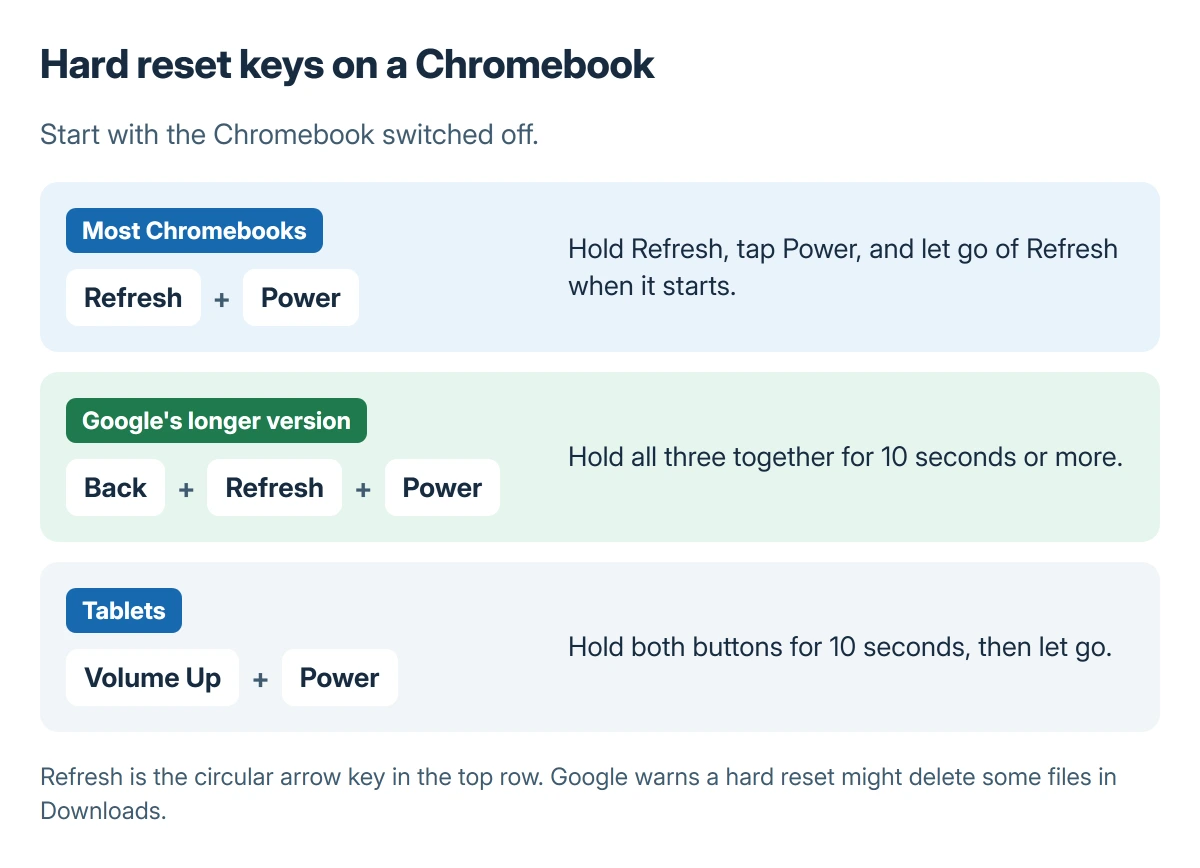
Nothing on the screen after that? Google gives a longer version: Back, Refresh and Power, all three held for 10 seconds or more. Tablets and detachables without a keyboard use Volume Up and Power for the same 10 seconds.
A few models reset differently. A Chromebox or Chromebase resets when its power lead comes out and goes back in, and some very old Chromebooks need the battery removed. The full list is on Google's Reset your Chromebook hardware page.
When it starts but shows an error
A screen that says "ChromeOS is missing or damaged" is good news of a kind. The hardware works. The operating system has to be reinstalled through recovery, and Google warns that recovery wipes the whole drive, downloaded files included.
To enter recovery mode, unplug any mouse or drive. Press and hold Esc and Refresh, press Power, then let go of Power. Release the other keys when a message appears.
Newer models offer Recover using internet connection. Older ones need an 8 GB or larger USB drive, prepared on another computer that has Chrome installed.
Recovery and a Powerwash are different jobs. A Chromebook that signs in but misbehaves needs the gentler reset in our Chromebook factory reset guide, which keeps the operating system in place.
A Chromebook that turns on and then hangs on the desktop is a separate fault again. The Chromebook freezing checks start with open apps and tabs, because a frozen desktop has power.
When nothing works
No charging light with two known-good chargers, after the half hour and a hard reset, means a repair. Google's page sends battery faults that survive its steps to the Chromebook's maker, since the battery and the port are theirs to fix.
Note what you saw before calling: the light's color, whether it blinks, and which reset you tried. A school or work Chromebook goes to its IT department first. Those are managed, and the school may hold the warranty.
The Short Version
Look for a charging light and give it 30 minutes on its own charger. Press brightness up, then hold Refresh and tap Power. An on-screen error means recovery, which erases the drive. No light with two chargers means a repair.
Where to Next
Some models blink the charging light in a pattern that means something specific. Post the brand, the model and what your light does in the comments; I'll say whether it points to the battery or the board.

Isaac Smith is the founder and editor of PC Glance, a website that covers computers, laptops, and technology. He is a tech enthusiast and a computer geek who loves to share his insights and help his readers make smart choices when buying tech gadgets or laptops. He is always curious and updated about the latest tech trends.