Windows Update error 0x800f0983 can persist after scans and cache resets. On Windows 11, try Fix problems using Windows Update when those checks have failed. This repair reinstalls Windows while retaining apps and files.
Owners with this exact error have reported success with that option, but others still failed. Record the affected update and Windows build first, so a failed repair leaves a clear support case instead of another unexplained retry.
In this guide
Note the update that fails before repairing Windows
Open Settings > Windows Update > Update history and note the failed update's KB number. Run winver from Start search and record the Windows version and OS build shown there.
For 0x800f0831, read the missing-package repair before choosing which KB to reinstall.
A Windows 10 PC failing the February security package needs the KB5075912 checks, including its ESU branch.
Keep the error code with those details. 0x800f0983 and 0x800f0991 are different codes, even though both can appear during updates. The Windows update error index covers other common failures.
A download that stops with 0x80248007 is a much smaller job: rebuild Windows Update's cache before you reach for any repair install.
For an old KB5060829 entry, check whether a newer cumulative update already installed before repairing a historical preview failure.
A standalone installer returning 2149842967 needs a package-applicability check; that result differs from this corruption repair.
If the message changes to 0x80070002, follow its missing-file repair sequence rather than assuming both codes have the same cause.
For a different failed package, the 0x800f0845 repair steps separate a Settings failure from an update that crashes during startup.
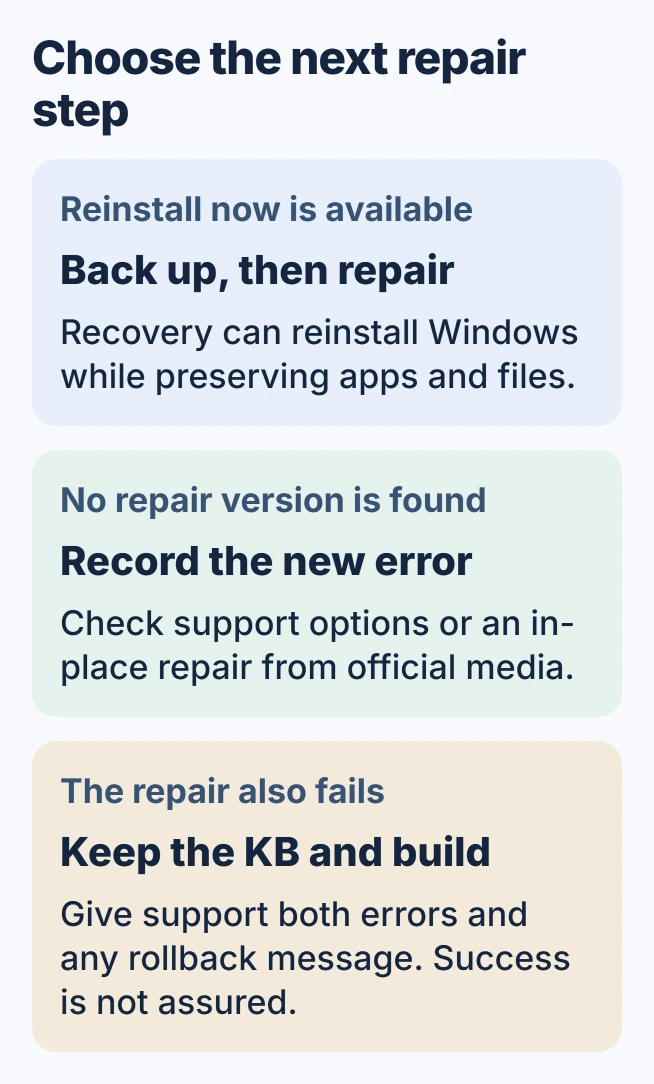
Status: checked October 30, 2026. Owners reported both successful and failed repairs for 0x800f0983. Microsoft documents the Windows 11 reinstall option; this is not a guaranteed fix.
An owner with KB5066835 reported that SFC, DISM and a reset of update services and caches had not helped. Those failed attempts matter: another run of that command list cannot guarantee a successful update.
A successful installation followed by KB5066835 recovery or IIS faults needs the matching later fix rather than this installation-error route.
Use the Windows 11 repair that retains applications
Before repairing the system, preserve important files in a backup and connect the laptop to power. Keep internet access available throughout. Microsoft's current-version reinstall guide documents the process.
Go to Settings > System > Recovery. Choose Reinstall now beside the Windows Update repair option. Review the restart choice, then select OK when ready for the repair to begin.
Microsoft says this reinstalls the current Windows version and preserves apps, files and settings. It downloads a repair version of the last successfully installed operating-system update. This is separate from Reset this PC.
Wait for installation to finish and complete the requested restart. Return to Windows Update, check for updates and review the new result. Success means the applicable update installs, rather than merely that the repair window closes.
The repair was confirmed by an owner whose earlier ISO attempt had rolled back with a Secure Boot error. After using the recovery reinstall, they reported that KB5070773 and a preview update installed successfully.
When Reinstall now is missing or cannot find a repair
Microsoft states that work-managed updates can make this recovery option unavailable. It also requires an adequately updated Windows 11 installation. Ask IT about a managed computer before attempting to change update policies.
The original asker encountered A repair version of Windows cannot be found. That is a separate failure during repair preparation. Record it as well as 0x800f0983; the original update code alone leaves out the new obstacle.
A possible alternative is an in-place repair using official installation media. Microsoft's installation-media instructions start setup.exe while Windows is running.
Continue only when Keep personal files and apps is available and selected. Booting from the media follows a different installation route. The Windows repair-install walkthrough explains the preparation and retention choices.
Stop repeating a repair that still fails
One owner explicitly reported that Reinstall now did not resolve the error. The original asker later said the problem was solved without naming the successful step. That later reply cannot prove which method fixed their machine.
Our recommendation after another failure is to give Microsoft Support the KB number, build, original error and repair outcome. Include any rollback message. Keep the backups until updates install and normal applications open correctly.
If the code is 0x8007370d instead and DISM and SFC fail too, the repair route for that code ends with a hand repair of the COMPONENTS registry file.
Avoid treating this code alone as a reason to remove language packs, delete servicing registry keys or change firmware security settings. The owner reports used here do not establish those changes as a repair for this case.
The Short Version
For persistent 0x800f0983 on Windows 11, record the failed update and try the documented recovery reinstall after backing up. Some owners succeeded and others did not. A missing repair copy or another rollback needs its own support details.
 If you have any business, I can build it online