

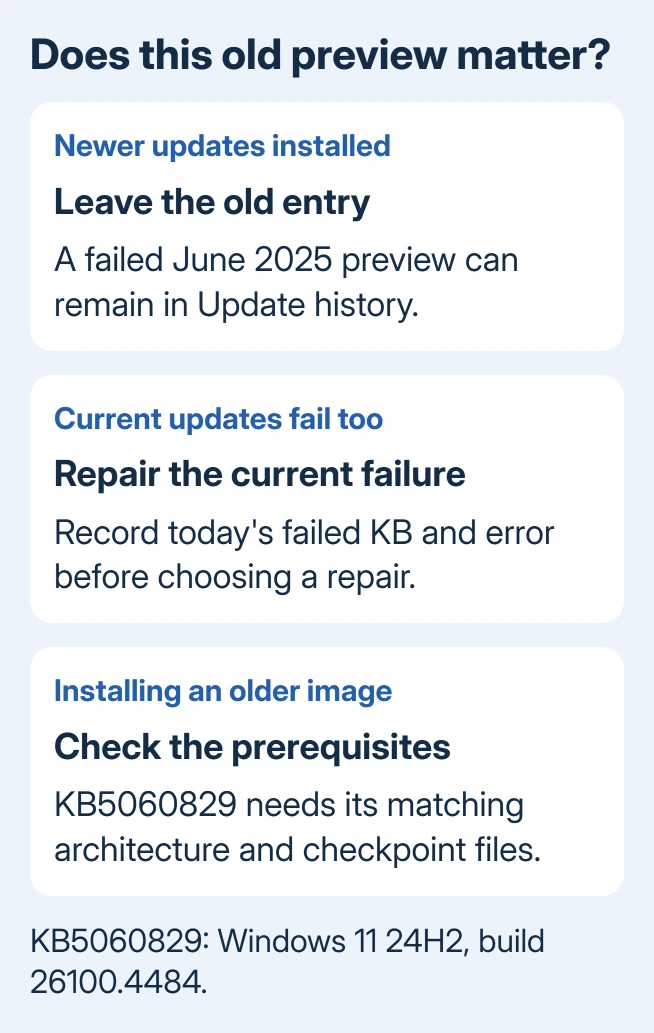
KB5060829 was an optional Windows 11 24H2 preview from June 2025. If it failed, check for a newer cumulative update first: later security updates include its changes, so a current PC doesn't need that old preview installed separately.
Update history can still show an old failure after newer updates succeed. Repair Windows Update if current installations fail too. To install manually on an older system or Windows image, check KB5060829's required packages and their order.
In this guide
1. Check whether the old preview still needs installing
Open Settings > Windows Update > Update history. Compare the dates and KB numbers under Quality Updates. Look for a later successful cumulative update instead of focusing only on the red failure beside KB5060829.
Press Windows + R, enter winver, and record its version alongside the OS build. KB5060829 applies to Windows 11 version 24H2 and takes it to 26100.4484. It isn't a Windows 10 or Windows 11 23H2 update.
The KB5060829 release notes identify it as a non-security preview. Microsoft says its changes are included in the next security update for the business update channel.
Return to Windows Update and select Check for updates. Install the current security update offered for your Windows release and restart when requested. If that succeeds, don't manually force the June 2025 preview onto the newer build.
On 24H2 Home or Pro, updates ended on October 13, 2026. Install the newer Windows 11 version offered in Settings to move to a supported release.
24H2 Enterprise and Education remain supported through October 12, 2027. Check your edition under Settings > System > About before applying the Home and Pro deadline to this PC.
A newer Windows version gets its own cumulative updates. An Insider build also needs its own offered update. Matching the words Windows 11 alone doesn't make an old 24H2 package suitable for every Windows 11 installation.
2. Repair a failure that also affects current updates
If the latest offered update fails, write down its KB number and error message. The failed preview's number tells you which release you attempted; the current error tells you which repair is relevant now.
Restart the PC normally and try the current update once more. Leave the laptop on its charger and check that the system drive has free space. If Windows asks for more space, follow that prompt before trying another installer.
Open Get Help from Start and run the Windows Update troubleshooter. Follow its questions through to the result, then retry the current update. This checks common update-service problems without replacing Windows or erasing your apps.
The Windows Update troubleshooting page is the official starting point. If the troubleshooter itself won't start, our diagnostic launch guide covers that separate failure.
If updating still reports a component-store error, repair the Windows files used to install updates next. A message that the package isn't applicable means you should check the version and architecture before repairing Windows files.
3. Repair damaged servicing files before another attempt
Search Start for Command Prompt. Right-click the result and select Run as administrator. Accept the permission prompt. Enter this command, then wait until DISM reports its result:
DISM.exe /Online /Cleanup-Image /RestoreHealth
DISM repairs the component store, the Windows file collection needed for update installation. Next run:
sfc /scannow
This checks protected Windows system files. Restart after the commands finish, then retry the latest offered cumulative update. Keep the final messages if either tool reports a failure; they help you decide which repair to try next.
For 0x80073712, missing or damaged servicing files need attention. For 0x800f081f, a repair source may be needed. Our update error reference explains why different codes call for different actions.
I'd get current updates working before downloading an old preview. A successful newer installation gives you the accumulated fixes and avoids spending time on an optional package your PC no longer needs.
4. Follow the checkpoint order for a manual installation
This section is for a PC or image that still needs this exact historical package. For a normally updated home PC, install the current update from Settings instead of choosing KB5060829 just because it appears in old history.
Open Settings > System > About and check System type. Match x64 or ARM64, then confirm the Windows release with winver. The manual package must match both the architecture and Windows 11 24H2.
Search the Microsoft Update Catalog for KB5060829. Open the matching entry and its Download window. The release notes explain that this update can require more than one MSU file, installed in a specific order.
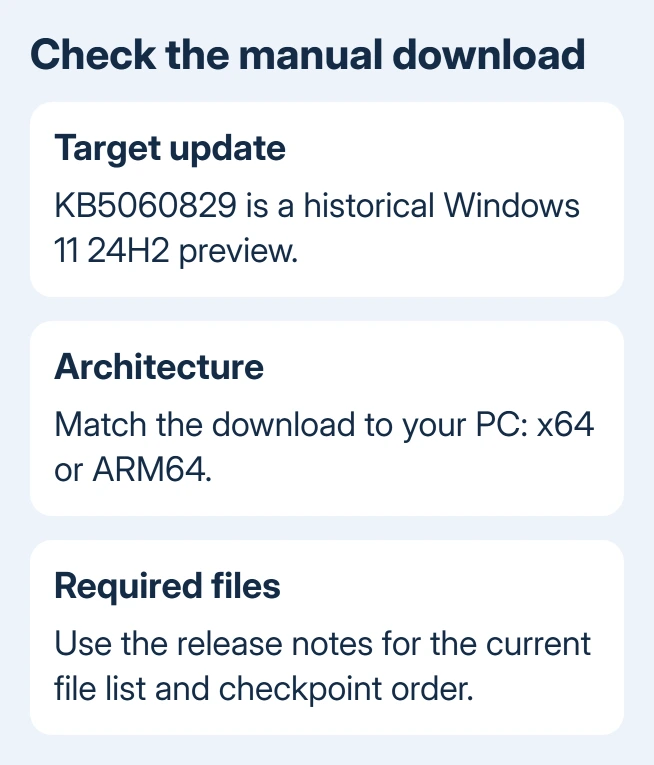
For the x64 method listed in the notes, the checkpoint package is KB5043080, followed by KB5060829. The notes' file list was revised in May 2026, so take the current filenames from that page rather than an old copied download link.
One supported method is to download all the MSU update-package files for the matching Catalog entry into the same folder. Then install the target KB5060829 MSU with DISM. DISM can find the required prerequisite files in that folder.
For example, make a folder called C:\Packages, place the required downloads there, and open an administrator Command Prompt. Use the actual target filename in place of this example:
DISM /Online /Add-Package /PackagePath:C:\Packages\TargetUpdate.msu
The other documented method is to install each required MSU individually in the listed order. Don't skip the checkpoint file or mix x64 and ARM64 packages. Restart when the installer requests it, then confirm the result in Update history.
5. Repair Windows if the latest update still cannot install
Before a deeper repair, make a backup of the files you need. On an eligible Windows 11 installation, open Settings > System > Recovery and find Fix problems using Windows Update. Choose Reinstall now there.
This repair installation preserves files, apps, and settings. Keep the PC on power and online throughout. It differs from the Reset this PC option in the same general area.
Managed PCs may lack this repair control. Give IT the details of the current failed update. For a personal PC, send Microsoft Support the failing KB, error, Windows build, and command results instead of retrying the old preview.
If only KB5060829 is marked failed and newer cumulative updates install, no further repair is needed for that history entry. If newer updates also fail, ask support to check the current update error and its logs.
The Short Version
Choose a newer cumulative update rather than the old optional KB5060829 preview. Repair present failures separately. A historical manual installation needs the matching architecture and the checkpoint packages in their listed order.
Checked November 15, 2026.






