Error 0x80248007 means Windows Update looked up an update's details in its own small local database and came back empty. That's why Settings keeps showing Download error - 0x80248007 beside the update, and Retry fails the same way.
Rebuilding that database is the fix that has worked: stop the update services, rename the SoftwareDistribution and catroot2 folders, start the services again and retry the update.
In this guide
What 0x80248007 means
Microsoft's list of Windows Update error codes calls it WU_E_DS_NODATA: "The information requested isn't in the data store." That data store is Windows Update's local record of the updates it knows about.
It lives in a file called DataStore.edb inside C:\Windows\SoftwareDistribution\DataStore, a folder you'll meet again in fix 3.
When an entry in it goes missing or out of date, Windows Update can see that an update exists but can't find what it needs to download it.
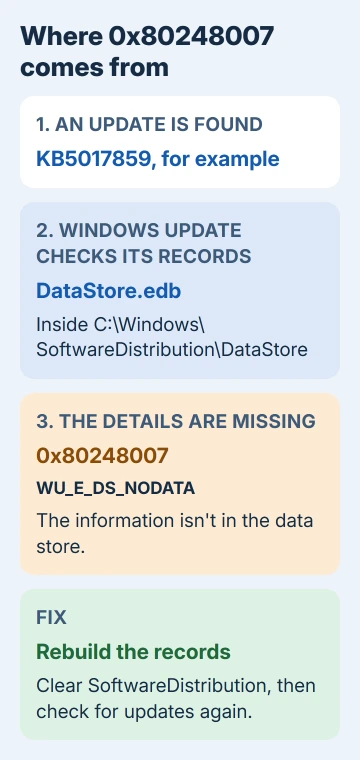
One owner who hit this code in October 2022 was stuck on the September 2022 cumulative update preview for .NET Framework 3.5, 4.8 and 4.8.1 (KB5017859).
If yours is a different update, the steps don't change, because the reset fixes the record, not the update itself.
1. Retry, then restart
Select Retry once or twice on the failed update. One owner kept pressing it until the update suddenly went through.
If it still fails, choose Restart from the power menu rather than Shut down, then run Check for updates from Settings > Windows Update. A restart also finishes any update that was waiting on one.
2. Run the Windows Update troubleshooter
Open Settings > System > Troubleshoot > Other troubleshooters, find Windows Update and select Run. On Windows 11 this opens the Get Help app, which runs its own checks and tries to repair what it finds.
When it reports that it fixed something, retry the update right away. If it finds nothing, I'd move on quickly: the cache steps only take a few minutes, and the full reset in fix 4 is part of what actually worked for an owner.
3. Clear the update cache in Services
The lighter version of the reset uses the Services window. Press Windows+R, type services.msc and press Enter. You'll need an administrator account here and in fix 4.
Right-click Windows Update and choose Stop. Open C:\Windows\SoftwareDistribution in File Explorer and delete everything inside it, then go back to Services, right-click Windows Update and choose Start.
Check for updates again. If 0x80248007 comes back, the full reset in fix 4 also clears catroot2 and restarts the other services involved.
4. Reset all the update components
This full version is the reset used by the owner whose fix got 100+ thumbs up, and it rebuilds the data store from scratch. Right-click Start, choose Terminal (Admin) and type each line, pressing Enter after each one:
net stop wuauserv
net stop cryptSvc
net stop bits
net stop msiserver
ren C:\Windows\SoftwareDistribution SoftwareDistribution.old
ren C:\Windows\System32\catroot2 catroot2.old
Those lines stop Windows Update, the cryptographic service that checks update signatures, the background download service and Windows Installer, then set your old cache aside. Now bring the services back:
net start wuauserv
net start cryptSvc
net start bits
net start msiserver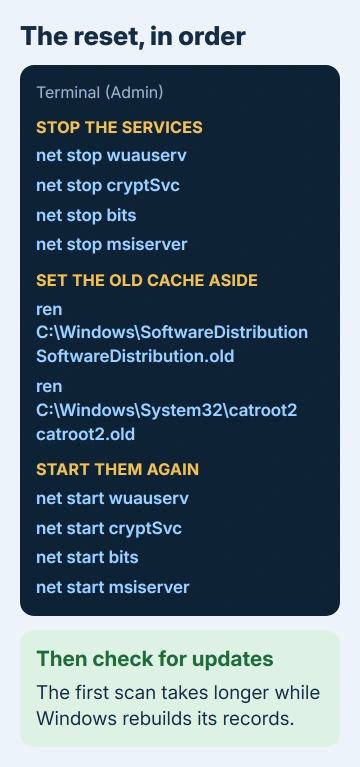
Renaming is safer than deleting, since you can put the folders back if you need to. Windows creates fresh, empty ones the next time Windows Update runs, and it downloads the update again from scratch.
Once updates install normally again, you can delete the SoftwareDistribution.old and catroot2.old folders to win back the space.
If a ren line says the folder is in use, run that service's net stop line again and repeat the rename. A service sometimes starts itself straight back up.
Now return to Settings > Windows Update and scan again with Check for updates. The first scan takes longer than usual, because Windows is rebuilding its list of what's installed.
The Update history list may look shorter afterward, since it lives in that same data store. That's only the record: a Microsoft support agent explained years ago that erasing the history removes the list entries, not the installed updates.
5. Repair Windows files with DISM and SFC
After the reset, that owner went on to run two repair commands, DISM and SFC (System File Checker), still in the Terminal (Admin) window:
DISM.exe /Online /Cleanup-image /Restorehealth
sfc /scannow
DISM repairs the component store, the stash of clean system files SFC copies from, so run it first. Each one takes several minutes. When SFC reports files it was unable to fix, the SFC corrupt files guide walks through the next round.
That owner was on a Windows Server 2019 virtual machine, which uses the same Windows Update engine, and reported back: "The update was reapplied with no errors."
If 0x80248007 won't go away
Check your free space and date settings, since Windows Update needs both: at least 20 GB free for a 64-bit feature update, and Set time automatically turned on under Settings > Time & language > Date & time.
Still failing after the reset? Note the update's KB number from Update history, then start Get Help and ask for Microsoft Support with that number.
For an update that sits at a percentage instead of failing, the stuck update fixes fit better.
The full list of Windows Update troubleshooting steps covers drivers, external drives and other blockers if you've worked through everything here.
The Short Version
Error 0x80248007 means Windows Update's local database is missing an update's details. Retry and restart, then reset the update components, rename SoftwareDistribution and catroot2, and run DISM and SFC.
Checked November 20, 2026.
 If you have any business, I can build it online