Windows update error 2149842967 means this package doesn't apply to your installation. Written in hexadecimal, it's 0x80240017 (WU_E_NOT_APPLICABLE). Match the package's Windows release and processor type before repairing Windows Update.
The package may target another build, be installed already, have a newer replacement or lack a prerequisite. The error alone doesn't mean Windows is damaged. Compare the update's requirements with this PC first.
In this guide
1. Record the KB number and your Windows build
Find the KB number in the installer, downloaded filename or failed deployment report. Keep the complete update title too. Two downloads can mention the same Windows family while targeting different versions or processors.
Press Windows + R, type winver, and press Enter. Record the version and OS Build from About Windows. Windows 11 by itself isn't specific enough to choose a manually downloaded update.
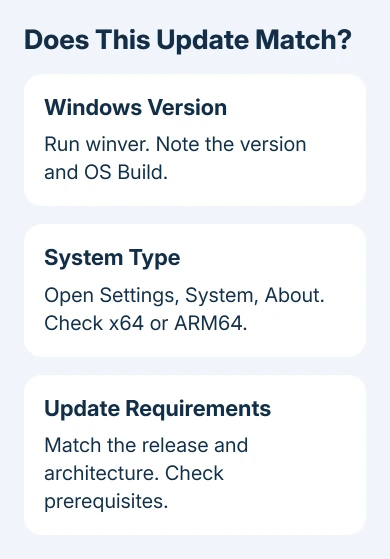
Next, open Settings > System > About. Under Device specifications, check System type. This identifies whether the installation uses an x64 or ARM-based processor; older Windows 10 PCs can also have a 32-bit installation.
Microsoft says in its update error reference that 0x80240017 means there were no applicable updates. Converting the decimal number makes that meaning easier to recognize in a log or management tool.
Make a separate note of any other error code. An installer can report a second problem later, and that new message needs its own repair. For a different result, the Windows Update error-code guide covers several common failures.
2. Match the package to the operating system and processor
Compare the recorded version, build family and system type with the update's title and installation requirements. A Windows Server update isn't a desktop Windows update. Likewise, an ARM64 package isn't the same file as its x64 counterpart.
An x86 update isn't right for 64-bit Windows just because the PC runs some 32-bit programs. Running a 32-bit app isn't the same as installing an update for 32-bit Windows. Choose the package for the installed operating system.
Check whether you're installing a feature update or a monthly quality update, too. A small enablement package can require a specific existing Windows release. It can't move every older version straight to the named release.
If the download is wrong, stop using that file. On a personally managed Windows 11 PC, open Settings > Windows Update > Check for updates. On Windows 10, use Settings > Update & Security > Windows Update to ask for applicable updates.
That lets Windows offer an update for your PC instead of relying on a standalone download you haven't matched to it.
If update settings identify this as a managed device, give IT the KB, build and system type instead of changing the organization's update settings.
3. Check whether the update is already present
On Windows 11, open Settings > Windows Update > Update history and look for the KB number. On Windows 10, open Settings > Update & Security > Windows Update > View update history. Check the installed date and result.
If the exact update is marked successfully installed, don't reinstall it because an old deployment task reports failure. Compare the current state with the report's date; it may describe an earlier attempt.
Look for a newer cumulative update for the same Windows version. Cumulative means earlier changes in that series are included. Windows may already have the old package's fixes without listing that KB as a separate install.
The not-applicable troubleshooting guidance distinguishes already installed packages from superseded ones. Superseded means a newer update has replaced the package you're trying to add.
Check the update's own release information to confirm that relationship. A larger KB number on its own isn't enough to decide. Updates for different Windows releases don't become interchangeable just because one was published later.
4. Install the prerequisites the package actually requires
Read the update's Before installing this update or prerequisite section. Some packages need an earlier servicing update, checkpoint cumulative update or specific base release. Follow those requirements, not a generic list of old KBs.
The servicing stack handles installation of Windows updates. A requirement for a particular servicing stack update is about the installer machinery, not another application you need to download.
Newer releases can bundle those changes together.
For a personal PC, first install the updates Windows Update offers, restart when requested, and check again. Then check whether the standalone package matches your new build.
It may now apply, or a newer cumulative update may have made it unnecessary.
For a missing prerequisite on a company PC, ask IT to deploy it in the required order. Send the failing package and its listed requirements. Retrying the final package won't install an earlier update it needs.
If the PC is waiting for a restart, finish that before judging the next installation attempt. Save your work and use Start > Power > Restart. Check update history afterward so you know which installation actually finished.
5. Escalate a package that still should apply
By now, the package should match your Windows release and processor type, have the updates it needs, and add fixes your PC doesn't already have. If the same code returns, collect the installer filename and full error text.
Send IT the KB, winver result, system type and recent successful updates. Include the deployment time and management-tool message for a managed PC. Ask them to check the package's requirements against your Windows build.
I wouldn't start by deleting the update cache or forcing the package through a command line. Those actions don't turn an x64 package into ARM64 or make an obsolete update newer than what's installed.
Fix any package mismatch before assuming Windows files are damaged.
If Windows Update itself freezes while looking for applicable packages, that's a separate symptom. Use the stuck Windows Update checks for that stage, and keep its result separate from the standalone installer's not-applicable message.
For an unmanaged PC, open Get Help and describe the Windows Update failure, including the KB and 0x80240017. Ask support to confirm the correct package for your build before agreeing to a larger Windows repair.
The Short Version
Error 2149842967 is 0x80240017, meaning the package isn't applicable. Match the Windows release and architecture, check for an installed or replacement update, and satisfy the package's prerequisites before retrying.
Checked November 13, 2026.