
File Explorer can find gigantic files in Windows 11 without installing a disk scanner. Open the folder or drive you want to search and enter size:>1GB in its search box to list files larger than one gigabyte.
Start with Downloads or your personal folders, where you're more likely to recognize the results. This search finds individual files, not the total size of a folder, so it won't always explain why your drive is full.
Start the search in the right location
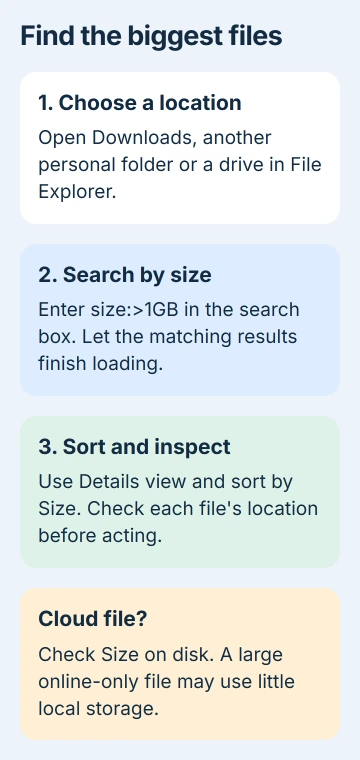
Press Windows+E to open File Explorer. Select Downloads, Documents, Videos or another folder where you keep files. To search a whole drive, select This PC, then open that drive before entering the query.
Click the search box in File Explorer's top-right corner. It searches the location shown in the address bar. Use that box for this search rather than typing into Windows' taskbar search.
Microsoft's file search instructions explain choosing a drive or folder as the search location. Starting in one folder also makes a slow search easier to troubleshoot.
Search Downloads if old installers or downloaded videos might be filling your drive. Searching from the drive's top-level folder covers more locations, but the results also include Windows and program files that need more care.
I'd start with a folder you recognize, then search more widely if it doesn't explain the missing space. That keeps the first results useful and avoids starting with unfamiliar files that belong to Windows.
Use a size threshold instead of guessing the preset
Click the search box, type size:>1GB, and press Enter. The greater-than sign tells Windows to find files larger than that size. Wait for the search to finish before deciding it hasn't found any matches.
Change the size limit to suit what you're looking for. size:>500MB includes smaller downloads, while size:>4GB narrows the list to bigger files. Neither tells you how much space you can safely free.
If Windows uses English, you can also try size:gigantic, its named size category. Using a number makes the cutoff clearer, and you can repeat the search without guessing what Windows counts as gigantic.
The search query syntax reference explains size filters and signs such as greater-than. Ordinary search labels also depend on Windows' display language.
If Windows uses another language, try System.Size:>1073741824. System.Size is the built-in name for file size. The number is 1 GiB expressed in bytes, so this finds larger files without needing a translated label.
Type the punctuation without extra spaces inside the query. If File Explorer simply lists filenames containing your search text, try the System.Size version in a folder where you know a large file exists.
Sort the results and inspect their actual locations
Choose View > Details so you can see filenames, types and sizes together. Click the Size column to sort the results. Click again if necessary so the biggest matching file appears first.
Use the Folder or Folder path column, if available, to tell files with the same name apart. They may be in different download or project folders, so check where each one is stored as well as its size.
Right-click a result and choose Open file location to see its surrounding folder. Use Properties to inspect the file's size and type before choosing whether to keep it.
Don't remove an unfamiliar file from Windows or an application's installation folder just because it's large. A size filter tells you how big a file is, not whether a program still needs it.
If you recognize an installer, check whether you've already installed the app and whether you'll need the download again. Open a video or project first to make sure it's the one you meant to archive.
Check OneDrive before counting space you can free
A cloud file can look large in the results while taking up little space on your PC. Check its OneDrive status icon and compare Size with Size on disk in Properties.
The Files On-Demand explanation distinguishes online-only files from downloaded copies. A blue cloud icon indicates an online-only file.
To keep a synced file online while removing its downloaded copy from your PC, right-click it and choose Free up space if available. The cloud copy stays in OneDrive.
Deleting the file can also delete it from OneDrive and other devices when the change syncs. Use the OneDrive storage settings to check which copy you're working with before changing it.
Broaden an empty or incomplete search carefully
Check the address bar first. A search in Documents won't find a large video in Downloads or on another drive. Clear the search, open the location you need and run the same filter again.
Next, lower the size limit. A folder can hold plenty of data in files smaller than one gigabyte, even if your results are empty. This search doesn't add up a folder's total size.
If known files are still missing, review Settings > Privacy & security > Search or Searching Windows, depending on your Windows 11 release. Check indexing locations and exclusions before changing the index.
The indexing guide explains which locations Classic and Enhanced cover. Indexing builds a searchable list of files; expanding it won't fix a search immediately while Windows is still building that list.
If individual files don't explain the used space, check the Windows storage breakdown. Use the controls there for installed apps, temporary files and Windows-managed storage instead of deleting files from search results.
If the search keeps missing a file you know is in that folder, contact Microsoft Support. Share the search query, folder and Windows version so they can repeat the search without needing your private files.
The Short Version
Search a folder or drive with size:>1GB and sort by Size. Check where files are stored and how much space they use on your PC. OneDrive's Free up space keeps cloud copies; Storage settings can explain space the file search misses.
Checked November 5, 2026.

Isaac Smith is the founder and editor of PC Glance, a website that covers computers, laptops, and technology. He is a tech enthusiast and a computer geek who loves to share his insights and help his readers make smart choices when buying tech gadgets or laptops. He is always curious and updated about the latest tech trends.