

Windows 11 shows a network adapter's MAC address as Physical address (MAC) in its connection properties.
Open the properties for the Wi-Fi or Ethernet connection you're registering, or run ipconfig /all and copy that adapter's Physical Address.
A laptop can have several different addresses, including separate Wi-Fi and dock Ethernet addresses.
Choose the connection you'll actually use; entering the wrong adapter's address in a registration form can leave the right computer unable to connect.
In this guide
Copy the address from the active connection
Press Windows + I and open Network & internet. For a wireless connection, select Wi-Fi, then the connected network's properties. For a cable connection, select Ethernet and open that connection's details.
Read Physical address (MAC) in the properties list. You can also reach the connected network's details through its Properties control on the main Network & internet page. These are network details, not an Apple Mac setting.
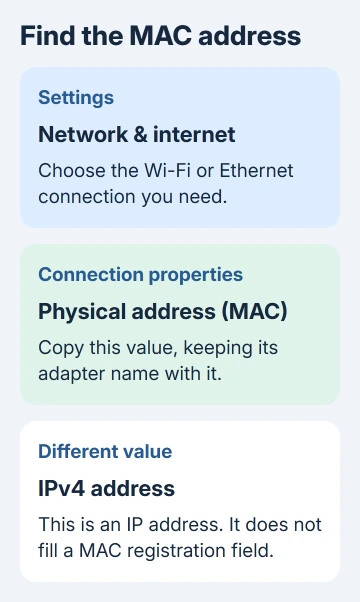
Copy all six pairs of characters exactly as displayed. The characters use digits and letters A through F. A form might accept hyphens, colons, or no separators; follow the format that form requests without changing the characters.
Keep the adapter name beside the copied address, such as Wi-Fi or Ethernet. That small label prevents confusion when support asks for a second connection or you later move the laptop onto a dock.
An address with dots, such as an IPv4 address, is a different value. The Windows IP address guide explains those numbers when a form asks for both. Don't paste an IP address into a MAC field.
If the properties screen is hard to find or several adapters appear, use the command method next. It shows each adapter under its own heading, with its address in the same section.
Read Physical Address with ipconfig
Open Start, type Command Prompt, and open it normally. Administrator access isn't needed for this lookup. Type the following command and press Enter:
ipconfig /allScroll to Wireless LAN adapter Wi-Fi for wireless networking, or the relevant Ethernet adapter heading for the cable connection. Names can differ if an adapter has been renamed or a dock adds another connection.
Within that adapter's section, copy Physical Address. Stay within the same adapter section; a nearby address under another adapter belongs to that other connection. The command can display much more information than the form needs.
Microsoft's ipconfig reference explains that /all shows the full configuration for all adapters.
It reads the current details without renewing the connection or clearing any settings.
An adapter marked Media disconnected isn't currently connected.
Its displayed address can still help identify the hardware, but use the connection the registration request asks for rather than the first section in the output.
Skip virtual VPN, Bluetooth networking, or virtualization adapters when a school asks for the laptop's Wi-Fi address. Their presence doesn't mean the physical wireless card has disappeared; keep looking for its own heading.
For a smaller list with connection names, use the next command. Reading the address doesn't require release, renew, or reset commands.
Use getmac when several adapters need labels
For a labeled list, enter this in Command Prompt:
getmac /v /fo listThe /v option adds connection details, and /fo list puts each adapter's details in its own block of labeled lines. Compare Connection Name, Network Adapter, and Physical Address together.
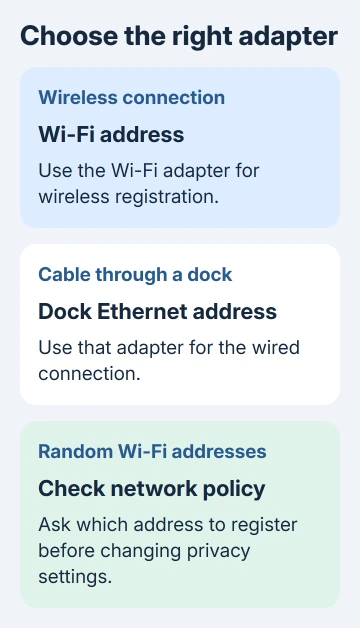
For example, a USB Ethernet adapter belongs to the wired connection it provides. Reading its address doesn't tell you the address of the laptop's internal Wi-Fi card. Register both only if the network owner asks for both.
The getmac command reference describes these display options.
This local command doesn't require an online MAC lookup service or uploading the output to a website.
I'd keep just the needed connection name and address in your support message. A full ipconfig screenshot can include unrelated network information that the administrator never asked for.
If Settings and the command output seem inconsistent, check that you're comparing the same adapter first. Next check Wi-Fi address randomization, since the address used on a network can differ from the adapter's fixed hardware address.
Check random hardware addresses before network registration
Windows can use random Wi-Fi hardware addresses on supported adapters. This helps reduce tracking across networks. It also means an address copied for one connection or setting might not be the identifier an administrator expects.
Open Settings > Network & internet > Wi-Fi and check Random hardware addresses. There is also a per-network control under Manage known networks > the network's name > Random hardware addresses.
Ask the network administrator whether they want the address currently used on that network or a fixed hardware address. Don't turn off privacy for every network just because one registration form requests a MAC address.
If they require a change, follow their instructions for that specific network. A per-network random-address setting takes effect on the next connection, so reconnect and read the address again before submitting it.
If the control isn't available, the wireless hardware may not support this feature. Don't install an address-changing utility to make a missing switch appear. Use the address shown for the correct adapter.
To identify an unfamiliar device on a router, use the MAC address lookup guide after copying the complete address. A maker lookup helps identify a device; registration lets the network recognize it.
Send a usable result when access still fails
Submit the address for the connection you'll use and say whether it's Wi-Fi, built-in Ethernet, or a USB dock. If a form rejects the entry immediately, compare its separator format and character count with your copied value.
If the form accepts it but the network still refuses access, ask the administrator to compare the registered address with the connection attempt they see.
Include the network name, approximate attempt time, and whether random addresses are enabled.
If Windows lists no Wi-Fi adapter at all, have the laptop manufacturer check wireless hardware detection and the matching driver. Supply the complete PC model and explain that both Settings and the command output lack the adapter.
For computers managed by your workplace, let IT handle a disabled or missing adapter. Finding the address doesn't require changing device permissions, replacing a driver blindly, or resetting the entire network.
The Short Version
Read Physical address (MAC) in the correct connection's properties, or copy Physical Address from its ipconfig /all section.
Keep Wi-Fi and Ethernet separate, and check random-address requirements before registering the laptop on a managed network.
Checked November 15, 2026.
 If you have any business, I can build it online






