Fuzzy Lookup's missing ribbon or runtime error can mean its add-in isn't loading after setup. Check COM Add-ins first. If that entry fails, try the owner-confirmed reinstall with all users selected.
These steps apply to the older Windows Fuzzy Lookup Add-In, not similarly named Office add-ins. Its old Microsoft download page was unavailable when checked, so keep a trusted installer before removing anything.
In this guide
1. Check the entry Excel is trying to load
In Windows desktop Excel, open File > Options > Add-ins. At the bottom, change Manage to COM Add-ins, then select Go. Look for Fuzzy Lookup Add-In For Excel.
COM is the add-in type, not a file extension you need to find in the installation folder. Seeing DLL files rather than files ending in .com doesn't by itself explain why the add-in won't start.
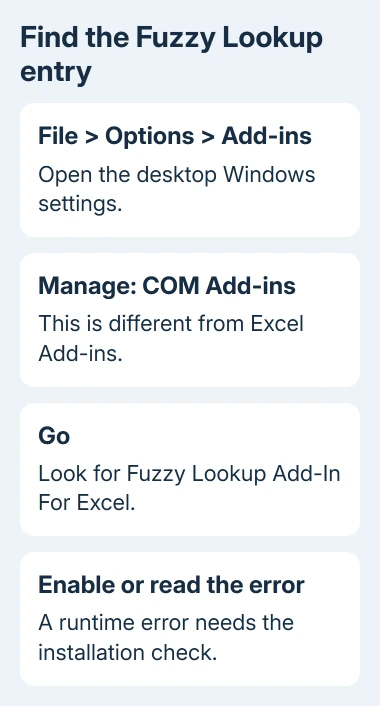
For an unchecked entry, select its checkbox and choose OK. Look for the Fuzzy Lookup tab on Excel's ribbon. Microsoft's COM add-in controls use this route.
If the tab appears and its tool opens, the entry wasn't loading before. Try a small data copy before processing your main workbook. Check the results as well as the ribbon: the matches still need to suit your records.
For a runtime error or an entry that won't stay enabled, record the message and continue with installation repair. An absent entry means Excel has nothing available to enable in this list.
The Excel add-ins guide explains the different add-in lists. Selecting Excel Add-ins instead of COM Add-ins can send you to a different set of installed tools.
2. Reinstall with the all-users option
Use this route only when you have a trusted installer for the old add-in and permission to install software on the computer. Save any open workbooks, then close Excel for installation changes.
Remove Fuzzy Lookup through Windows' program list. Windows 11 uses Settings > Apps > Installed apps; Windows 10 uses Settings > Apps > Apps & features. On older Windows, open Control Panel's program list.
Run the trusted setup file with Run as administrator. When setup offers an Advanced option, open it and choose installation for all users of the machine. Complete the remaining setup screens.
One owner confirmed that the all-users installation fixed it after the earlier suggestions had failed. That additional selection matters: running setup as administrator alone didn't resolve every report.
Reopen Excel and check the COM Add-ins entry again. Check that the entry loads and the Fuzzy Lookup ribbon appears without the previous runtime error. If the same error remains, keep its text for the next check.
At work, give IT the installer and request installation for all users. If your account can't approve it, leave that prompt to IT. Excel's options can't grant Windows administrator access.
I'd check installer access before uninstalling. With the old download page unavailable, removing your working files first can leave you without a trusted way to put the add-in back.
3. Remove a stale entry when reinstalling hasn't helped
A different owner reported success after removing the old Fuzzy Lookup COM entry, closing Excel, and installing again. That clears Excel's leftover entry so the next installation can start without it.
With your installer available, remove the old Fuzzy Lookup installation, then open Excel's File > Options > Add-ins > Manage: COM Add-ins > Go dialog. If the Fuzzy Lookup entry remains, select that entry and use Remove.
Close Excel before running setup again. Reopen Excel afterward to check its new entry and ribbon. Remove only Fuzzy Lookup's entry; another add-in's name in the same list doesn't make it part of this fault.
Clearing a checkbox and using Remove aren't identical. The checkbox stops loading an add-in while leaving its name available. The owner removed the entry from the list, rather than just disabling it.
Another reply suggests selecting Setup.exe through the COM dialog's Add control. Keep to the normal setup route for this repair; the executable isn't a DLL to load into Excel.
One report still had the runtime error in 64-bit Excel 2010 after an administrator reinstall. Other owners got it working in different Excel setups, but the all-users option didn't fix every reported installation.
4. Use a supported matching route if installation is blocked
Without an installer or permission for the legacy add-in, ask about Power Query fuzzy matching in your Excel edition. It compares similar text during a table merge, without this COM add-in.
That alternative won't restore Fuzzy Lookup's ribbon. Power Query's controls vary by release. Excel 2010 doesn't offer every merge control available in current Microsoft 365.
If you need to join records using an exact key, such as an ID that matches in both lists, try the Excel VLOOKUP checks. Exact matching won't repair spelling differences just because the formulas return results.
Review any similar-text matches before using them for names, account codes, or billing. Two similar labels can refer to different records. The repair is successful only when the tool loads and its output suits the data you're processing.
If Fuzzy Lookup still fails, send IT the Excel release and 32-bit or 64-bit edition from File > Account > About Excel, or File > Help in Excel 2010. Include the COM load error and which installation route failed.
The Short Version
Check COM Add-ins first. For a runtime error, use a trusted installer with the all-users option, then address a stale entry if needed. Without that installer, ask whether your Excel edition supports Power Query fuzzy matching.
Checked November 17, 2026.