

No, HEVC Video Extensions don't sharpen videos or raise Chrome's streaming quality. They add decoding support in Windows apps that use them. Detail still depends on the video's resolution, compression, and playback settings.
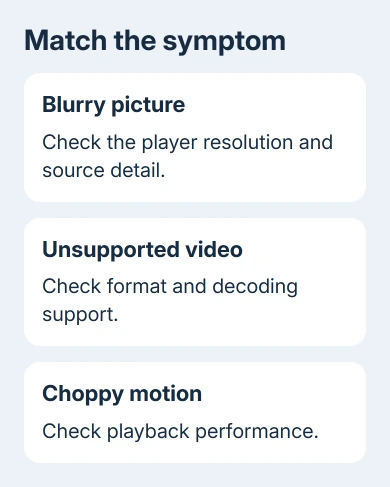
A video that won't play and one that plays but looks blurry need different checks. Start with the player's quality setting for blur. For an HEVC playback error, check the browser and graphics support before paying for a codec extension.
In this guide
Match the extension to the problem
HEVC, also called H.265, is a format used to compress video. A decoder turns that compressed data into frames you can watch. A decoder can make an unsupported file playable. It can't restore detail lost when the file was made.
Think of a low-resolution recording you've received from someone else. Making its format readable doesn't replace it with a higher-resolution recording. You're still watching the picture stored in that original file.
The Windows package also isn't a Chrome extension. It doesn't appear as a picture-quality control in Chrome's Extensions menu, and installing it doesn't unlock a universal higher-quality mode for websites.
An ordinary MP4 filename doesn't tell you its video format either. MP4 is a file container that can hold different kinds of video. Two apps can use different decoders to play the same file.
Check why Chrome's picture looks soft
Use the video player's settings and select a specific resolution when the site offers one. Let playback settle, then compare the same scene at the same window size. Automatic quality can change with the available bandwidth.
Pause on fine detail such as text or hair. If choosing a higher resolution makes that detail clearer, the player was sending you a less detailed version. The player's quality setting is what made the difference there.
Compare full-screen playback with a smaller window. Enlarging a small source makes its limitations easier to see. A screen capable of showing 4K doesn't make every video played on it a 4K source.
The service may also limit resolution by account, title, browser, device, or its protection requirements. Check the service's requirements for your browser. One Windows package doesn't change all those limits.
I wouldn't buy a codec to fix a video that's already playing cleanly but looks soft. Check the resolution offered by that particular player first. You can check that without installing anything.
For Windows controls that apply to supported video apps, our video playback settings guide explains their scope. Windows controls and a website's quality menu handle different parts of playback.
Check whether the fault is HEVC playback
An unsupported-format error, audio with no image, and stuttering are different symptoms. Write down which one happens and whether it affects one file, one website, or every video. This helps separate format and connection problems.
Microsoft's browser playback troubleshooting page describes a useful difference: Edge can fail HEVC decoding because of a Windows extension license while Chrome plays the same content using a different decoder.
A fix for Edge isn't necessarily something Chrome needs. Installing or reinstalling the Windows extension might address an app that depends on it, while leaving Chrome's behavior unchanged.
For Chrome, open Settings > About Chrome, allow an available update to finish, and relaunch when prompted. Then retry the same video. Retry that file with unchanged playback settings to see whether updating helped.
Next, open chrome://gpu and look for Video Acceleration Information. HEVC entries, when present, show the variations of the format your graphics setup can decode. A missing profile can explain why your PC can't play a particular video.
Don't change experimental flags to force a result. Hardware support, driver support, browser version, and the video's particular HEVC profile all matter. Support for H.265 doesn't mean support for every H.265 file.
Use graphics acceleration for the right reason
In Chrome, open Settings > System and find Use graphics acceleration when available. This lets Chrome use your graphics hardware for tasks it supports. It isn't a sharpness or resolution slider.
If you change the switch, select Relaunch before comparing playback. Closing the Settings tab isn't enough when Chrome asks you to relaunch. Test the same section of video and pay attention to dropped motion as well as picture detail.
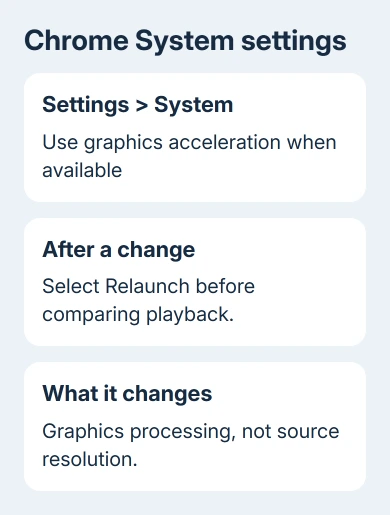
Turning acceleration off can help some graphics faults, but it can also stop Chrome from using hardware to decode video. Don't assume that disabling it improves HEVC compatibility. Keep the setting that works for your actual playback task.
Google's Chrome crash troubleshooting includes checking acceleration when graphics problems occur. Use that advice for crashes or rendering trouble, rather than as a promised quality upgrade.
If the problem began with a graphics-driver update, record its version, then compare other video apps. If several apps fail, check for a wider graphics problem. If only one website fails, try that site's playback checks.
Separate smoothness, color, and source detail
A video can contain sharp frames but skip during motion. That is a playback performance problem. A stable image with blocky areas or smeared detail can instead reflect the compressed source or the stream being delivered.
Washed-out color is another separate complaint. HDR video, the display's capabilities, and color handling can affect its appearance. Buying an HEVC decoder isn't a general repair for color differences between two players.
Compare the same file on the same display when possible. A site can send different video streams to two browsers. Playing the same title side by side doesn't always mean they're receiving the same video data.
If only one service fails, send its support team the title, browser version, selected resolution, and exact error. If local HEVC files fail across apps, ask your PC maker which video profiles its graphics driver supports.
For subscription video that fails specifically in Chrome, the Crunchyroll playback checks show how browser and site troubleshooting differ from installing a Windows codec.
The Short Version
HEVC Video Extensions add format support for apps that use them. They don't improve a video's original detail or force Chrome to stream at higher quality. Match blur, decoding errors, and choppy motion to their own checks.
Checked November 12, 2026.
 If you have any business, I can build it online






