An iMac mouse that stops responding often needs fresh power or help reconnecting. Switch a Magic Mouse off and on, then reconnect a rechargeable model to the iMac with its cable for one minute.
For a USB mouse, check its port directly. When the whole iMac freezes, changing the mouse connection won't fix the computer.
In this guide
1. Check power and whether the iMac still responds
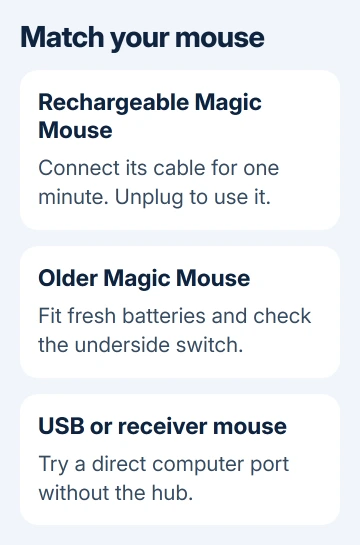
Turn a Magic Mouse over and move its power switch off, then on. Green should be visible under the switch when it's on. For the original model that takes replaceable batteries, fit fresh batteries in the marked direction.
A rechargeable Magic Mouse has a Lightning or USB-C connector instead of replaceable batteries. Use its matching cable. Don't try to open the battery compartment on a rechargeable model.
Check whether Command + Space opens Spotlight. If it does, the iMac still responds despite the dead pointer. Focus next on mouse power and the connection.
When both the keyboard and the whole screen stop responding, the iMac may be frozen. Give an active operation time to finish. A mouse reconnection won't repair an app that has locked up the computer.
Keep a basic wired USB mouse nearby if one is available. On an iMac, it gives you access to settings while the wireless mouse is being repaired. Choose a connector or adapter that matches your iMac's ports.
2. Pair a rechargeable Magic Mouse through its cable
Attach the appropriate Lightning or USB-C cable between your iMac and the mouse. Turn the mouse on, leave it connected for one minute, then unplug it and try moving the pointer.
Apple says its Magic accessory connection steps use this connection to pair the mouse and charge its battery. A Magic Mouse is used wirelessly after you disconnect it; leaving its charging cable attached isn't a practical wired-mouse mode.
Once the pointer works, check the battery level through Control Center > Bluetooth. If the battery was very low, allow more charging time. The one-minute connection is for pairing; a low battery will need longer to charge fully.
If the mouse now moves and clicks, open a normal app and try it there. If the pointer works everywhere except one app, check that app next instead of pairing the mouse again.
If it still doesn't appear, try a working cable capable of USB data transfer. Then continue to the Bluetooth check. I'd borrow a wired mouse before changing several settings with an unresponsive pointer.
3. Turn Bluetooth on and reconnect older models
With the spare mouse, open Apple menu > System Settings > Bluetooth. On older macOS versions, open System Preferences > Bluetooth. Check that Bluetooth is on before looking for the mouse among the listed devices.
If a keyboard works but no spare mouse is available, press Command + Space, enter Bluetooth File Exchange, and press Return. When Bluetooth is off, pressing Return again can turn it on through the prompt.
Restart the Mac normally if Bluetooth won't turn on. Once it returns, check the same setting again. Don't switch off a working wireless keyboard just to troubleshoot the mouse; keeping keyboard access makes recovery easier.
For an older battery-powered Magic Mouse, switch it on and look for a blinking LED. That signals it is ready to pair. In Bluetooth settings, select Connect when the mouse appears.
If the older mouse's LED lights briefly and never blinks, check whether a nearby Mac already has its connection. On that Mac, remove the mouse from Bluetooth, then switch the mouse off and on before connecting it to the iMac.
Use Forget This Device, or the removal control offered by the older macOS version, on the other Mac. Confirm that you have another way to control that computer before removing its mouse.
4. Check a USB mouse without the hub
For a wired mouse, disconnect its plug and try a direct iMac port. If the mouse uses a small USB receiver, move that receiver to a direct port instead. A receiver-based mouse also needs its own battery and power switch checked.
Compare another port and, if needed, another adapter. A mouse that fits the iMac directly avoids the adapter entirely. That checks the port and adapter. Bluetooth settings have no effect on a mouse that connects another way.
If direct USB restores movement but the hub doesn't, check the hub and its power supply. Reconnect each of the hub's other devices separately, checking whether the mouse stops working again. The mouse already works in a direct port.
For a Logitech model with several device channels, use the Logitech power and channel checks. A receiver in the right USB port won't help if the mouse is set to a different paired computer.
If a second USB mouse works and the first doesn't on either port, have the first mouse checked. If several USB devices fail on the same connection, tell Mac support which port or adapter you tried.
5. Follow a drop or freeze to the right repair
When the connection keeps dropping
If the wireless connection keeps dropping, bring the mouse closer. Try moving nearby hubs, external drives and wireless transmitters away to see whether they're interfering.

If the mouse is listed as connected but stops working specifically after a macOS upgrade, the connected Magic Mouse checks address that separate symptom. Record the installed macOS version before following version-specific advice.
When the mouse still needs service
If the problem continues, ask Apple support to help check whether the mouse or the iMac needs repair. Give them the mouse's connector type, battery result, Bluetooth status and whether a wired replacement worked.
A mouse that won't turn on with fresh batteries or charge with a working cable needs a hardware check. A Mac that also ignores a wired mouse and its keyboard needs the computer checked, especially when the whole screen freezes.
The Short Version
Restore power, pair a rechargeable Magic Mouse by cable, and check Bluetooth for older models. Test USB mice directly. Use the keyboard and a spare mouse to tell a failed mouse connection from a frozen iMac.
Checked November 16, 2026.