

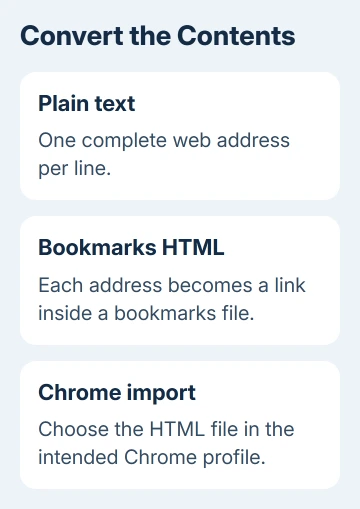
Chrome can't import a plain Notepad list as bookmarks. Turn the URLs into a bookmarks HTML file first, then use Chrome's bookmark import command. Changing a .txt filename to .html doesn't convert the contents.
For a short list, use the HTML example. For a longer list, PowerShell can build the file from one complete web address per line. Both methods keep your links on your computer instead of uploading them to a converter.
In this guide
Prepare a clean copy of the Notepad list
Open the list and save a working copy under another name. Keep the original unchanged until you've checked the imported bookmarks. Use it to check missing bookmarks or incorrect destinations.
Each entry should be a complete web address beginning with https:// or http://. Put each address on its own line. Remove numbering, bullets, comments, and titles from the lines you'll feed into the automatic method.
For example, use https://www.microsoft.com/ on its own, without a site name before it. A title such as Microsoft Support doesn't tell the converter which address to save.
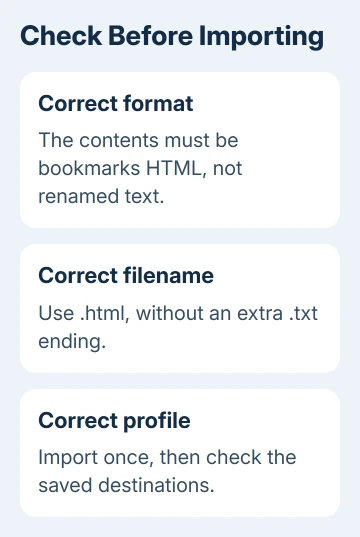
If the original file already contains markup such as NETSCAPE-Bookmark-file-1, it might be a browser export saved with the wrong extension. Inspect the contents before converting it again.
Follow these steps on a Windows computer with desktop Chrome. You don't need a new Google account, a browser extension, or an online converter. Choose the Chrome profile where you want the bookmarks before importing.
Make the HTML file manually for a short list
Open a new Notepad document and paste this example. Replace the two example addresses and the words between the opening and closing link tags with your own destinations and bookmark names.
<!DOCTYPE NETSCAPE-Bookmark-file-1>
<META HTTP-EQUIV="Content-Type" CONTENT="text/html; charset=UTF-8">
<TITLE>Bookmarks</TITLE>
<H1>Bookmarks</H1>
<DL><p>
<DT><A HREF="https://www.microsoft.com/">Microsoft</A>
<DT><A HREF="https://www.google.com/">Google</A>
</DL><p>
Add another DT line for each bookmark. Put the address in HREF and the bookmark name between the link tags, as in the example. Keep both quotation marks around the address.
For an address containing an ampersand, write & in the HTML instead of a bare &. Do the same in a bookmark title. This preserves the character without confusing it with HTML markup.
Choose File > Save as. Name the file notepad-bookmarks.html, select All files as its type, and use UTF-8 encoding. Save it somewhere easy to find, such as Documents.
Check that the saved filename ends with .html, not .html.txt. In File Explorer, enable View > Show > File name extensions on Windows 11. Windows 10 has File name extensions on its View tab.
Convert a longer list with PowerShell
Use this method to avoid editing dozens of link lines by hand. Save your cleaned list as urls.txt, with one address per line, somewhere easy to locate. Use File Explorer to open its folder.
Click the folder's address bar, type powershell, and press Enter. This opens Windows PowerShell in that folder. Use a normal window; administrator permission isn't needed to read your list and create the output beside it.
Paste the following block. It reads urls.txt, checks for HTTP or HTTPS addresses, escapes HTML characters, and writes notepad-bookmarks.html in the same folder.
$items = Get-Content -LiteralPath '.\urls.txt' -Encoding UTF8 |
  ForEach-Object { $_.Trim() } |
  Where-Object { $_ }
$links = foreach ($item in $items) {
  $address = $null
  if (-not [Uri]::TryCreate($item, [UriKind]::Absolute, [ref]$address) -or
      $address.Scheme -notin @('http', 'https')) {
    throw "Not a complete web address: $item"
  }
  $safe = [System.Net.WebUtility]::HtmlEncode($item)
  '<DT><A HREF="' + $safe + '">' + $safe + '</A>'
}
$page = @(
  '<!DOCTYPE NETSCAPE-Bookmark-file-1>'
  '<META HTTP-EQUIV="Content-Type" CONTENT="text/html; charset=UTF-8">'
  '<TITLE>Bookmarks</TITLE>'
  '<H1>Bookmarks</H1>'
  '<DL><p>'
) + $links + '</DL><p>'
$page | Set-Content -LiteralPath '.\notepad-bookmarks.html' -Encoding UTF8
If a red error names a line that isn't a complete address, fix that entry in Notepad and run the block again. Wait for it to finish without that error before importing, so you don't accidentally use an older output file.
This method uses each URL as its bookmark name, saving you the work of entering names separately. You can shorten them in Chrome afterward. The code doesn't open the addresses or check whether their pages still exist.
Import the HTML into the intended Chrome profile
Open Chrome and check the profile icon first. A bookmark imported into a work profile won't appear automatically in a different personal profile on the same computer.
Open the three-dot menu and choose Bookmarks and lists > Import bookmarks and settings. Select the bookmarks HTML option if the dialog offers a source list, then choose Choose file.
Select notepad-bookmarks.html, click Open, and complete the dialog with Done. Google's steps for bookmark imports use an HTML file for this route.
Open Bookmarks and lists > Bookmark manager to check the result. Where the imports appear depends on your existing bookmarks. Look in the imported or other-bookmarks folder if the links aren't on the visible bar.
The Chrome bookmarks-bar controls help when the bookmarks exist but the bar isn't visible. Importing and showing the bar are separate actions.
Check the links before discarding the text list
Open several imported bookmarks, including one with a long address or a query string, the part after a question mark. Compare each address with the original list. Correct the saved URL of any bookmark that takes you elsewhere.
If an item only contains a title or all the links became one bookmark, return to the input layout. The automatic route expects one complete URL per line, not a comma-separated list or a paragraph copied from a document.
Avoid repeatedly importing the same file while checking the result. That can leave extra copies to sort through. Remove only the unwanted imported copies after confirming which folder contains your successful import.
Once the list is correct, export the finished Chrome bookmarks to keep a normal browser backup. Keep the original text until you're satisfied that every intended destination survived.
If a valid HTML file still won't import, open Chrome Help and choose its community option to ask for help. Include your browser version and a small example with no private information. Remove personal or signed-in links before sharing it.
The Short Version
Clean the Notepad list, create a real bookmarks HTML file, and import it in the correct Chrome profile. Check the saved destinations before deleting the source list. A filename change alone doesn't turn plain text into bookmarks.
Checked November 15, 2026.
 If you have any business, I can build it online






