
Install Vortex, select your copy of Fallout 4 to manage, then download, install and enable a compatible Nexus mod. Use Apply to put its files where the game can load them; older Vortex releases call this Deploy Mods.
Check the mod's required Fallout 4 version before downloading. Even if Vortex installs its files, a mod can fail if it needs another game update, an expansion you don't have or a different script-extender version.
1. Start the unmodified game and protect your saves
Launch Fallout 4 once through its store or launcher, reach the menu and close it. This lets the game create its settings before you manage it with Vortex. If the game won't start normally, fix that before adding mods.
Copy the saved games you want to protect into a separate backup folder. The usual location is Documents > My Games > Fallout4 > Saves, although a redirected Documents folder can live elsewhere. Copy the folder while the game is closed.
Windows File History backup can protect those folders too, if they're included in your backup. Check that your actual save location is covered rather than assuming every game folder is backed up.
Read the mod's Description and Requirements. Check the game release, downloadable content (DLC) and other mods it needs. These extra components are called dependencies; a finished download doesn't mean they're installed.
If your PC hasn't run the game yet, compare the game's hardware requirements first. A successful mod download won't tell you how well your PC runs the unmodified game.
2. Install the official Vortex Windows installer
Download Vortex from its official Nexus listing or the Nexus-Mods GitHub releases. In the release's Assets, choose the vortex-setup file ending in .exe. The YAML, blockmap and source-code files aren't the Windows installer.
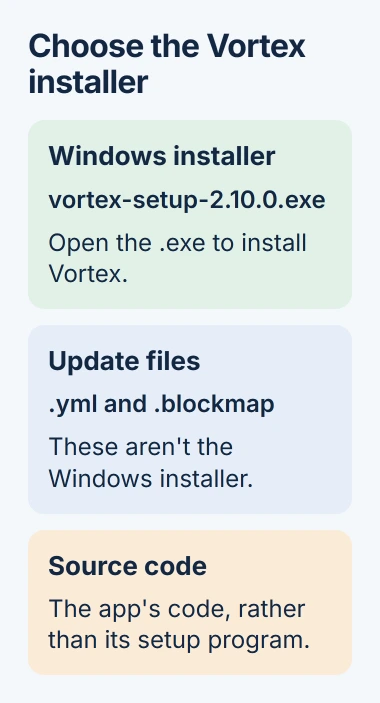
Open the downloaded setup program and follow its prompts. Vortex is the official Nexus mod manager and supports Fallout 4.
Open Vortex and use Log In or Register, then Log In On Website when offered. Approve the connection in your browser and return to Vortex. Your Nexus account connects the website's manager-download links to the app.
Nexus explains the connection in its Vortex setup guide. Vortex can detect games without a login, but you need the account connection to download Nexus files through the manager.
3. Manage the correct Fallout 4 installation
Open Games in Vortex and find Fallout 4. Choose your installation and start managing it. If you have several copies, check the store label and installation path. Follow any prompts to finish setting up game support.
If Vortex hasn't detected the game, select the tile and browse to the installation folder containing Fallout4.exe. Don't choose the separate Documents folder containing your saves, or only the game's Data subfolder.
The Fallout 4 support extension looks for Fallout4.exe and puts ordinary game mods in Data. That's why you need the game folder, rather than the folders holding your settings and saves.
For the usual Windows hardlink method, put Vortex's Mod Staging Folder on the same partition (section of the drive) as Fallout 4. Hardlinks let the game use the staged files without keeping a second full copy in the game folder.
Vortex's deployment requirements call for NTFS, a Windows drive format, the same partition and permission to write there. Change the staging location in Vortex's Settings instead of dragging its folder in File Explorer.
When you use Apply, Vortex also changes Fallout 4's settings so it can load a mod's separate replacement files. Wait until Apply finishes before testing the texture or sound replacement.
4. Download one mod and enable it
On the mod's Nexus page, open Files and choose the main file matching your game version. Select Mod Manager Download or the equivalent manager-download button, then allow the browser to open Vortex when prompted.
Let Vortex finish the download. Install the mod if that hasn't started automatically, work through any installer options, then Enable it. I'd start with one small mod whose effect is easy to recognize.
If you downloaded the archive manually, use Mods > Install from File or Vortex's drop area without unpacking it. If the author requires a special manual installation, follow those steps instead of forcing it through Vortex.
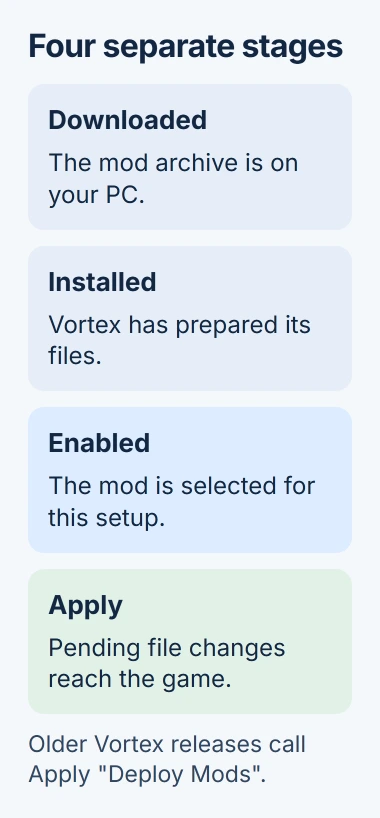
Use Apply to finish pending changes. The Vortex 2.10 release notes describe the change from Deploy to Apply, now beside Play. Older guides may show the earlier name, Deploy Mods.
If Vortex reports a file conflict, read the authors' compatibility and ordering directions before choosing which mod wins. Plugin load order, the order the game loads plugins, has its own controls. Fixing one doesn't always fix the other.
5. Launch with the required tools and verify the change
Launch Fallout 4 and check the location, item or behavior the mod changes. The title screen can look the same even when a texture, weapon or gameplay mod has loaded. Use a separate test save when the author recommends it.
If the mod requires F4SE, install the Fallout 4 Script Extender build matching your installed game version and follow its instructions. Launch through f4se_loader.exe or the F4SE tool you've set up in Vortex for mods that need it.
The script extender's compatibility page distinguishes Steam and GOG releases and says it can't support the Windows Store version. Don't choose an F4SE build just because its version number is larger.
If nothing changes in the game, check the mod's enabled state, Apply and any required entry in Plugins. Follow the author's settings and ordering directions. Leave automatic sorting on unless they call for a specific rule.
If the first mod causes a crash, close Fallout 4, disable that mod and Apply before retrying. Keep the save backup. Removing a large gameplay mod during a playthrough can need the author's recovery instructions.
For a launch problem that also occurs without mods, check the supported Windows driver updates and the game's own support guidance. For a mod-only fault, send its author the game version, mod version, requirements and Vortex error.
The Short Version
Run Fallout 4 once, back up saves and match the mod's requirements. Manage the correct game in Vortex, install and enable the archive, then Apply. Use the matching F4SE only when required, and verify the particular change in the game.
Checked November 5, 2026.

Isaac Smith is the founder and editor of PC Glance, a website that covers computers, laptops, and technology. He is a tech enthusiast and a computer geek who loves to share his insights and help his readers make smart choices when buying tech gadgets or laptops. He is always curious and updated about the latest tech trends.