
Raise AirPods volume with the audio slider on your connected phone or your model's built-in control. Volume swipes work on AirPods Pro 2 or Pro 3; older earbuds use different controls.
Play some audio while you adjust the level so you can hear each small change. If only one earbud stays quiet, turning up both sides won't fix that difference.
Raise the volume from the device playing your audio
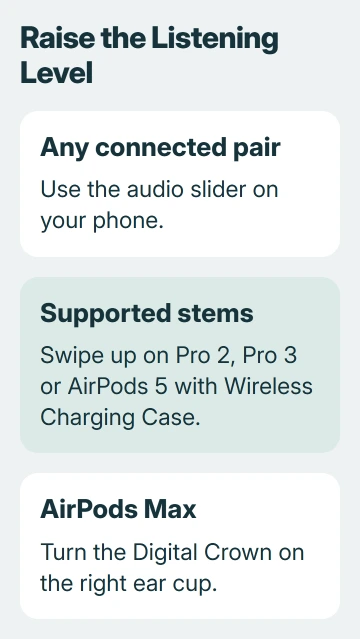
With your AirPods connected, play the song, podcast or other audio you want to hear. Adjust the volume slider in that app, on the iPhone or iPad Lock Screen, or in Control Center.
Make a small increase, then listen before raising it again. I'd use the phone's slider first when you're unsure which AirPods model you have. It saves you from guessing which tap, press or swipe changes the volume.
For models that support it, you can also use an Apple Watch: open Now Playing, then turn its Digital Crown. Check that you're changing the audio going to your AirPods rather than another active device.
Apple explains the playback controls for each model, including gestures and the connected device's audio slider. Check the instructions for your model before changing what its presses do.
If the slider moves but the sound doesn't change, try another recording in the same app. That helps you tell whether one recording is quiet or every track is too low at a normal setting.
Swipe upward on AirPods with a volume-sensitive stem
AirPods Pro 2 support volume swipes, and AirPods Pro 3 do too. The current guide also lists AirPods 5 with Wireless Charging Case for this control. The ordinary AirPods 5 model has different stem controls.
Support the earbud gently in your ear. Rest your thumb on its stem, then slide an index or middle finger upward along the stem to turn up the volume. Swipe downward to turn it down.
Use a light sliding motion rather than a squeeze. Pressing the stem handles playback or calls, so pressing harder can pause your audio instead of making it louder.
Use either earbud on a supported pair. Pick the side that's easier to reach, make a short adjustment and listen. The other side doesn't need a matching swipe.
If you're unsure which model you have, open Settings > Bluetooth and tap its information button. Read the model number and match it with the AirPods identification list.
Use Siri or the slider on models without volume swipes
AirPods Pro 1, AirPods 3, both AirPods 4 models and ordinary AirPods 5 use stem presses for other controls. To raise the volume, ask Siri to turn it up or use your connected device's slider.
On AirPods 2, you can activate Siri with your voice. On AirPods 1, double-tapping an AirPod can activate Siri when you've assigned that action. Then ask for a volume increase.
The gesture reference shows the controls for each generation. A double tap or press won't turn up the volume on every model.
If double-tapping AirPods 1 or 2 does something else, open their settings on the connected iPhone or iPad. Check what a double tap does on the left or right AirPod, then choose Siri if that's what you want.
For supported stem models, check the AirPods settings guide for press-and-hold choices. You may find these under Controls & Gestures.
Changing what a press does won't give an unsupported model volume swipes. For volume without Siri, use the phone's slider.
Turn the Crown on AirPods Max
On AirPods Max, turn the Digital Crown on the right ear cup to adjust volume. Pressing the Crown controls playback, so turn it instead of clicking it when you want more volume.
The Crown direction can be customized. If it feels backward, check Digital Crown in your AirPods Max settings and choose the direction you prefer.
Use the Crown for volume rather than the listening-mode button beside it. That button changes how much of the room you hear, rather than turning up the audio.
When raising the level doesn't solve quiet audio
If only one AirPod is quieter, open Settings > Accessibility > Audio & Visual on iPhone and check Balance. Put it in the middle so the sound isn't shifted toward one ear.
Check the earbud's speaker mesh for debris, removing detachable tips when appropriate. If it needs cleaning, follow your model's steps linked from the quiet-earbud support page.
If the volume drops whenever you talk, follow the automatic AirPods volume checks. That's a different problem from choosing the right volume control.
If the sound breaks up or disappears, use the AirPods audio drop-out checks. Repeated volume increases won't repair an interrupted connection.
If volume seems capped, check Settings > Sounds & Haptics > Headphone Safety > Reduce Loud Audio. It can turn down sound over the limit you've selected. Keep hearing protection in mind instead of aiming for maximum volume.
If both earbuds are still too quiet after using the right control and checking the sound, contact Apple Support. Include your exact AirPods model, connected device and whether the problem affects one side or both.
The Short Version
Use the connected device's volume slider first. Swipe up on supported AirPods stems; for models without that control, use Siri or the device slider. Turn the Crown on AirPods Max. A single quiet earbud needs balance and cleaning checks.
Checked November 5, 2026.

Isaac Smith is the founder and editor of PC Glance, a website that covers computers, laptops, and technology. He is a tech enthusiast and a computer geek who loves to share his insights and help his readers make smart choices when buying tech gadgets or laptops. He is always curious and updated about the latest tech trends.