

Microsoft Rewards' Oops! Looks like you are on the go! message is a region restriction. Disconnect any VPN or proxy and use your home connection. Actual travel abroad means waiting until you're home to redeem.
The same message can appear when you haven't traveled. Check the account, connection and offer region, then ask Rewards support to review the restriction. Reinstalling Edge won't change an account restriction on Microsoft's servers.
In this guide
1. Check whether the block affects earning or redemption
Open your usual Microsoft Rewards dashboard and read the complete message. Note whether daily activities are unavailable, searches aren't adding points, or a gift-card redemption fails. These aren't all the same failure.
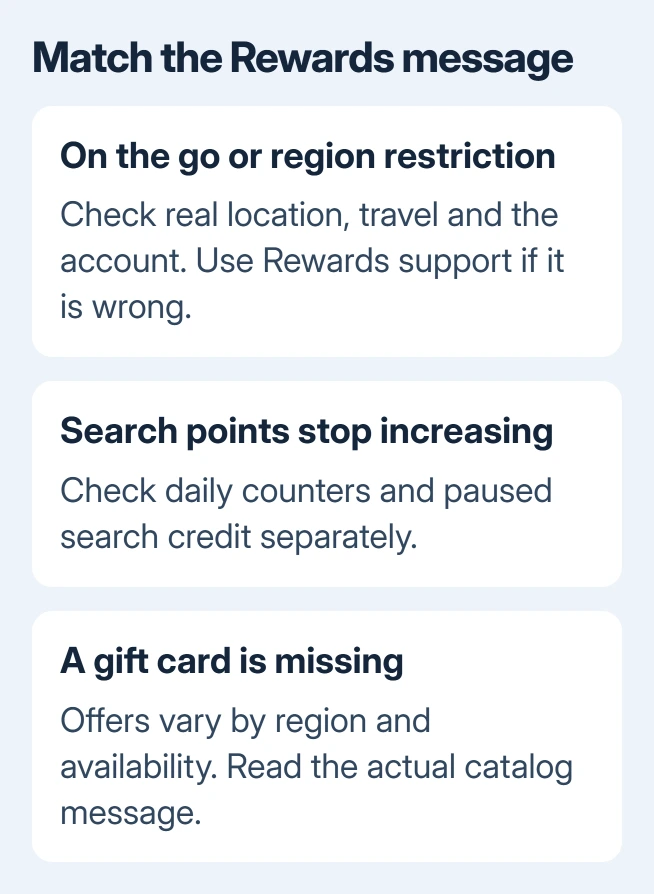
If a catalog item says it isn't available because of region or other restrictions, return to the catalog offered to your signed-in account. An old direct link can lead to a reward that isn't currently available to your account.
If the dashboard opens normally and only search points stop increasing, check the Rewards search-point limits. Paused search credit and a full daily counter have different checks from the on-the-go message.
A missing gift card without a region warning can simply mean the offer isn't currently listed. Rewards offers vary by country, and some cards aren't always available. Check the actual error before changing your account settings.
Keep a screenshot of the full message and the affected offer. That gives support the exact restriction to examine, instead of a vague report about Bing failing. Cover personal account details if you share it publicly.
2. Turn off location-masking connections
Disconnect any VPN you use, including a browser extension or a separate desktop app. A VPN sends your connection through another server, so the location seen by Rewards can differ from where you're sitting.
On Windows 11, check Settings > Network & internet > VPN for a Windows-configured connection. Windows 10 uses Settings > Network & Internet > VPN. Also check whether the VPN app itself shows an active connection.
For a proxy you set up yourself, check Settings > Network & internet > Proxy. Windows 10 labels the category Network & Internet. Record the setting before changing it; work or school proxy settings belong with IT.
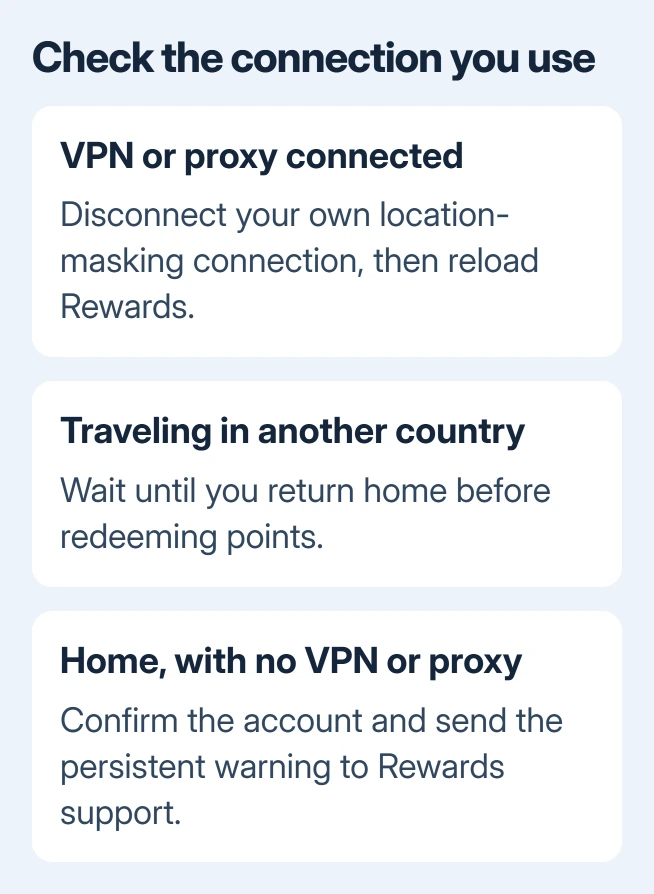
Reload the dashboard using your ordinary home connection after disconnecting the VPN. Microsoft's redemption guidance says not to use a VPN or proxy that conceals your real location.
For a work VPN, use Rewards away from that work connection when appropriate. A VPN server in the reward's country changes your apparent location; it doesn't make the offer available in your real region.
If the warning remains with no VPN or proxy, continue to the travel and account checks. Owners have seen this error without a VPN too, so there may be another reason for the restriction.
3. Handle real travel separately
Points must be redeemed in the same region as the Microsoft account. The official instructions say to wait until you're back in your home country or region if you get the traveling message while abroad.
That means a browser reset isn't the remedy for an actual trip abroad. Keep the account information accurate and wait to redeem through the normal home-region connection. Switching the catalog country isn't a substitute for returning home.
For a warning that survives your return home, give support the trip dates and countries. Explain that you're home with the VPN disconnected. They need to check why the restriction remains on a local connection.
I'd include earning and redemption histories in that report. Points collected through another country's connection can matter after returning home. Windows showing today's correct location doesn't explain that history.
Some owners had earned points through a foreign VPN. Turning it off later doesn't mean those points meet the regional rules. Request an account review rather than experimenting with country settings.
4. Check the signed-in account and available market
Use the profile control on the Rewards page to confirm the email address. The account signed in on the webpage determines the catalog; a different Edge browser profile can make it easy to overlook which account is open.
If the email doesn't match your points account, sign out of the Rewards website. Log back into your points account and return to its dashboard and catalog. Use that account for the support request too.
Check that your actual country is included in the supported Rewards regions. Availability of the program doesn't mean every gift card or earning activity is offered in every country.
Explain a real move to Rewards support if the account still lists your old country. Repeatedly changing your profile country won't reliably tell you whether you qualify. Redemption checks involve more than the country displayed on one page.
On a work or school connection, ask IT which country your internet traffic goes through. Its proxy can route traffic abroad without a personal VPN. A VPN explanation can help identify which connection software you're using.
5. Ask Rewards support to review a wrong travel warning
On the redemption help page, find Contact us in the final help section. It leads to the Microsoft Rewards Support form. Sign in with the restricted account and describe the travel warning or blocked catalog item.
Include your actual country, whether you recently traveled, whether a VPN or proxy was used, and the date the message started. Add the full error and the offer involved. Say whether the same restriction appears on another device.
The accepted reply reports continuing failure. Later owners still had the warning on a laptop, phone and Xbox after clearing data and restarting the router. Reinstalling Edge isn't a supported fix for that pattern of failure.
One owner recovered access after two or three days. That's their experience, not a published waiting period or a promise that yours will reset. Keep your ticket number and reply in the support thread if they ask for more information.
The Short Version
Check your Rewards login and use the real home connection without a location-masking service. Redeem after returning from foreign travel. Send an incorrect travel warning to Rewards support with the account and connection history.
Checked November 23, 2026.
 If you have any business, I can build it online






