
Press the Apple Watch's side button, then tap the bell in Control Center to turn on Silent Mode. That silences notification sounds while keeping wrist taps, so you can notice an alert without hearing it.
To silence a call that's ringing now, cover the display with your palm for at least three seconds. For a meeting, movie or bedtime, choose which interruptions to stop: sounds, wrist taps or the screen lighting up.
Turn on Silent Mode for quiet notifications
Press the flat side button, beside the Digital Crown, to open Control Center. Tap the bell button for Silent Mode. Press the side button again to close the panel when you're finished.
With watchOS 9 or earlier, swipe upward on the watch face for Control Center. On watchOS 10 and later, press the side button instead. Use the gesture for your watchOS version if Control Center isn't opening.
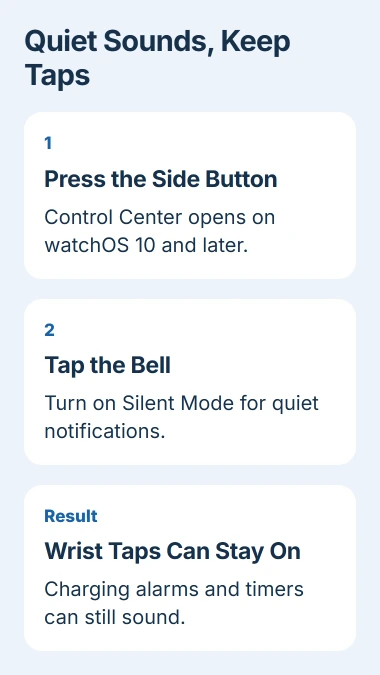
Apple's audio guide explains that muting can leave haptics enabled. Haptics are the taps you feel on your wrist, and Silent Mode can keep those taps while silencing notification sounds.
You can also change this from your paired iPhone. Open the Watch app, choose My Watch > Sounds & Haptics, then turn on Silent Mode. Try this route if the watch's small controls are awkward to reach.
To hear notifications again, turn Silent Mode off using either route. If alerts still don't arrive, use the Apple Watch notification checks, since mute settings aren't the only thing affecting delivery.
Silence the alert that's happening now
Rest your palm over the watch display for at least three seconds, until you feel a tap. Cover to Mute quiets the incoming alert, so you don't have to search through menus while it rings.
If that doesn't work, open Settings > Gestures on the watch and check Cover to Mute. Covering the screen quiets the current alert. Use the bell if you want later notifications to stay quiet too.
The gesture instructions explain that you can still respond to the alert afterward. Muting a ringing call doesn't answer it.
Wake-up alarms are an exception: Cover to Mute doesn't silence them. Use the displayed alarm controls when it's time to stop or snooze a wake-up alarm, rather than repeatedly covering the screen.
I'd use Silent Mode before entering a quiet room and keep Cover to Mute for an interruption that's already started. They're useful at different moments, even though both can stop a sound.
Choose Theater Mode when the screen must stay dark
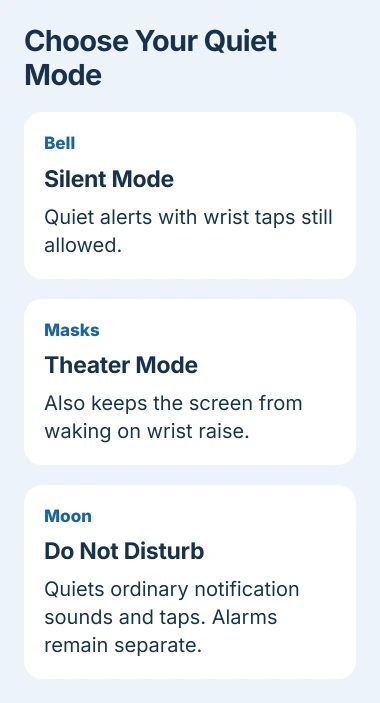
In Control Center, select the two theater masks for Theater Mode. This enables Silent Mode and stops the display from waking when you raise your wrist.
You'll still be able to feel wrist taps. To check the time, tap the display, press the side button or use the Digital Crown. That lets you check the watch when you need it without having it light up whenever you raise your wrist.
The silencing-mode comparison shows which modes control the screen, sounds and wrist taps. Choose Theater Mode when you need to stop light as well as noise.
Afterward, turn Theater Mode off. If you want sounds back too, check whether the bell still shows Silent Mode is on rather than assuming both settings changed together.
Stop notification taps with Do Not Disturb
Silent Mode still lets alerts tap your wrist. For a period without ordinary notification sounds or taps, open Control Center, tap the Do Not Disturb control and choose Do Not Disturb or the Focus you want.
If offered, choose a duration such as On for 1 hour or On until I leave. For a meeting, a timed choice saves you from having to switch notifications back on afterward.
A custom Focus can let selected people or apps through, so check those exceptions before a meeting. Alarms can still sound with Do Not Disturb on; you'll need to manage those separately.
If only breathing or reflection reminders interrupt you, the Mindfulness notification controls offer a narrower change than silencing every app on the watch.
Check alarm exceptions before expecting total silence
Alarms and timers can still sound while Apple Watch is charging, even with Silent Mode on. Check those before leaving your watch on its charger in a quiet room.
In the Alarms app, tap an alarm to inspect its settings. On current software, Break Through Silent Mode allows an audible alarm even with the watch on your wrist. Disable it when that alarm should respect your mute setting.
The alarm controls explain this setting. An ordinary alarm can just tap your wrist, while an alarm set to break through Silent Mode can also make a sound.
Check the alarm you rely on, including any wake-up alarm from your sleep schedule. Try it at a convenient time so you know how it'll behave before you need it to wake you for work.
Quiet Siri and playing audio separately
If Siri still speaks, open Settings > Siri > Siri Responses. Where these options appear, choose Control With Silent Mode to have spoken replies follow the watch's mute setting.
With Always On, Siri can speak even in Silent Mode. Headphones Only sends spoken replies only to connected Bluetooth headphones. The Siri response settings explain those choices.
Music and other media have separate playback controls. Pause the audio in its app, or open Control Center, tap the volume control and lower the playback slider. Muting notifications isn't the same action as pausing a song.
If the watch still makes an unexplained sound, note whether it comes from an alarm, Siri, media or an app notification. Give Apple Support that detail and your watchOS version if the sound continues after you change the right setting.
The Short Version
Use the bell for silent alerts with wrist taps, Theater Mode for a dark screen, and Do Not Disturb for fewer interruptions. Check charging alarms, Break Through Silent Mode, Siri and media separately when you need quiet.
Checked November 5, 2026.

Isaac Smith is the founder and editor of PC Glance, a website that covers computers, laptops, and technology. He is a tech enthusiast and a computer geek who loves to share his insights and help his readers make smart choices when buying tech gadgets or laptops. He is always curious and updated about the latest tech trends.