OneNote can work offline with notes already downloaded to its desktop app. Sync while connected, then check the pages you need. Finish the first sign-in or switch from retired OneNote for Windows 10 before going offline.
Owners in the old Windows Store discussion couldn't start the app offline. Turning off sync didn't solve that launch problem. For Windows today, get current desktop OneNote ready before disconnecting.
In this guide
1. Check which Windows OneNote app is opening
Open Start and search for OneNote. Choose the desktop app named OneNote, with a File menu. Don't assume an old shortcut labeled OneNote for Windows 10 opens the same application.
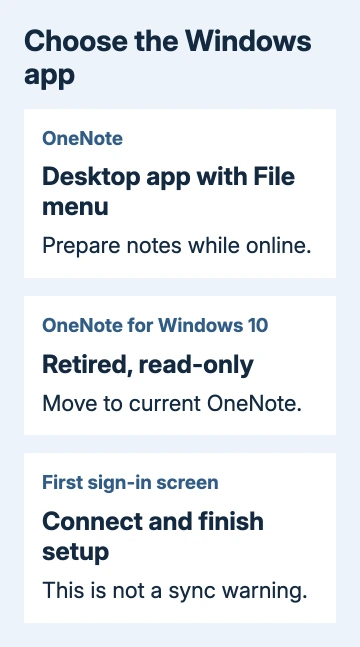
Support and editing ended for OneNote for Windows 10 on October 14, 2025. That app is read-only now. Prepare current OneNote for new offline notes, even if the retired version remains installed.
An old app with misplaced menus also needs the OneNote display checks, including the graphics package and a safe move to desktop OneNote.
While online, open current desktop OneNote and sign into the notebook-owning account. Check each personal, work or school account separately. The notebook you need might use another account entirely.
On an iPad, a crash triggered by a school or work login needs the Microsoft app update and sign-in checks before offline preparation.
If desktop OneNote isn't installed, install it through Microsoft or your organization's software service while you're connected. Complete setup now, while the app can reach its account services.
An old Store app stuck at its first sign-in screen can't be fixed by changing a notebook's sync settings. You can't reach its sync settings until the account screen lets you into the app.
2. Open and sync the notebook before going offline
In desktop OneNote, choose File > Open and select the OneDrive or SharePoint account holding your notebook. Open the sections and pages needed for your trip, including important images and attached documents.
Choose File > Info > View Sync Status. In Shared Notebook Synchronization, use the notebook's Sync Now button, or Sync All for every shared notebook. Wait for completion before disconnecting.
Microsoft's notebook sync instructions describe these controls. If syncing hasn't finished or shows an error, deal with it while you're still online.
Open the pages and attachments too. Seeing a notebook's name in the navigation pane doesn't tell you whether its contents have downloaded.
For a notebook coming from retired OneNote for Windows 10, follow its migration prompt if available. Open the matching cloud notebook in current OneNote and check its newest pages. A read-only old app may no longer upload missing edits.
If migrated notes are missing, open File > Options > Save & Backup in current OneNote and locate Backup Folder. Open that location in Explorer and look for the migrated section backups.
A .one backup is a notebook section. Double-click it, then use Move or Copy to copy it into the intended notebook. If no suitable backup appears, keep the old data and ask OneNote support to help recover the missing sections.
Keep the retired app's data until you've checked the newest notes in current OneNote. Resetting or uninstalling an app before you've saved unsynced work elsewhere can remove the only copy of those changes.
3. Make a short offline test while connected help is nearby
I'd test this before leaving for a site visit or flight. After the notebook finishes syncing, disconnect Wi-Fi and any Ethernet connection. Leave OneNote open and try opening the pages and attachments you expect to use.
Type a short temporary sentence on a test page. Check that the page remains editable and that the content you need is visible. A sync warning is expected when the app can't reach the notebook's online location.
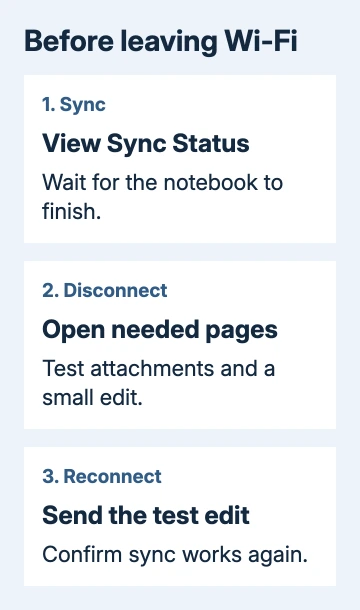
Reconnect and use View Sync Status to send that test edit. Once the notebook is up to date, remove the temporary sentence and let that removal sync too. This checks that the app opens, allows offline edits and syncs them when you reconnect.
If only an attachment fails offline, reconnect and open it before trying again. If the app demands sign-in or won't start, address that failure while connected. Changing sync frequency won't bypass it.
An iPhone that closes while loading these notebooks needs the mobile crash recovery steps before another offline test.
Normal offline work uses a local working copy, often called a cache. Your edits stay on that computer until they can reach the notebook online. Another device won't receive them while this computer is disconnected.
4. Leave automatic sync on unless you need manual control
A notebook already downloaded to your desktop app doesn't need internet for you to keep typing. Leave automatic sync on for a temporary disconnection; the app can send pending changes when your connection returns.
For manual control, open View Sync Status from File > Info. Choose Sync manually in the shared-notebook dialog. Your edits then stay on this computer until you request a sync, instead of being sent to your other devices automatically.
To resume normal automatic uploads, reopen the sync dialog and choose Sync automatically whenever there are changes. Use Sync Now or Sync All to send pending edits immediately.
Manual mode won't repair a broken app, expired sign-in or unopened notebook. Historical owners couldn't launch offline despite settings changes. That's different from a notebook waiting to upload edits.
For a Mac showing a persistent Saved offline error, use the Mac-specific recovery checks. The Windows File menu and its manual-sync dialog aren't the menu route for that version.
5. Decide whether the notebook should stay local
A trip without internet and permanent local-only storage are different needs. A downloaded cloud notebook lets you edit offline temporarily. Its shared copy still lives on OneDrive or SharePoint.
The Windows desktop app also supports local notebook storage. If you need a notebook that lives on the PC instead, check File > New for This PC or a local browse location and create a separate test notebook there.
Confirm the location before adding important material. A notebook created in a OneDrive folder is still tied to that online arrangement; choosing a familiar folder name doesn't automatically make it a private, local-only notebook.
Local notebooks need backups and won't appear automatically on another computer or phone. Use the notebook's real location when planning backups; account sync won't protect a notebook that isn't online.
If the local location isn't offered, ask your Office administrator about the app's configuration and features. Changing the old Store app's registry settings won't add a storage feature it doesn't have.
When the app still won't start offline
Reconnect, open desktop OneNote and use File > Account > Update Options > Update Now if Office updates are available there. For a managed installation, ask IT to check updates and the account's sign-in requirements.
If the fault remains, contact OneNote support with the app name, Windows version, account type and exact message. Explain whether a notebook you've already synced opens offline, or whether the app stops before showing any notebook.
Keep unsynced notes safe before account resets or reinstalls. For organizing a working notebook after access is restored, the OneNote notebook and section guide covers the normal structure without changing where its data is stored.
The Short Version
Prepare current desktop OneNote online, then test the needed pages without internet. Pending sync is expected while disconnected. Finish initial sign-in or migrate from retired OneNote for Windows 10 before relying on offline editing.
Checked November 26, 2026.
 If you have any business, I can build it online