Classic Outlook can freeze when a prompt is hidden, a mail task hasn't finished, or an add-in is causing trouble. Check for the prompt and any task still running first. New Outlook needs its own restart and reinstall steps.
Look for File: that tab identifies classic Outlook on Windows. New Outlook has a Settings button instead. The safe-mode and COM add-in steps apply to classic Outlook; skip them in the new app.
In this guide
1. Check for a dialog or unfinished operation
Press Alt-Tab and look through the open windows. An Outlook prompt hidden behind another window can stop you from using the main window until you answer or close it.
In classic Outlook, read the bottom status bar. Moving a large collection of messages, archiving, or sending a large attachment can make the app look stuck while it works. Let the task finish before starting another one.
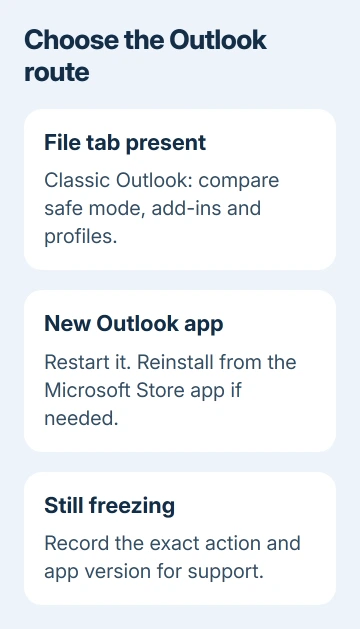
Microsoft recommends checking classic Outlook's hidden dialogs and long operations before more involved repairs. A repeated freeze during a small, ordinary action needs further checks.
Write down what triggers it: opening a message, switching folders, adding an attachment, or closing Outlook. That detail helps you check the same action after each change rather than judging the repair only from whether Outlook launches.
If the app never reaches its inbox, the Outlook won't open guide covers startup errors and Loading Profile. The steps here focus on an app that opens and then keeps becoming unresponsive.
2. Restart the frozen app and install updates
If Outlook isn't making progress and no prompt is hidden, press Ctrl-Shift-Esc to open Task Manager. Select the Outlook entry and choose End task, then reopen the app. Unsaved work in a frozen compose window may be lost.
For classic Outlook, open File > Office Account > Update Options > Update Now. If Outlook won't stay responsive, open Word and use File > Account > Update Options > Update Now instead.
For new Outlook, open Microsoft Store > Library and check for app updates. Windows updates are separate: open Settings > Windows Update on Windows 11, or Settings > Update & Security > Windows Update on Windows 10.
On a managed work PC, update controls may be unavailable. Give your administrator the Outlook version and build from Office Account, or the new app's version from its About settings.
Ask whether the freeze matches a known issue for that build.
Repeat the problem task. If a restart helps only until you do that action, the trigger is still useful information. Continue with the steps for your version.
3. Classic Outlook: check the add-ins in safe mode
Close classic Outlook. Press Windows-R, type outlook.exe /safe, and press Enter. Choose the normal profile if asked. Safe mode starts the app without its usual add-ins loaded.
Repeat the folder switch or message action that normally freezes it. If it now works, open File > Options > Add-ins. At the bottom, choose COM Add-ins beside Manage and click Go.
Note the selected add-ins, then clear their checkboxes and click OK. Disable them with the checkboxes rather than using Remove. Close Outlook and start it normally to compare the result.
If the freeze is gone, enable one add-in at a time, restarting Outlook after each change. When the freeze returns, leave that add-in disabled and ask its maker or your administrator for an update.
I'd do this before making a new mail profile. It can identify one extension without changing account setup. If safe mode freezes during the same action, continue to the profile and data-file checks.
4. Classic Outlook: test the profile before replacing it
A profile holds account settings and links to Outlook's data files. Creating a separate profile lets you compare a fresh setup with your original without removing it.
With Outlook closed, hold Shift as you start it. In the profile picker, click Options and enable Prompt for a profile to be used so you can switch between setups.
Select New, give the profile a different name, and click OK. Complete the account setup, then select that profile when Outlook starts. Keep the original profile during this comparison.
Allow the account to finish loading, then repeat the troublesome action.
If the new profile works, the problem is with the old profile. If both freeze, focus on the Office installation, the data file involved, or a problem affecting that account. A second profile doesn't automatically include local archives.
Before changing or repairing a PST file, copy it somewhere safe with Outlook closed. A PST can contain messages stored only on this computer. Don't delete it to force a fresh download.
Use the supported Inbox Repair Tool when a data file reports errors. The Office and Outlook repair guide also covers Quick Repair and Online Repair. Repair the installation if safe mode and a separate profile don't solve the freeze.
5. New Outlook: reinstall the app if restarting doesn't help
New Outlook doesn't use classic Outlook's COM add-in panel or its Windows Mail profiles. Skip those classic-only steps. The current Windows Outlook troubleshooting page gives its own reinstall route.
Find Outlook (new) or the new Outlook entry in Start, right-click it, and choose Uninstall. Then open the Microsoft Store app, search for Outlook for Windows, and install the new app again.
Check that you're removing the new app rather than Microsoft 365 or classic Outlook. Have your account login details ready; account setup may appear again if automatic restoration doesn't work.
After signing in, repeat the action that froze the previous installation. If the same mailbox action still causes the freeze, tell support exactly which steps cause it rather than reinstalling repeatedly.
When it still freezes
For a work account, ask IT to check the mailbox and any organization-managed add-ins. Include the app version, Windows version, trigger, and whether safe mode or the separate profile changed classic Outlook's behavior.
For a personal Microsoft account, use Outlook's Help > Support route where available or Microsoft Support's Outlook help options.
Mac Outlook, iPhone, and Android don't use the Windows repair paths on this page; tell support which of those you're using.
The Short Version
Look for hidden dialogs and unfinished work before restarting or updating Outlook. In classic Outlook, compare safe mode and a separate profile before repairing files or Office.
In new Outlook, use its own reinstall route if restarting doesn't solve the freeze.
Checked November 12, 2026.
 If you have any business, I can build it online