Reinstalling Office won't necessarily stop Outlook's repeated data-file repair prompt. A known classic Outlook bug kept asking for repair even after repair finished.
Install current Office updates first; for the matching older fault, Microsoft also published a workaround that removes two repair-related registry values.
An actual damaged mail file needs a different repair. Check whether you're stuck in the repeated prompt or dealing with a file that really won't open. Don't delete all your Outlook data files to try to stop the warning.
In this guide
1. Update Office to clear the known repair-prompt bug
The error says that something is wrong with one of your data files and Outlook needs to close. It offers to run the Inbox Repair Tool. In the June 2020 reports, completing that repair could send the reader straight back to the same prompt.
The documented bug affected Version 2005, Build 12827.20268 or later at the time. Its fix shipped in Monthly Channel Version 2005, Build 12827.20470. Those numbers identify the historical issue; they aren't target versions for a PC today.
- If Outlook opens far enough, select File > Office Account > Update Options > Update Now.
- If the prompt prevents that, open Word and use its File > Account > Update Options > Update Now controls.
- Close the Office apps when asked, then wait for the update to finish before starting Outlook again.
- Check whether the same prompt returns before running another repair.
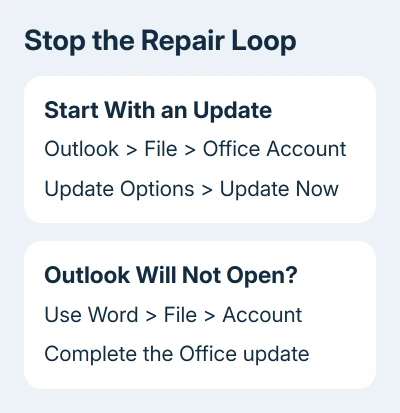
Microsoft's repair-prompt issue page lists the build that fixed the bug and a workaround. A current installation can still have another data-file problem, so don't assume every similar message comes from that old bug.
If updates are managed, send IT the full warning and your build number. Ask them to compare your installation with the fixed issue and update your assigned channel. Reinstalling the same old managed build can bring the same fault back.
2. Find out which file Outlook is complaining about
Record the complete filename and extension shown by the repair prompt. PST files can hold local archives or POP-account mail. OST files hold local copies of mail for supported accounts that keep mail on a server, including Exchange.
Don't treat the two as interchangeable. A local PST can contain mail that exists nowhere else. Even with an OST, confirm that important mail and folders are present on the server before considering any cache-rebuild procedure.
If Outlook opens, File > Account Settings > Account Settings > Data Files shows its data-file locations. Note the file associated with the error and leave those files untouched until you've identified the problem.
The original asker had a Microsoft Exchange account. Creating another profile and reinstalling Office didn't stop Outlook returning to the old data-file complaint.
A new Windows user could open Outlook, which helped show why another suite reinstall wasn't the useful next move.
You don't need to replace your Windows account as the next step. That result shows that Outlook can work for one Windows user while another user's Outlook settings still cause trouble.
If you're seeing the same repeated prompt, check the targeted workaround next.
3. Remove the old repair flags only for the matching fault
The workaround uses Registry Editor, which changes Windows and app settings. I'd use it only for this exact recurring prompt and known fault, rather than as a general Outlook cleanup. Ask IT to do this on a managed PC.
Export a backup of that registry branch first. Editing a neighboring setting can create a separate problem, so change just the two values specified and leave the PST branch itself intact.
- Close Outlook.
- Right-click Start, choose Run, enter regedit, and select OK. Approve the permission prompt.
- Navigate to HKEY_CURRENT_USER\SOFTWARE\Microsoft\Office\16.0\Outlook\PST.
- Select the PST branch and use File > Export. Save a backup with Selected branch chosen.
- In the right pane, delete only LastCorruptStore and PromptRepair, if they are present.
- Close Registry Editor and start Outlook again.
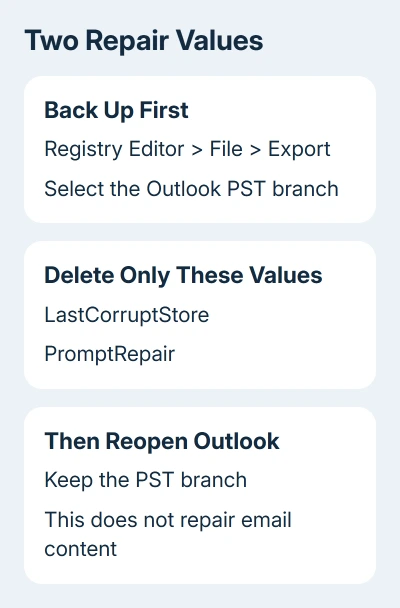
The 16.0 portion is part of the documented Office registry path, not an instruction to install Office 2016. Check the full path carefully before deleting either value.
Removing those values clears the saved information behind the repair prompt. It doesn't repair damaged email inside a PST. If Outlook now opens normally, check the mailbox and archives you use before deciding the problem is finished.
One owner fixed the loop by setting PromptRepair to 0 in the original thread. The published workaround removes both named values instead.
Follow that complete published procedure rather than combining registry instructions from different replies.
If the branch or values aren't there, stop this procedure. Don't create missing values, delete the entire branch, or search for unrelated registry items with similar names. Move to the file-specific repair route if the error persists.
4. Repair a genuinely damaged data file separately
A prompt that names a PST and returns after current updates and the targeted workaround needs a closer check of that mail file. The Outlook startup guide covers the Inbox Repair Tool and other startup symptoms.
Use the filename you recorded, rather than allowing repeated repairs of a different archive. Make a backup copy of that local file before repairing it.
The goal is to preserve the mail and recover usable folders, not just make the warning disappear.
For Exchange mail, ask IT to check mailbox access and synchronization before rebuilding its local copy. Mail visible in the server mailbox and mail stored only in a local archive require different handling.
If Outlook opens but search is the remaining problem, use the Outlook search checks. Repeating a data-file repair for missing search results can send you back through work that doesn't address indexing.
When the warning survives all of this
Contact Microsoft Support or your work administrator. Include the error screenshot, installed Outlook build, account type, and complete data-file path. Explain what changed after the update, repair tool, and registry workaround.
Mention if the same mailbox opens under a different Windows user or on another PC.
Support can then decide whether your Windows user's Outlook settings or the mail file needs attention. It gives them something concrete to work with before suggesting another reinstall.
The Short Version
An Office update comes first for a repeated data-file repair prompt. For the documented older loop, export the PST registry branch and remove only LastCorruptStore and PromptRepair.
Treat a damaged mail file separately and preserve local mail.
Checked November 17, 2026.
 If you have any business, I can build it online