An unexpected error when Outlook 2016 starts can come from the Windows user profile, even when reinstalling Office changes nothing. Try Outlook from a separate Windows account before spending another evening reinstalling it.
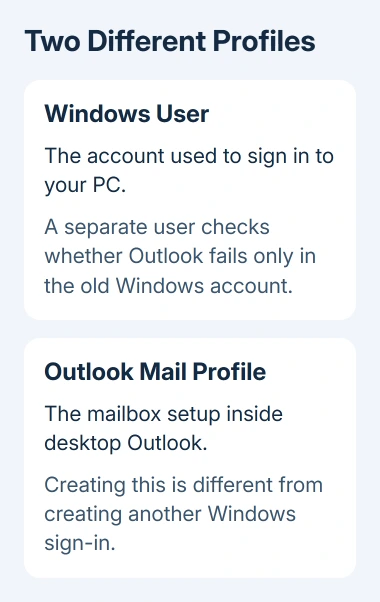
The Windows account gets you into the PC at its sign-in screen. It's different from an Outlook mail profile. In the original case, switching to a new user profile got Outlook working after Safe Mode, reinstalls and a clean boot had failed.
In this guide
1. Check that the error happens during startup
Launch Outlook normally and note when the error appears. These steps apply when Outlook fails before the main mail window opens. An unexpected-error message while sending a particular email needs a different check.
Record the complete wording and take a screenshot for your help desk. Include any error code or file name shown. A short description such as Outlook won't open can hide several unrelated startup problems.
For the separate Cannot open Outlook window message, or a screen stuck on Loading Profile, use the Outlook startup checks. Those symptoms have their own repair routes.
Open your mailbox through its usual webmail service, or compare it on a working computer. If your mailbox works elsewhere, check this PC rather than changing your email password.
Don't sign out of an account whose password or recovery method you don't know. For a work computer, have IT handle the extra Windows sign-in using the organization's account requirements.
If the mailbox fails elsewhere too, send the complete sign-in error to your mailbox administrator first. If it works elsewhere, try Outlook under a separate Windows account.
2. Avoid repeating the repairs that already failed
One owner in the original startup discussion confirmed that a new user profile solved this error.
Their earlier replies describe several attempts that hadn't helped.
They had tried Outlook Safe Mode, running as administrator, uninstalling Office, a clean boot and another Office installation. System File Checker repaired Windows errors, but the thread's eventual success report was the profile change.
A later reply even reported that reinstalling Windows hadn't cleared the error. The new user profile was the final reported success.
That history doesn't mean those tools never help Outlook. It means another reinstall isn't the best next move when you've already tried it and this exact startup failure remains.
I'd compare a fresh Windows account before reinstalling Office again. It tests a different part of the PC and leaves your existing Windows account available while you check the result.
If no Office repair has been tried and several Office apps fail, the Office repair procedure addresses the shared installation.
Try the separate Windows account when the error keeps happening for one user.
3. Create a separate Windows account for the comparison
An administrator can add a second Windows user without removing the original one. Give it a distinct name so it's clear which account you're testing. Leave the original user's folders in place.
In Windows 11, open Settings > Accounts > Other users, then choose Add account. In Windows 10, the older Settings layout uses Accounts > Family & other users, followed by Add someone else to this PC.
For a local test user, follow the local-account choices.
Select the button labeled I don't have this person's sign-in information.
Then choose Add a user without a Microsoft account. Enter a name and complete the password prompts.
Current instructions call the area Other users. Use that label if it appears on your PC instead of the older Family & other users label. This creates a Windows sign-in, not another email address.
Microsoft's user-account instructions explain the account choices.
On an organization-managed device, IT may need to create or approve the account.
Save open work, sign out of Windows and choose that new account when the Windows sign-in screen appears. Allow Windows to finish preparing that user's desktop before opening Outlook.
4. Set up Outlook before copying the old settings
Open the installed desktop Outlook from the new Windows account. If Office asks for activation, use the account licensed for that installation or ask your administrator to complete activation.
Add the same mailbox through Outlook's account setup. For a managed work mailbox, follow your organization's sign-in and verification prompts. Don't import old configuration folders before checking whether Outlook can start.
Wait for the mail window to open, then check that recent server mail appears. Close Outlook and launch it again. Confirm that normal startup keeps working; a splash screen appearing once isn't enough.
If Outlook opens in the new account but not your original one, the problem points toward the original user's Windows settings or setup. It doesn't identify one specific damaged file or registry value.
If Outlook fails in the new user too, keep both error messages. If both users get the error, have IT check the installation, device policies or sign-in components before moving your personal files.
In the successful repair, a colleague created another user profile and the owner switched to it. The report doesn't name a registry key to delete, so don't delete one based on a suggestion about the cause.
5. Move to the working account carefully
Once Outlook repeatedly opens in the new account, decide with IT whether to repair the old Windows account or move your work to the new one. You don't have to move everything just because the test account works.
Before moving, back up personal files and any locally stored email. Mail stored only in a PST file, a local Outlook archive, needs separate attention from messages that download again from your mail server.
Follow the corrupted-profile recovery steps for copying visible personal files.
Keep hidden Windows profile files out of the copy so you don't bring the old configuration into the new account.
Check Documents, Desktop and Downloads as well as the mailbox. You may need to import email and address data separately, and set up or install some applications again for the new user.
Leave the old account available until you've checked your files, archives and sign-ins. A working Inbox alone isn't enough to confirm that everything you need has moved.
When a fresh account still gets the error
Ask your organization's help desk to compare the same Outlook installation under both Windows users. Provide the screenshot, Office version, whether webmail works and the result under the second account.
Explain which repairs you've already completed so support doesn't repeat them without a reason. The next task is to check the shared Office installation and device setup, or repair the original Windows profile if only that user fails.
The Short Version
Compare Outlook under a separate Windows user after repeated installation repairs fail. If the new user works, keep the old account intact while IT repairs it or helps move your files and local email safely.
Checked November 16, 2026.
 If you have any business, I can build it online