Paint Shop Pro 7 can open empty when you double-click an image in Windows 11, even though File > Open works. A reinstall with Windows XP (Service Pack 2) compatibility restored normal opening for one owner after simpler changes failed.
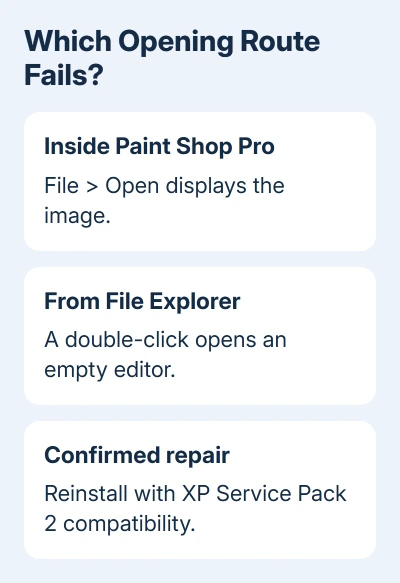
First check that your case matches: the image opens from inside Paint Shop Pro, but opening the same JPG or BMP from File Explorer launches only the program. A picture that fails through both routes needs a separate file check.
In this guide
1. Compare opening the image inside and outside the app
Start Paint Shop Pro 7 normally. Choose File > Open, select a familiar local JPG or BMP, and open it. Use a picture you already trust rather than an attachment you haven't opened before.
If it appears, close the program and double-click that same file in File Explorer. If the editor opens empty this time, the problem points to how Windows passes the file to the program. The picture itself opened successfully.
Note whether Windows also asks permission for the app to make changes. The owner in the support thread saw that prompt, approved it, and still got an empty editor. Clicking Yes again wasn't the missing step.
Try a second existing image before proceeding. If just one file fails, open it in another trusted viewer and make a copy from the application that created it. Repairing the program before checking a single damaged picture wastes time.
If File > Open works for your pictures, keep using it until double-click opening works again. Save edited work before changing the installation so the repair doesn't interrupt an unsaved document.
2. Check JPG and BMP associations separately
Right-click the JPG in File Explorer and choose Open with > Choose another app. Select Paint Shop Pro 7, or browse to its installed executable if Windows offers that option. Test this one opening before making it the default.
For the saved default, open Settings > Apps > Default apps. Search for .jpg, choose its current app, and select Paint Shop Pro 7. Repeat for .bmp or other formats you actually use; each extension has its own choice.
The Windows file-type controls let you change associations individually. Selecting an image format inside an old editor doesn't necessarily change the Windows 11 default for that extension.
If another app previously opened the file, this change may settle the problem. If Paint Shop Pro already starts but shows no image, Windows is at least opening the right program. Check its compatibility and installation settings next.
The default-apps guide covers those choices in more detail. Choosing the right editor is one part of the repair. It still needs to receive and open the image you clicked.
3. Review compatibility on the actual program file
Find the installed Paint Shop Pro 7 executable. A shortcut's Properties > Open File Location can help locate it. Right-click the executable, choose Properties, then open Compatibility.
Note the current settings before changing them. Where Run this program in compatibility mode for is offered, select Windows XP (Service Pack 2), then Apply > OK. Close any running Paint Shop Pro window and test the same image again.
Compatibility settings change how Windows runs the old program; they don't convert your pictures or install Windows XP. Test with the same unchanged image. That keeps the comparison focused on the new setting.
This setting alone wasn't enough for the owner who confirmed the repair. They had tried compatibility options, including a troubleshooter-selected Windows 8 mode, before a reinstall restored image opening.
Don't treat Run this program as an administrator as a way to remove permission prompts. That setting gives the app extra permissions and can trigger a prompt. Leave system-wide User Account Control enabled while fixing this app.
If the compatibility change fixes double-click opening, stop there. If the editor remains empty, leave your test image available and follow the owner's successful reinstall sequence.
4. Reinstall from your original trusted installer
Keep your license details, installer and copies of custom brushes, scripts or presets before uninstalling. Confirm you can reinstall this old release before removing your only working installation.
Open Settings > Apps > Installed apps, find Paint Shop Pro 7, and use its uninstall option. If its entry opens an older uninstall dialog, complete that program's prompts. Restart Windows before installing again.
Use your original media or trusted saved installer. If it offers Properties > Compatibility, review those settings too. Complete setup, then check Windows XP (Service Pack 2) compatibility on the installed program.
The owner confirmed that a reinstall running with XP Service Pack 2 compatibility restored double-click opening. Earlier reinstalls and manual settings had failed, so keep both parts of the repair together.
After setup, close the editor and double-click the original test JPG. Success means the picture itself appears immediately inside Paint Shop Pro. Test BMP separately if you use it, then confirm that editing and saving a new copy still work.
I'd keep the repair limited to this program before considering larger Windows changes. The confirmed case didn't require replacing Windows or changing every image association on the computer.
When the editor still opens without the picture
Give support the Paint Shop Pro release, Windows version, installation source and results of both opening routes. Include any permission prompt and the executable's compatibility setting.
If support can't repair this release, keep File > Open as the workaround or evaluate a supported editor using file copies. Check layers and other editing features before moving your working projects into another application.
A different error from Windows Photo Viewer belongs with the Photo Viewer memory-message checks. It doesn't explain Paint Shop Pro launching successfully but failing to receive the double-clicked image.
The Short Version
Check File > Open, each file association and compatibility. A reinstall with Windows XP (Service Pack 2) compatibility restored double-click opening for the reported owner. Check that the picture appears after setup.
Checked November 17, 2026.