A BlueParrott headset needs to be in pairing mode before a new phone can find it. On the B450-XT, hold Multifunction from off until its light alternates blue and red, then select the headset in the phone's Bluetooth list.
The B350-XT has different generations with different instructions. Check the model on the headset before using the button sequence, especially if it announces Discovering instead of Pair mode.
In this guide
Start with the headset's pairing controls
Charge the headset if it won't turn on, then keep it near the phone during pairing. Enable Bluetooth on the phone. Hearing the power-on announcement doesn't mean the headset is ready for a new phone to find it.
The multifunction button handles power and pairing. Hold it for the pairing indication described for your model rather than releasing it as soon as the headset turns on.
B450-XT, model BPB-45020
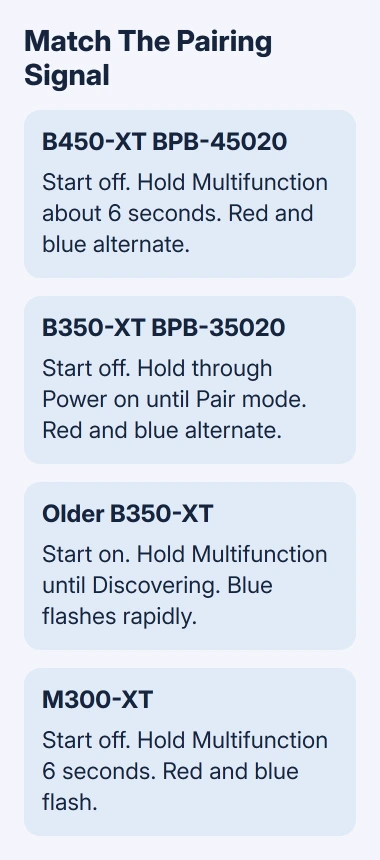
Start with the headset off. Press and hold Multifunction for about 6 seconds. Continue holding through Power on until the LED alternates blue and red and the headset announces Pair mode.
Release the button when you see those lights and hear that announcement, then open the phone's Bluetooth list. Select BlueParrott B450-XT. If a PIN request appears, enter 0000, four zeros.
The B450-XT pairing instructions also offer voice pairing. With the headset on, press the BlueParrott button or hold Volume Up, then say pair mode after the prompt.
Use the button method first if you're unsure whether the BlueParrott button has been customized. Either method should make the headset ready to select on your phone. You'll still need to tap its name after turning Bluetooth on.
B350-XT, model BPB-35020
Turn this model off. Hold Multifunction through the power-on announcement until the light alternates blue and red and Pair mode is announced. Select BlueParrott B350-XT on the phone and enter 0000 if asked.
Don't substitute a short press. That controls a different action depending on the headset's current state. Keep holding until the pairing light and announcement tell you it's ready.
Older B350-XT
The older B350-XT needs to be on before you start pairing. Turn the headset on, then hold Multifunction until it announces Discovering and its light flashes blue rapidly.
Select the headset in the phone's Bluetooth list and use 0000 if requested. The older guide lists Your headset is connected as the success announcement. Use these steps only for the older model covered by that support page.
M300-XT
For the M300-XT, hold Multifunction for 3 seconds to turn it off; the LED flashes red and it announces Power off. From off, hold the button for 6 seconds until the light flashes red and blue.
The headset announces Pair mode and is ready to be selected. Choose BlueParrott M300-XT in the phone's list. Use these steps for the M300-XT rather than the older B350-XT's Discovering sequence.
Complete the connection on iPhone or Android
On an iPhone, open Settings > Bluetooth and leave that screen open with Bluetooth on. Wait for the headset's name to appear under Other Devices, then tap it.
After pairing, its entry should show Connected. A headset listed under My Devices without that status can be saved on your phone without being connected right now. Tap the saved headset when you want to reconnect it.
For a Pixel, the route is Settings > Connected devices > Pair new device. Alternatively, touch and hold Bluetooth in Quick Settings. Tap your headset in the available-device list and accept the pairing prompt.
On a Samsung Galaxy, open Settings > Connections > Bluetooth. Turn Bluetooth on and choose the headset under Available devices. Confirm the pairing request if one appears.
Google's Android pairing steps note that some phones use Available devices or a Refresh command instead of Pair new device. Look for those controls if your phone's list differs.
I'd finish with one phone before adding another. That gives you one connection to check, rather than two nearby phones competing for a headset that already knows them.
Confirm calls use the headset
Place a normal call after the phone shows the headset connected. Check the call's audio-output control and select the BlueParrott headset if the phone is still using its own earpiece or speaker.
Check that the other person hears clear speech. Adjust the microphone position if your voice is faint. A saved headset in Bluetooth settings doesn't confirm that you can both hear and be heard during a call.
On Android, select the settings control beside your saved headset to inspect its audio options. Phone calls and Media audio can be separate switches. Enable the function you need if your phone provides it.
Don't use a missing music connection as the only pairing test. First check whether the phone says Connected and whether call audio works. Then check where the phone is sending music audio.
For a laptop connection, the Chromebook Bluetooth controls explain how to add a discoverable device. Computer compatibility and call-app support still depend on your headset model.
When the headset won't appear or reconnect
Return to the model's pairing sequence and watch the light. A headset that's simply powered on can reconnect to a previously paired phone while remaining absent from your new phone's available-device list.
Temporarily turn Bluetooth off on an old nearby phone, then repeat pairing on the intended phone. This checks whether the existing connection was getting in the way without erasing every saved device.
For a stale pairing on iPhone, open the information control beside its saved entry and choose Forget This Device, then pair it again. The iPhone discovery checks cover a device that remains missing.
On Android, open the settings beside the headset's saved entry and choose Forget, then repeat Pair new device. This removes that phone's saved pairing; it doesn't factory-reset the headset.
If the correct light never appears or multiple phones can't find it, open your exact model's page at blueparrott.com/support. Ask support to check pairing mode and give the model number, LED pattern and phone version.
The Short Version
Match the headset's pairing sequence to its model, then select it on your phone. Newer models use alternating red and blue; the older B350-XT uses Discovering and rapid blue flashes. Confirm a call and remove a stale pairing if needed.
Checked November 12, 2026.