A printer's unexpected configuration problem can come from the Windows printing setup or the app sending the job. Check which printer the app has selected, then compare a Windows test page before reinstalling anything.
Keep the number at the end of the error message. The same wording has appeared with different failures, including an old Windows 10 printing bug; you can't tell from that wording whether your printer is broken or how to fix it.
In this guide
1. Select the physical printer and retry one small job
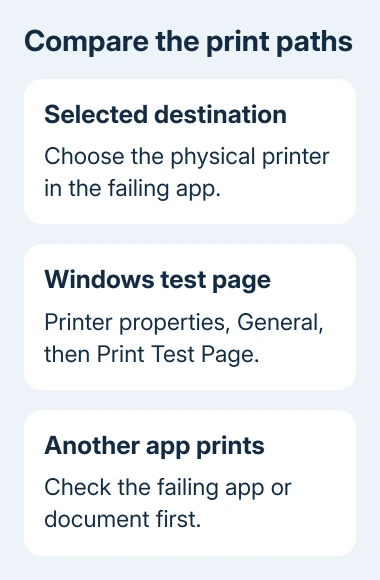
Open File > Print in the app showing the error. Check the printer name, especially if the PC has old copies of the same device, an offline office printer or a PDF destination in the list.
Select the printer you're actually using and check its paper size and orientation. Print one page rather than resending the whole document. If that prints, changing the selected printer or print settings helped.
If the error returns immediately, note whether a job appears in the queue. Tell support whether the job never reaches the queue or appears there and stays stuck. Those are different problems.
I'd keep the first test small. A failed 80-page job can leave several copies waiting in the queue while you're trying to work out whether the next change helped.
For the full document settings in Word, the Word printing guide covers page selection, paper choices and review marks. Keep those settings separate from a driver repair.
2. Compare the app with Windows' own test page
On Windows 11, open Settings > Bluetooth & devices > Printers & scanners. Select the affected printer, open Printer properties, and choose Print Test Page on the General tab.
On Windows 10, open Settings > Devices > Printers & scanners. Select the printer, choose Manage > Printer properties, then use General > Print Test Page.
Microsoft recommends this test in its app-printing troubleshooting steps. Keep the printed result or the exact error it gives.
If the test page prints, try a short document from another app such as Notepad or Paint. One app failing while the others print points toward that app or its document settings, so use the next section.
If the Windows test page also fails, work on the Windows printer entry and its connection. First check that the printer is powered on, the USB cable is connected or the PC and network printer are connected to the same network.
The printer's own display still matters. If it shows a paper jam, open cover or supply problem, fix that at the printer before changing Windows settings. The Windows error doesn't mean you can ignore a warning on the printer itself.
A laser machine reporting a fuser fault needs its model-specific restart and heat-system checks, rather than another app repair.
3. Repair the app when only its print jobs fail
Try another file in the same app. A blank document containing a few typed words is a useful comparison with a long document containing pictures, tables or unusual page sizes.
If the simple file prints, check the failing document's page size, orientation and selected printer. Use a copy while changing its layout. Rebuilding the Windows printer entry is less useful when the failure follows one document.
If every Word or Excel document fails while another app prints, check Office updates through File > Account > Update Options > Update Now, where your installation offers that command.
For a continuing Office-only fault, save open work and open Settings > Apps > Installed apps on Windows 11. Find Microsoft 365 or Office, open its three-dot menu and choose Modify.
On Windows 10, select the Office product in Settings > Apps > Apps & features, then choose Modify. Use Quick Repair first when offered, followed by Online Repair if the problem continues. Online Repair needs an internet connection.
After the repair, test that same short document once. If another app still prints but Office doesn't, give Microsoft Support those comparison results and the Office version instead of removing a working printer driver again.
4. Run Get Help for a Windows-wide printing failure
Open Start, search for Get Help and open the app. Describe the printer problem and follow the printer troubleshooter. Read its proposed changes and retry the Windows test page when it finishes.
Get Help can check common printing faults and attempt repairs. If it reports a connection or installation problem, follow those steps instead of repeatedly changing the document that first showed the error.
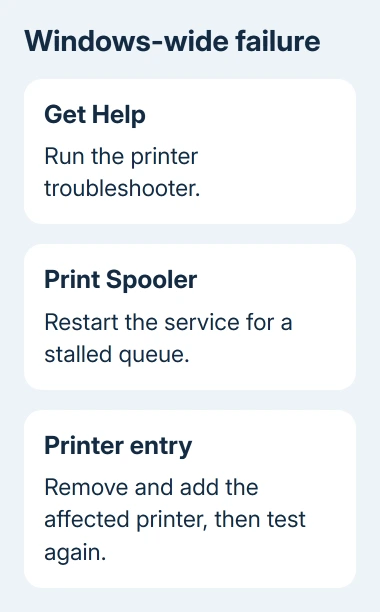
For a stalled queue, press Windows+R, type services.msc and press Enter. Locate Print Spooler, right-click it and select Restart. This restarts the service Windows uses to manage print jobs.
Check the queue before sending another copy. Restarting the service doesn't necessarily remove every queued job, and a previously stuck document may begin printing once communication returns.
If jobs keep blocking the queue, the Print Spooler repair guide covers the deeper queue-cleaning procedure. Don't delete unrelated Windows folders while trying to clear a print job.
5. Recreate the printer entry if Windows still can't print
Record the printer's exact model and, for a network printer, its connection details before removing it. A shared office printer may need to be added again through your organization's print server.
On Windows 11, open Settings > Bluetooth & devices > Printers & scanners, select the affected printer and choose Remove. Return to the printer list and choose Add device to add it again.
On Windows 10, open Settings > Devices > Printers & scanners, select the printer and choose Remove device. Use Add a printer or scanner to reinstall it.
Follow the detected-device prompts, then print a Windows test page before opening the original app. If the printer isn't detected, check its USB or network connection rather than repeatedly creating duplicate entries.
For an ARM-based Windows PC, start with Windows' built-in Add device option. On some ARM systems, the manufacturer's installer can't add the printer.
Ask the manufacturer or IT for a driver matching your model and Windows system type (such as ARM). Include the error number and test-page failure. Avoid third-party pages offering replacement DLL files.
6. Keep the old Windows 10 fix in its proper context
An archived Windows 10 version 1809 issue produced this wording when printing from Microsoft Edge or other Universal Windows Platform apps. The published code was 0x80070007e, and the repair appeared in KB4501371 in June 2019.
That is historical context, not an instruction to install a 2019 update on Windows 11. Check Settings > System > About for your Windows version and Windows Update for updates appropriate to that installation.
For a current failure, send support the full displayed number, the app name, Windows build, printer model and whether the Windows test page prints. Ask whether the problem is a known app issue or the installed print driver.
The Short Version
Compare the selected printer, Windows test page and another app. Repair an app-only failure; use Get Help, spooler restart and printer reinstallation for wider faults. Apply old update advice only to the Windows version it repaired.
Checked November 12, 2026.