
Your Remote Desktop session runs fine for a while, then a box appears: "Because of an error in data encryption, this session will end". You reconnect. It happens again, often just when you start a video or copy something big across.
I would look at the network adapter before anything to do with encryption, certificates or passwords. Despite the wording, most fixes that worked for owners were in the network. Few touched encryption.
The Super User question, from October 2022, has 55,693 views. A Microsoft Q&A thread with the same message shows Same question 20+, and the oldest reports go back to Windows 7.
When it fails tells you where to look
The asker ran Windows 11 in a virtual machine under Proxmox, on a server they rented. They reached it over a forwarded port. Light work was fine.
After a few minutes of heavier traffic, such as "watching a youtube video", the session ended with the error. Then it happened again.
They had already matched the clocks on both machines, a common tip for this exact message. It changed nothing.
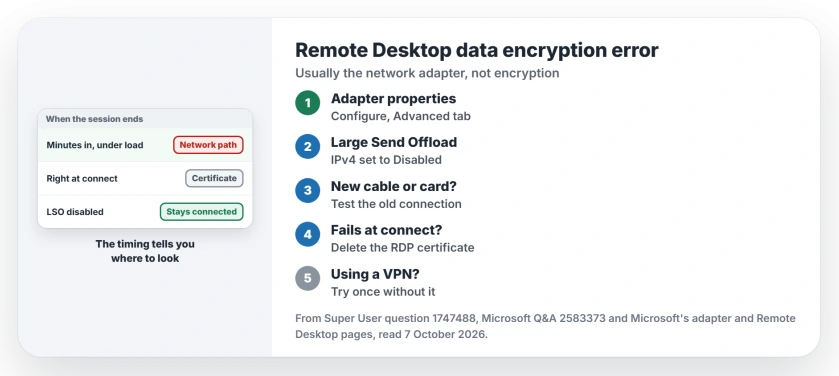
Status: checked 7 October 2026. The Remote Desktop data encryption error often follows a network adapter fault. Owners fixed it with Large Send Offload off or a change of adapter.
Ours: an error that comes under load, minutes into a session, points at the network path. One that appears the moment you connect points at the remote PC's certificate instead. Note which one you get.
Drops under load: turn off Large Send Offload
The asker fixed it this way, with a flush of the network settings on top. In their words, it "seems to be working now" after setting IPv4 Large Send Offload to Disabled. The accepted answer gives the clicks.
On the PC you connect from, open Control Panel, then Network and Sharing Center, then Change adapter settings. Right-click your adapter and choose Properties. Then click Configure and open the Advanced tab.
Find Large Send Offload (IPv4) in the list, set it to Disabled, click OK, and restart if Windows asks you to.
Microsoft says on its network adapter tuning page that offload features are usually good for performance.
"However, the network adapter might not be powerful enough to handle the offload capabilities with high throughput". That fits your error.
Which PC needs the change was never quite settled on the thread, though a regular there said it is the one you connect from, where the connection profile lives.
Ours: try that one first. If the error comes back after a restart, change the same setting on the remote PC too.
A new adapter, cable or host
Look at what changed on either PC, or between them, just before the error began. One reader's "suddenly" came after moving their virtual machine to a host with a different network card.
Another reader had moved from Wi-Fi to a fast new wired connection a few days earlier. They went back to Wi-Fi. The error stopped, and so did the failed downloads they had been seeing in their browser.
They could not tell whether the adapter, the cable or the switch was at fault. Our Ethernet not working page shows how you can test each one in turn.
On a Proxmox host, one owner found the network card hanging in the host's own log. Turning off the card's offloads with one ethtool command on the host fixed it: "my RDP sessions stay connected".
Fails at once: rebuild the certificate
Maybe the screen flashes up and the error comes before you can do anything. Then the remote PC's certificate is the suspect.
An old accepted answer on Q&A, from the Windows 7 days, deleted it from the registry. Microsoft's current Remote Desktop troubleshooting page rebuilds it through the Certificates console instead.
On the remote PC, open the Certificates snap-in for the Computer account, find the Remote Desktop folder, and delete the RDP self-signed certificate. Then restart the Remote Desktop Services service, and Windows creates a fresh one.
A VPN between you and the PC
On the Q&A thread, one reply found the VPN client itself was the problem. It said that the Sonicwall client "breaks RDP over PPTP connections".
Its fix was to keep the client running, with no connection switched on, while using Remote Desktop.
If you connect through a VPN, try once without it on the same network. Does the error go away? Then update the VPN client, or ask whoever runs the VPN to look at it.
What I would not do
Deleting the default.rdp file from your Documents folder is a popular tip on the thread. One reader found it fixed things. Then the error came back soon after.
It only resets your saved connection settings, so I would not expect more from it. Matching the clocks on both PCs did nothing for the asker either, so check the time once if you want to, then move on to the adapter.
If Remote Desktop never connects at all, this page has the wrong fault for you. Our Remote Desktop not connecting page starts with the Windows edition, because Home cannot accept connections.
The Short Version
- The error usually comes from the network path, not from encryption settings.
- Drops under load: set Large Send Offload (IPv4) to Disabled on the adapter, then restart.
- New adapter, cable or host just before it began? Test the old connection again.
- Fails the moment you connect: delete the RDP self-signed certificate and restart the service.
- A VPN client can cause it too; test once without the VPN on the same network.
Where to Next
Next time it drops, write down when. Under load, or right at connect? That one detail picks the right section of this page for you.
Did Large Send Offload fix yours, and on which adapter? Tell me the model, so other readers with the same card can find it.

Isaac Smith is the founder and editor of PC Glance, a website that covers computers, laptops, and technology. He is a tech enthusiast and a computer geek who loves to share his insights and help his readers make smart choices when buying tech gadgets or laptops. He is always curious and updated about the latest tech trends.