

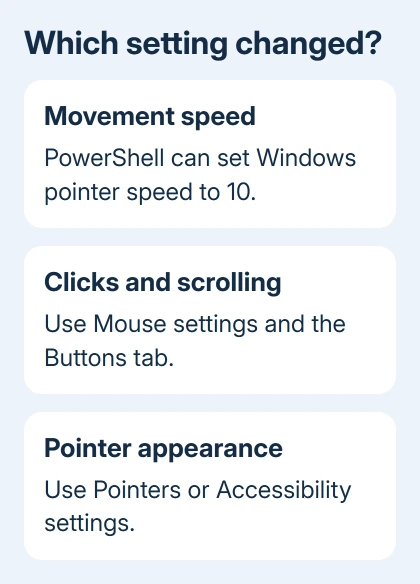
PowerShell can restore Windows 11's pointer speed, but a mouse reset isn't one setting. For movement that's suddenly too fast or slow, set the Windows speed back to 10. Buttons, scrolling and pointer designs have separate controls.
Start with the setting that changed. A command that changes how far the pointer moves won't repair a disconnected mouse or remove a profile saved in your mouse's own app.
In this guide
Open the mouse controls from PowerShell
Press Windows + X, choose Terminal, and open a PowerShell tab. A normal window is enough for the settings shortcuts here. Run this command to open the Windows mouse page:
Start-Process 'ms-settings:mousetouchpad'The page should open at Settings > Bluetooth & devices > Mouse. This command opens controls; it doesn't change them. You can check your current choices before changing anything.
Microsoft's Settings address reference lists that address for the mouse page. Despite the word touchpad in it, touchpad gestures have a separate settings page.
For the older Mouse Properties window, use this instead:
Start-Process 'main.cpl'Keep this window open for the button settings and pointer schemes you'll check later. I'd use its visible controls for a one-time adjustment; a script makes more sense when you specifically need to restore the Windows speed value.
Set Windows pointer speed back to 10
Windows provides a system function for changing pointer speed. The documented range is 1 to 20, and 10 is the default. This sets the pointer's travel distance for each mouse movement. The mouse sensor has its own sensitivity setting.
The PowerShell example uses Add-Type to make that Windows function available. It creates a small helper in the current PowerShell session, then asks Windows to apply speed 10 and save the change for your account.
Copy the complete block into PowerShell. Keep the opening and closing lines of the text block on their own lines, as shown:
if (-not ('PcgMouseSpeed' -as [type])) {
    Add-Type @'
using System;
using System.Runtime.InteropServices;
public static class PcgMouseSpeed {
    [DllImport("user32.dll", SetLastError = true)]
    [return: MarshalAs(UnmanagedType.Bool)]
    public static extern bool SystemParametersInfo(
        uint action, uint param, IntPtr value, uint flags);
}
'@
}
$ok = [PcgMouseSpeed]::SystemParametersInfo(
    0x0071, 0, [IntPtr]10, 3)
if ($ok) {
    'Windows pointer speed set to 10.'
} else {
    throw 'Windows could not change pointer speed.'
}
The success message means Windows accepted the change. Try moving across the desktop and selecting a small button. Open the mouse settings page again to check the speed control afterward.
The action number selects SPI_SETMOUSESPEED. The final value, 3, tells Windows to save your preference and notify apps that a setting changed. This follows the Windows mouse-speed API.
This example changes speed only. It leaves pointer acceleration, click timing and scrolling alone. Note your previous speed before running it if you want to return to a custom value later.
If Add-Type is blocked on a managed PC, use the Settings slider instead. Ask the administrator about script restrictions if you need automation. Changing execution policy isn't part of a mouse reset.
Restore clicks and scrolling through their own controls
On the Windows 11 mouse page, check Primary mouse button. Choose Left for the usual right-handed arrangement or Right if that's how you use the mouse. Test a single click on Start before adjusting double-click timing.
An unexpected swap can make the mouse appear broken because the other button now performs the primary action. If the primary button still misses presses, use the left-click checks to try that mouse on another PC.
For wheel behavior, inspect Roll the mouse wheel to scroll and the lines-per-scroll slider. Choose multiple lines or one screen according to how you want it to behave. These are preferences, so you can change them separately.
The Scroll inactive windows when hovering over them switch controls a different behavior: whether the wheel scrolls a window you haven't clicked. Change that switch only if hovering over another window is the part that feels wrong.
For double-clicks, open Mouse Properties > Buttons and adjust Double-click speed. Test your normal double-click on the folder beside the slider. Check ClickLock there if dragging continues after you release the button.
Microsoft's mouse settings instructions explain these separate controls. Try each action after you change its setting so you can tell what the adjustment did.
Put the pointer design back separately
Open Mouse Properties > Pointers. Choose the built-in scheme you want from Scheme, then apply it. Check the pointer previews before closing the window, especially if a downloaded cursor pack changed several pointer shapes.
Pointer size and color also have controls under Settings > Accessibility > Mouse pointer and touch. A speed command doesn't restore those choices. Use that page when the problem is an oversized or unusually colored pointer.
If appearance changes keep returning after an update, compare the symptom with the cursor settings reverting issue. If the change won't stay saved, simply choosing your old setting again won't solve it.
When the mouse still feels wrong
Open the maker's existing mouse app and check its active profile. Sensor sensitivity, often called DPI, changes the movement reported by the sensor. An app or mouse button can change that independently of Windows pointer speed.
A problem limited to one game also needs that game's sensitivity and button settings checked. A normal desktop with an overfast game camera is a reason to adjust the game, rather than keep resetting Windows.
For disconnections or missed movement, try a direct USB connection or a second mouse. Give the mouse maker your model, connection type and whether it works on another PC. Ask about hardware service when the same fault follows the mouse.
The Short Version
Open mouse settings from PowerShell, or use the API example to restore speed to 10. Buttons, scrolling, pointer appearance and the mouse maker's profiles have separate controls. Change the part that went wrong.
Checked November 10, 2026.
 If you have any business, I can build it online






